Is your iPhone 16 running hot during charging, gaming, or camera use? This in‑depth guide—iPhone 16 Overheating? 10 Solutions—shows you exactly how to diagnose the cause, cool things down fast, and prevent heat from coming back. You’ll get step‑by‑step fixes, battery‑safe charging tips, network tweaks that reduce modem heat, and clear signs for when to contact Apple. We also link to trusted Apple resources and a related battery guide so you can confidently stabilize performance today.
Important note: It’s normal for an iPhone 16 to feel warm during heavy tasks (initial setup, restoring from iCloud, large app updates, 4K/60 video capture, long FaceTime calls, or hot weather). But sustained heat, thermal warning screens, or frequent throttling are signs to act. Use the checklist below and work through each solution in order—most overheating issues resolve without a repair.
Table of Contents
How iPhone 16 heats up: what’s normal vs. not
All phones generate heat when the CPU, GPU, and modem work hard. iPhone 16 uses dynamic thermal management that temporarily reduces performance (throttling) or dims the display to protect components if temperature rises. According to Apple’s guidelines, iPhone is designed to operate best at about 0–35°C (32–95°F). Exceeding this range for long periods can trigger a temperature alert screen and pause certain features until the device cools down.
Learn Apple’s official temperature and safety guidance here: If your iPhone gets too hot or too cold (Apple Support).
Common root causes of iPhone 16 overheating
- Charging + heavy use together: Gaming, hotspot, or 4K video while charging compounds heat.
- High ambient temperatures: Direct sun, parked cars, or hot rooms reduce heat dissipation.
- Network stress: Weak 5G/LTE signal, constant uploads, or tethering can heat the modem.
- Camera workloads: Extended 4K/60 capture, Pro‑level codecs, or long AR sessions are intensive.
- Background indexing and restores: After updates or new phone setup, background tasks run for hours.
- Buggy or misbehaving apps: A single app can keep cores awake or abuse location services.
- Accessory issues: Under‑rated chargers/cables or lint in the USB‑C port create resistance and heat.
Quick cool-down checklist (start here)
- Remove the case and unplug the charger; place the phone on a hard, shaded surface with airflow.
- Close heavy apps (Camera, Maps, games) and wait 3–5 minutes; avoid direct sun.
- Toggle Airplane Mode for 60 seconds, then re‑enable radios; this resets network activity.
- Lower screen brightness and disable flashlight; bright OLED and LED can add heat.
- If the temperature alert appears, let the phone cool before trying anything else.
iPhone 16 Overheating? 10 Solutions (step by step)
Follow the steps in order. After each step, use the phone normally for a bit to see if the issue returns. Most users resolve heat within the first few fixes.
1) Update iOS and all apps
Thermal behavior often improves with point updates and app fixes. On iPhone: Settings > General > Software Update. Then open App Store > your profile > Update All.
- After a major iOS release, background indexing (Photos, Spotlight) can run for hours; heat should subside in 24–48 hours.
- If a single app consistently runs hot after updates, consider offloading or uninstalling it to test (Settings > General > iPhone Storage).
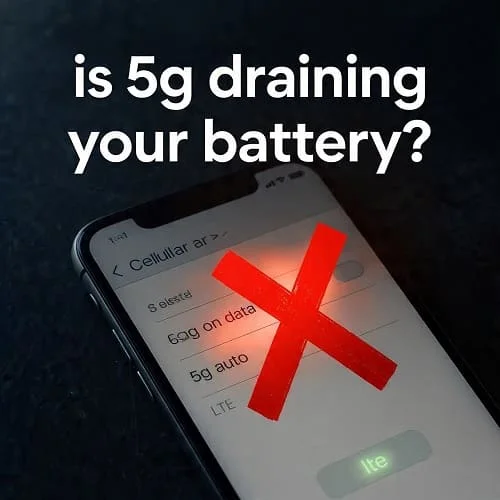
2) Optimize 5G, hotspot, and location usage
The cellular modem is a common heat source. In weak‑signal areas or during heavy uploads, switch to LTE or 5G Auto:
- Settings > Cellular (Mobile Data) > Voice & Data > choose 5G Auto or LTE.
- Disable Personal Hotspot when not in use.
- Audit location permissions: Settings > Privacy & Security > Location Services > set non‑essential apps to “While Using” or “Never.”
Apple’s official 5G settings overview: Use 5G with your iPhone (Apple Support).
3) Enable Low Power Mode and trim background activity
Low Power Mode reduces background tasks and visual effects, often cutting heat during daily use. Go to Settings > Battery > Low Power Mode. Also:
- Settings > General > Background App Refresh > Off (or Wi‑Fi only).
- Settings > Mail > Accounts > Fetch New Data > switch to Manual for non‑critical accounts.
- Disable non‑essential widgets and live activities that poll in the background.
Learn more: Use Low Power Mode on your iPhone (Apple Support).

4) Adjust camera and video capture settings
Extended 4K/60, HDR, high frame‑rate slo‑mo, or Pro‑level codecs (where supported) can heat any phone. For long sessions:
- Settings > Camera > Record Video: choose 4K/30 (or 1080p/60) instead of 4K/60+
- Limit continuous recording duration; take short breaks to dissipate heat.
- Turn off unnecessary stabilization modes or Pro options if you don’t need them for the shot.
5) Charge smarter: avoid heat stacking
Charging naturally warms the battery. Stacking charging with heavy apps multiplies heat. Best practices:
- Use certified USB‑C chargers/cables; avoid cheap, non‑compliant accessories.
- Don’t game, edit video, or hotspot while charging. Let the phone reach 80–90%, then unplug before heavy use.
- Enable Optimized Battery Charging (Settings > Battery > Battery Health & Charging).
For long‑term battery health and thermal tips, see Apple’s battery guidance: Maximizing Battery Performance (Apple).
6) Cool the environment and improve airflow
Ambient temperature and airflow matter. Avoid car dashboards and sun exposure. If you need to cool quickly:
- Remove thick or insulating cases, especially during charging or gaming.
- Place the phone on a cool, hard surface with airflow; a simple desk fan helps.
- Never put your iPhone in a fridge/freezer—rapid thermal shock and condensation can damage it.

7) Find and fix rogue apps
One misbehaving app can keep CPU/GPU/modem active. Diagnose and act:
- Settings > Battery > scroll to Battery Usage by App; look for high background percentages.
- Settings > Privacy & Security > Location Services; set the culprit to “While Using” or “Never.”
- Offload or uninstall the app, then retest. If heat stops, find an alternative or wait for an update.
8) Reset only the right settings (non‑destructive)
If heat persists, reset system settings without wiping data:
- Settings > General > Transfer or Reset iPhone > Reset > Reset All Settings.
This resets Wi‑Fi, Bluetooth, network, privacy, and location settings but keeps your apps and data. Re‑pair devices and re‑enter Wi‑Fi passwords afterward.
9) Check the port and power accessories
Lint or bent pins increase resistance and heat. Do a quick check:
- Inspect the USB‑C port under bright light; gently remove lint with a non‑metal, anti‑static tool.
- Try a known‑good USB‑C PD charger and E‑marked cable from a reputable brand.
- Avoid daisy‑chaining hubs and dongles while charging; more components = more heat.
10) Understand thermal management—and when to seek help
iOS reduces performance to keep hardware safe. Developers can even read the device’s thermal state and adapt behavior. If your phone reaches the temperature warning often in normal conditions, or heat began after physical damage or a liquid incident, contact Apple:
- Persistent thermal alerts with light use in a cool room.
- Swelling, odor, or visible battery deformation—stop using the device immediately.
- Overheating after a drop or liquid exposure.
Technical background: Apple’s thermal APIs for apps are documented here: ProcessInfo.thermalState (Apple Developer).
And always keep Apple’s temperature guidance in mind: If your iPhone gets too hot (Apple Support).
Pro tips for gaming, video, travel, and hot climates
Gaming
- Use 60 fps caps or medium graphics settings in competitive titles; super‑high frame rates spike heat.
- Close non‑essential apps before playing; disable Background App Refresh.
- Game off the charger when possible; if you must charge, use a low‑watt adapter or a powered dock with good airflow.
Pro video and camera
- Prefer 4K/30 for lengthy takes; take short breaks between clips to cool.
- Use shade and avoid hot car interiors; keep a microfiber cloth to wipe sweat/water off the lens area, which can trap heat under cases.
Travel and weak signal
- In remote areas, switch to LTE to reduce modem strain; download offline maps over Wi‑Fi before you depart.
- Disable Personal Hotspot when not needed; it’s a heat multiplier.
Safe charging and battery care that prevent heat
Proactive battery care reduces heat and preserves capacity over time:
- Charge in cool, ventilated spaces: Avoid pillows, car dashboards, and direct sunlight.
- Respect the 20–80% zone when convenient: Partial top‑ups generate less heat than frequent 0–100% cycles.
- Use Optimized Battery Charging: Settings > Battery > Battery Health & Charging.
- Prefer quality chargers: Reputable, standards‑compliant USB‑C PD chargers reduce risk of cable/port heat.
Apple’s battery care overview: Maximizing Battery Performance (Apple).
When to worry and contact Apple Support
Occasional warmth is normal; repeated thermal alerts or heat with light use is not. If you’ve tried the steps above and the phone still overheats in normal indoor conditions:
- Back up your data (iCloud or computer).
- Document when and how the heat appears (apps, charging, location, temperature).
- Contact Apple or visit an authorized provider for diagnostics and a hardware inspection.
You can also check for iOS background processes settling after updates—some heat shortly after a major update is temporary. If your concern is more about battery drain than heat, see this related guide: iOS 19 Battery Drain: 15 Proven Fixes.
FAQs: iPhone 16 overheating
How hot is too hot for an iPhone 16?
Apple designs iPhone to work best at 0–35°C (32–95°F). Prolonged operation above this can trigger thermal protections and a temperature alert. If you see the alert often in normal conditions, follow the steps above and then contact Apple.
Why does my phone get hot when charging?
Charging warms the battery. If you charge while gaming, recording video, or using hotspot, the combined load elevates heat. Use a quality charger, remove the case, and avoid stacking heavy tasks while plugged in.
Is 5G making my iPhone 16 overheat?
In weak‑signal areas or during high data transfer, the 5G modem can run harder and get warm. Switch to 5G Auto or LTE (Settings > Cellular > Voice & Data) in poor coverage areas to reduce heat.
Will Low Power Mode actually help with heat?
Yes—by reducing background tasks and limiting peak performance, it commonly lowers temperature during everyday use. It’s a good temporary measure on hot days.
Can a case cause overheating?
Some thick or insulated cases trap heat, especially during charging or gaming. If you notice warmth, remove the case temporarily and see if temperature drops faster.
Could a single app be the problem?
Absolutely. Check Settings > Battery for an app with unusually high background usage. Adjust its permissions, offload or uninstall to test, and report the issue to the developer.
Do software updates fix overheating?
Often. Apple and app developers routinely improve power management and thermal behavior. Keep iOS and apps up to date for stability and heat control.
What is “thermal throttling” and is it bad?
It’s a protective measure that reduces performance or brightness to limit temperature. It keeps your phone safe. Persistent throttling under light use is a sign to investigate using the steps above.
What should I never do to cool my iPhone?
Don’t put it in a fridge/freezer, don’t run it under cold water, and don’t use ice packs. Rapid cooling and moisture can damage the device.
Where can I read Apple’s official guidance?
See Apple’s temperature guidelines: If your iPhone gets too hot, Low Power Mode: Use Low Power Mode, and 5G settings: Use 5G with your iPhone.
Conclusion
Most iPhone 16 overheating cases are solvable at home: update iOS and apps, ease network load with 5G Auto or LTE, trim background activity, lower camera capture intensity for long sessions, and avoid stacking heavy use while charging. When heat happens, cool safely—remove the case, unplug, shade, and airflow—then review Battery usage to identify any rogue apps. If thermal alerts persist indoors with light use, document the conditions and contact Apple for diagnostics. With the 10 solutions above and a few smarter habits, your iPhone 16 should stay cool, fast, and reliable all year.
References and further reading:
- Apple Support — If your iPhone gets too hot or too cold
- Apple Support — Use 5G with your iPhone
- Apple Support — Use Low Power Mode
- Apple — Maximizing Battery Performance
- Apple Developer — ProcessInfo.thermalState
Related guide on battery optimization: iOS 19 Battery Drain: 15 Proven Fixes

About the Author
Alex Carter — Founder & Editor‑in‑Chief, GicraMobile
Alex leads GicraMobile’s testing lab and reviews. His methodology focuses on day‑to‑day performance, battery health and thermals, camera consistency, and 5G/LTE reliability—so you can pick the right phone without hype.
Real‑world testing: 90–120 Hz smoothness, idle drain, thermals
Camera checks: HDR, skin tones, low‑light stabilization
Connectivity: band fit, eSIM, VoLTE/VoWiFi, Wi‑Fi performance
You may also like this