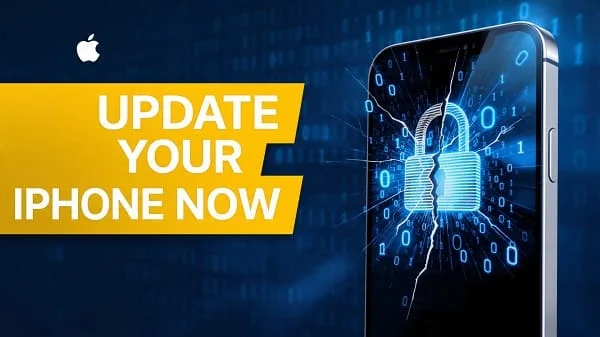
Heads-up for iPhone users: Apple has issued a critical security warning that every iPhone user should take seriously. Recent disclosures indicate that unpatched devices may be exposed to cyberattacks due to newly discovered iOS vulnerabilities—many tied to how web content is processed on iPhone. If you use your iPhone for banking, work, or personal communications, treating this seriously protects your data and privacy.
- Update iOS now: Settings → General → Software Update → Install.
- Enable Automatic Updates + Rapid Security Responses.
- Open risky links only in Safari, not in in‑app browsers.
- Review Apple ID security (2FA, security keys, Stolen Device Protection).
- Harden Safari privacy & permissions; remove suspicious profiles.
What Is the iPhone Security Threat?
Apple has confirmed dangerous security flaws that affect how iPhones process web content. In practical terms, a vulnerable device can allow attackers to run malicious code remotely—sometimes without any visible action from the user. Because many iOS apps render web content through the same underlying engine as Safari, exposure can happen beyond the Safari app itself.
In simple terms, just visiting a compromised site or opening a malicious link could be enough to expose your device if it’s not updated.
Why This Attack Is Especially Dangerous
Unlike older threats that required users to download shady apps, these vulnerabilities target WebKit—the engine that powers Safari and all iOS browsers (including Chrome, Firefox, and in‑app browsers). That means even cautious users can be at risk if they are not patched.
- Safari browser
- In‑app browsers (e.g., Facebook, Instagram, X/Twitter, Reddit)
- Any app that displays embedded web content
This is why keeping iOS up to date is non‑negotiable for security.
Which Devices Are Affected?
The risk primarily concerns iPhones and iPads that have not installed the latest security updates. Devices on actively supported versions of iOS/iPadOS receive frequent patches. Older devices may receive limited security updates on their last supported major iOS version.
- Most recent iPhones (on the latest iOS) can and should be patched quickly.
- Older models may receive separate security updates—check Software Update.
- Users with Automatic Updates off are at higher risk until they update manually.
Even the latest iPhones remain vulnerable until they install the relevant security fix.
How Hackers Exploit These Vulnerabilities
Attackers commonly use:
- Phishing emails, messages, and DMs with deceptive links
- Compromised legitimate websites and malicious ads
- Shortened URLs that obscure dangerous destinations
After loading a harmful page, hidden scripts may execute, attempting to:
- Access personal data or session tokens
- Escalate privileges silently
- Persist without obvious signs for days or weeks
If you’re worried that your device may already be compromised, it’s important to learn how to identify the warning signs early. You can follow this detailed guide to check if your iPhone is hacked and discover practical steps to fix the problem.
Step 1: Update Your iPhone Immediately
This is the single most important action. Apple frequently issues patches to neutralize exploited vulnerabilities.
- Open Settings
- Go to General
- Tap Software Update
- Install the latest iOS version (or Rapid Security Response if shown)
Most updates take under 15–20 minutes and substantially improve protection.
Step 2: Enable Automatic Updates & Rapid Security Responses
Automatic updates ensure you get fixes as soon as Apple pushes them. On supported iOS versions, there’s also Rapid Security Response (RSR) for urgent patches.
- Go to Settings → General → Software Update → Automatic Updates
- Turn on Download iOS Updates and Install iOS Updates
- Turn on Security Responses & System Files (if available)
Also enable App Updates in Settings → App Store to keep apps patched.
Step 3: Browse More Safely
Even when patched, safer browsing habits reduce risk dramatically:
- Prefer Safari over in‑app browsers for sensitive actions. Long‑press links and choose “Open in Safari.”
- Beware short links (bit.ly, t.co). Use preview features or avoid if you can’t verify the source.
- Close suspicious pages immediately if they auto‑redirect or show scareware pop‑ups.
- Enable fraud warnings and privacy features:
- Settings → Safari → Fraudulent Website Warning (on)
- Settings → Safari → Prevent Cross‑Site Tracking (on)
- Settings → Safari → Hide IP Address (Trackers, or Trackers and Websites if available)
Step 4: Use a Trusted VPN (When It Helps)
A reputable VPN encrypts your traffic on public Wi‑Fi and can reduce exposure to certain network‑level attacks. It won’t fix device vulnerabilities, but it does help in these cases:
- Using public or hotel Wi‑Fi
- Traveling frequently
- Accessing sensitive accounts on untrusted networks
Choose a well‑reviewed, privacy‑respecting provider; avoid “free” VPNs that monetize user data.
Step 5: Review Your Privacy & App Permissions
iOS provides robust privacy controls—use them:
- Limit app permissions: Settings → Privacy & Security → review Location, Camera, Microphone, Photos. Set to “While Using” or “Ask Next Time.”
- Disable excessive tracking: Settings → Privacy & Security → Tracking → Allow Apps to Request to Track (off if you prefer).
- Review Passwords: Settings → Passwords → Security Recommendations → fix reused or leaked passwords; enable AutoFill, consider Passkeys.
- Mail Privacy Protection: Settings → Mail → Privacy Protection (on) to limit tracking pixels.
How to Verify You’re Protected
Confirm that your device is on the latest patch level:
- Go to Settings → General → About and note your iOS Version.
- In Settings → General → Software Update, ensure “Your iPhone is up to date.”
- If a Rapid Security Response was applied, you may see a letter suffix (e.g., 16.x.x (a)).
For the most accurate picture of what each update fixes, consult Apple’s official security update notes (linked below).
How to Detect and Recover from a Possible Compromise
Most attacks try to remain invisible. Watch for:
- Unexpected pop‑ups or forced redirects in Safari
- Unusual battery drain or data usage spikes
- New profiles or VPNs you didn’t install
- Unknown devices signed in to your Apple ID
Immediate steps if you suspect a problem
- Update iOS immediately, then restart your iPhone.
- Remove suspicious profiles: Settings → General → VPN & Device Management (or Profiles) → delete unknown profiles.
- Reset Safari data: Settings → Safari → Clear History and Website Data.
- Change key passwords (Apple ID, email, banking) from a known‑clean device.
- Review Apple ID devices: Settings → [your name] → scroll to Devices → remove anything unfamiliar.
- Enable extra protections (see Advanced Hardening or our full hardening checklist).
If high‑risk activity persists, consider a full encrypted backup (Finder or iTunes), then Erase All Content and Settings and restore from backup—or set up as new for maximum certainty.
Advanced iPhone Hardening (Optional but Recommended)
Prefer a guided checklist with screenshots and context? See our in‑depth companion guide: iPhone Security Alert: Millions at Risk – Update Now 🚨.
- Stolen Device Protection: Settings → Face ID & Passcode → Stolen Device Protection (on). Adds extra authentication for sensitive actions when away from trusted locations.
- Two‑Factor Authentication (2FA) for Apple ID: Settings → [your name] → Password & Security → Two‑Factor Authentication (on). Consider Security Keys for highest protection.
- Advanced Data Protection for iCloud: End‑to‑end encrypts more iCloud categories. Settings → [your name] → iCloud → Advanced Data Protection.
- Lockdown Mode (for high‑risk users): Settings → Privacy & Security → Lockdown Mode. Significantly restricts attack surface for targeted threats.
- USB Restricted Mode: Settings → Face ID & Passcode → USB Accessories (leave off) to block data access when locked.
- Private Wi‑Fi Address: Settings → Wi‑Fi → [your network] → Private Wi‑Fi Address (on) to reduce tracking across networks.
- iMessage Contact Key Verification (if available to you) for sensitive communications.
Frequently Asked Questions
Is this attack targeting specific countries?
Some reports cluster in the U.S. and Europe, but web‑exploitable vulnerabilities can affect users anywhere—update regardless of region.
Do I need antivirus software on iPhone?
iOS uses strong sandboxing and code signing. Security apps can help with phishing protection and malicious link blocking, but the most important defense is timely iOS updates plus safe‑browsing practices.
Are third‑party iOS browsers safer than Safari?
On iOS, all browsers must use WebKit under the hood; vulnerabilities at the WebKit layer impact them similarly. Security posture depends more on your iOS patch level and habits than the browser brand.
What about iPad and Mac?
iPadOS shares many components with iOS—update iPad too. macOS uses a different architecture but Safari/WebKit vulnerabilities are also patched regularly—install macOS and Safari updates promptly.
Should I worry if nothing obvious has happened?
Yes. Many attacks are silent. Update first, then review the hardening checklist and monitor for unusual behavior.
My update won’t install. What can I do?
Free storage (Settings → General → iPhone Storage), plug into power and Wi‑Fi, retry. If it still fails, update via Finder (macOS) or iTunes (Windows).
Can I safely use public Wi‑Fi?
Prefer cellular or a reputable VPN on public Wi‑Fi. Avoid sensitive transactions on unknown networks when possible.
Trusted Sources & Further Reading
- Apple Security Releases (Official)
- WebKit Blog (Engineering Updates)
- If you see suspicious Apple messages, pop‑ups, or calls
- Two-factor authentication for Apple ID
- Use Lockdown Mode in iOS
Final Verdict: What You Should Do Today
- Update your iPhone now and enable Automatic Updates + Rapid Security Responses.
- Prefer Safari for sensitive actions, avoid opening important links in in‑app browsers.
- Review Apple ID security (2FA, security keys, Stolen Device Protection) and tighten app permissions.
- Monitor for anomalies and follow the recovery steps if anything seems off.
Your iPhone protects your personal, financial, and work information. Investing a few minutes in updates and smart settings drastically cuts your risk—today and going forward.

About the Author
Alex Carter — Founder & Editor‑in‑Chief, GicraMobile
Alex leads GicraMobile’s testing lab and reviews. His methodology focuses on day‑to‑day performance, battery health and thermals, camera consistency, and 5G/LTE reliability—so you can pick the right phone without hype.
Real‑world testing: 90–120 Hz smoothness, idle drain, thermals
Camera checks: HDR, skin tones, low‑light stabilization
Connectivity: band fit, eSIM, VoLTE/VoWiFi, Wi‑Fi performance
You may also like this