This Canada-focused guide is regularly updated to reflect Apple’s latest guidance.
Keeping your iPhone safe in Canada starts with one habit: installing every Apple iPhone security update as soon as it’s available. In this comprehensive guide to “apple iphone security update canada,” you’ll learn exactly what these updates are, how Apple’s Rapid Security Responses (RSR) work, and the step-by-step way to check, install, verify, and troubleshoot updates on any iPhone used across Canada—whether you’re on Rogers, Bell, TELUS, Freedom, or using eSIM while traveling.
Table of Contents
What Apple iPhone Security Updates Mean in Canada
Apple issues two main types of software updates that directly impact your security: standard iOS updates (for example, iOS 17.x or 18.x) and Rapid Security Responses (RSR). Standard iOS releases often include new features, fixes, and security patches. RSRs are smaller, faster patches that target critical vulnerabilities and can be applied without a full version jump.
In Canada, these updates roll out nationwide and are generally available to all supported iPhone models at the same time. Your wireless carrier (Rogers, Bell, TELUS, etc.) does not control when Apple releases iOS security updates—Apple distributes updates globally via its own infrastructure. You may also see occasional “Carrier Settings” updates, which are separate and adjust network-related settings; these are not full security updates but can improve connectivity or enable new carrier features.
Bottom line: when you see an iOS update or an RSR prompt, it’s about protecting your data, messages, photos, banking apps, and online accounts from known threats. Installing promptly reduces the window in which attackers can exploit newly discovered vulnerabilities.
Who Should Care (Hint: Everyone in Canada)
Whether you just moved to Canada, you’re studying in Toronto or Vancouver, you work remotely from Halifax, or you’re traveling between provinces, every iPhone user benefits from timely security updates. The risk of phishing, malicious links, or spyware is not theoretical—global exploits tend to spread fast, and Canada is not immune. Updates often close dangerous zero-day vulnerabilities, harden your iPhone’s defenses, and preserve compatibility with Canadian banking apps, payment terminals, transit apps, and government services.
How to Check and Install the Latest Update (Step-by-Step)
Follow these steps to check for an Apple iPhone security update in Canada and install it safely:
- Charge your iPhone to at least 50% or keep it connected to power.
- Connect to a trusted Wi‑Fi network when possible for faster downloads.
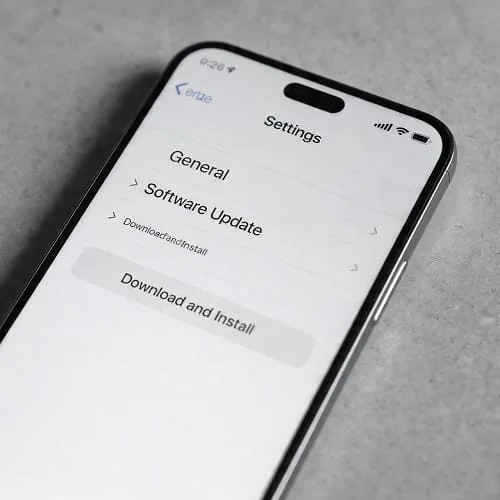
- On your iPhone, open Settings > General > Software Update.
- If an update appears, tap Update Now or Download and Install and follow the prompts.
- If asked, enter your passcode and accept any additional terms.
- Allow the device to complete installation and restart. Do not interrupt the process.
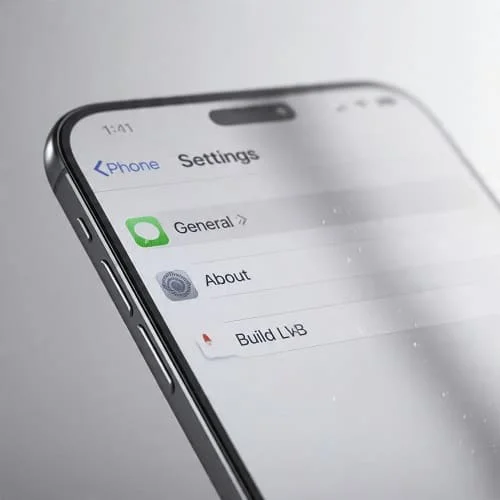
- After restart, return to Settings > General > About to confirm the version and build number.
Always cross-check Apple’s official instructions if you’re unsure or face errors during installation. Apple’s guide is clear, concise, and up to date:
Update your iPhone—Apple Support (en‑CA)
Watch: How to update your iPhone (Video)
If you prefer a visual walkthrough, watch this YouTube guide. It demonstrates the update process step by step.
Understanding Apple Rapid Security Responses (RSR)
Rapid Security Responses are small, targeted updates that Apple releases between regular iOS versions to quickly fix actively exploited vulnerabilities. They install faster, often require less downtime, and may show a letter suffix in your iOS version (e.g., 17.x.x (a)).
By design, RSRs minimize your exposure to urgent threats. If you see an RSR available, install it without delay. You can also configure your device to automatically apply these responses in the background.
Learn more directly from Apple’s official documentation here:
About Rapid Security Responses—Apple Support
What’s in the Latest iOS Security Update?
Each iOS release includes a list of security issues it addresses, usually tracked by CVE numbers. Some fixes mitigate WebKit bugs, kernel vulnerabilities, or messaging exploits. Apple publishes security content notes for every release. Reviewing these notes gives you a sense of why the update matters and which attack surfaces are improved.
For the authoritative list of vulnerabilities and fixes, always refer to Apple’s official page:
About Apple security updates—Apple Support (en‑CA)
Canadian-Specific Considerations
- Carriers and Updates: Apple distributes iOS updates globally. Your Canadian carrier doesn’t gatekeep security updates, though you may still receive “Carrier Settings” prompts that improve network compatibility.
- eSIM and Travel: If you cross the border to the U.S. or travel overseas, install updates before you leave. Keeping current helps avoid roaming issues and mitigates threats on unfamiliar networks.
- Emergency Alerts: Up-to-date iOS versions help ensure reliable support for Wireless Public Alerting (Amber alerts, emergency notifications), which are integral to public safety across provinces and territories.
- Bilingual Context: iOS supports English and French in Canada. Security settings are the same regardless of language preference.
- Rural/Remote Connectivity: If you rely on limited bandwidth, plan updates over Wi‑Fi at a library, campus, or community centre to avoid using mobile data.
For more general mobile security guidance relevant to Canadians, see the Canadian Centre for Cyber Security:
Securing your mobile device—Canadian Centre for Cyber Security
Verify Your iPhone Is Secure After Updating
Updating is step one. Next, verify your device health and tighten your defenses:
- Check Settings > General > About for the correct version/build.
- Confirm Settings > General > Software Update shows you’re “Up to Date.”
- Review Settings > Privacy & Security to ensure sensitive permissions (Location, Photos, Microphone) aren’t overly broad.
- Open App Store and update all apps, especially banking, messaging, and browsers.
- Run a quick audit of your passcode, Face ID/Touch ID, and two‑factor authentication for Apple ID and critical accounts.
If you suspect compromise (unusual battery drain, unknown configuration profiles, suspicious pop‑ups), learn the warning signs and how to respond:
Check If Your iPhone Is Hacked: Signs & Fixes
Security Hardening Checklist for iPhone (Canada)
- Automatic Updates: Turn on automatic iOS updates and Security Responses & System Files.
- Strong Passcode: Use six digits or, better, an alphanumeric passcode; enable Face ID/Touch ID.
- Lockdown Mode (if high risk): Consider Lockdown Mode if you face targeted threats.
- iMessage/FaceTime: Only accept messages from known contacts; be wary of unsolicited files/links.
- App Hygiene: Remove apps you don’t use; limit permissions; prefer reputable developers.
- Two‑Factor Authentication: Enable 2FA for Apple ID and critical services (email, banking, crypto).
- Advanced Data Protection: Consider enabling for iCloud if it fits your risk profile and recovery readiness.
- Safari Protections: Keep Fraudulent Website Warning on; avoid sideloading profiles from unknown sources.
- Wi‑Fi & Bluetooth: Use trusted networks; disable auto‑join on public Wi‑Fi; turn off when not needed.
- Find My & Stolen Device Protection: Keep Find My enabled; turn on Stolen Device Protection for extra safeguards.
- Backups: Maintain encrypted iCloud or Finder backups; test restore occasionally.
These steps, combined with prompt installation of Apple iPhone security updates, significantly reduce common attack paths.
For Small Businesses and Schools in Canada
Organizations should standardize timely patching across their Apple fleets. Use MDM (Mobile Device Management) to enforce update policies, schedule maintenance windows, and monitor compliance. Consider:
- Configuring automatic updates, with a short grace period for critical workflows.
- Creating a communication playbook for urgent RSRs and zero‑day announcements.
- Defining a rollback plan (where appropriate) and testing on pilot devices first.
- Aligning with Canadian privacy obligations and sector compliance requirements.
Troubleshooting Update Problems
Not Enough Storage
- Offload unused apps: Settings > General > iPhone Storage.
- Move large videos/photos to iCloud or a computer temporarily.
- Delete cached downloads in streaming apps.
Update Won’t Download or Stuck
- Toggle Airplane Mode on/off; reconnect to a stable Wi‑Fi.
- Restart iPhone; try again from Settings > General > Software Update.
- Reset Network Settings if necessary (note this removes saved Wi‑Fi networks).
Can’t Install or Verification Errors
- Ensure date/time are set automatically and you have sufficient battery.
- Try installing via a computer: connect to a Mac (Finder) or Windows PC (iTunes) and update from there.
Battery Drains After Update
- Give it 24–48 hours; background indexing may be active.
- Update apps; check Battery settings to identify any misbehaving app.
- Disable Background App Refresh for nonessential apps.
If you need Apple’s official, step-by-step update instructions or want to try a computer‑based update/restore, start here:
Update your iPhone—Apple Support (en‑CA)
Frequently Asked Questions
Do Canadian carriers control Apple’s iOS security updates?
No. Apple distributes iOS updates worldwide. Occasionally, you’ll receive separate carrier settings updates, but those are not full iOS security updates.
What are Rapid Security Responses (RSR), and should I install them?
RSRs are quick fixes for urgent threats. Yes—install them promptly. They’re designed to reduce your exposure window to actively exploited vulnerabilities.
How often should I check for updates?
Keep Automatic Updates on and still check manually once a week. When a critical update drops, install it as soon as possible.
Do I need Wi‑Fi to install an update?
Wi‑Fi is recommended for faster, more reliable downloads. Some updates can download over cellular on modern plans, but Wi‑Fi avoids data usage and common failures.
Will installing updates affect my apps or data?
Normally, no. Still, keep backups (iCloud or Finder/iTunes) so you can recover easily in the rare event something goes wrong.
How do I know what an update fixes?
Apple documents the security content for each release. Check Apple’s official page for the CVEs addressed and technical details: About Apple security updates—Apple Support (en‑CA).
How do I protect myself beyond updates?
Turn on automatic updates, use a strong passcode, enable 2FA for Apple ID and banking, and review app permissions regularly. See Canada’s mobile security guidance: Canadian Centre for Cyber Security.
What if I suspect my iPhone is compromised?
Update immediately, audit apps and profiles, and follow a reputable guide to check for compromise signs and fixes: Check If Your iPhone Is Hacked: Signs & Fixes.
Summary & Next Steps
To stay protected in Canada, make Apple iPhone security updates a habit. Turn on automatic updates, install Rapid Security Responses quickly, and verify your device after each update. Keep your apps current, practice good password hygiene, and review permissions regularly. With these steps, you’ll dramatically reduce risk while keeping your iPhone ready for daily life across Canada’s networks and services.
Official resources for updates and security notes:
- Update your iPhone—Apple Support (en‑CA)
- About Rapid Security Responses—Apple Support
- About Apple security updates—Apple Support (en‑CA)
- Canadian Centre for Cyber Security: Securing your mobile device
- Check If Your iPhone Is Hacked: Signs & Fixes

About the Author
Alex Carter — Founder & Editor‑in‑Chief, GicraMobile
Alex leads GicraMobile’s testing lab and reviews. His methodology focuses on day‑to‑day performance, battery health and thermals, camera consistency, and 5G/LTE reliability—so you can pick the right phone without hype.
Real‑world testing: 90–120 Hz smoothness, idle drain, thermals
Camera checks: HDR, skin tones, low‑light stabilization
Connectivity: band fit, eSIM, VoLTE/VoWiFi, Wi‑Fi performance
You may also like this