Updated for iOS 17/18. This step-by-step guide is safe, practical, and designed to protect your data.
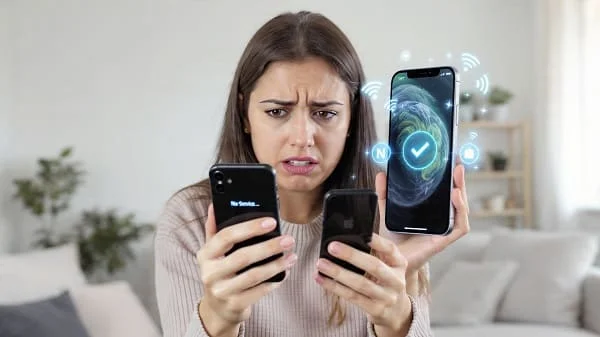
Wondering how to reset network settings on iPhone without losing everything? You’re not alone. A network reset can fix Wi‑Fi glitches, “No Service” issues, stubborn VPN profiles, or flaky Bluetooth, and it does so without deleting your photos, messages, apps, or personal files. In this guide, you’ll learn exactly what a network reset does (and doesn’t) erase, when you should use it, the precise steps on modern iOS, plus what to do before and after so you keep everything important intact.
Table of Contents
What a Network Settings Reset Actually Does (and Doesn’t)
Knowing what gets erased is the key to resetting network settings confidently. Here’s the truth:
What it resets/erases
- Saved Wi‑Fi networks and passwords
- Cellular settings (including APN/MMS settings if customized)
- Previously paired Bluetooth devices (you’ll need to pair again)
- VPN settings and profiles (including manual configurations)
- Personal hotspot settings
What it does NOT delete
- Your photos, videos, messages, contacts, apps, documents
- Your Apple ID, iCloud data, calendars, notes
- Your eSIM or physical SIM plan (the line itself remains)
- Wallet/Apple Pay cards (those are unaffected by a network reset)
- Device passcode, Face ID/Touch ID
In short, a network reset clears connectivity settings but keeps all your personal content and identity intact.
When You Should Use It
Resetting network settings is a focused, low‑risk fix for persistent connectivity problems. Consider it when you notice:
- Wi‑Fi won’t connect to known networks, or keeps dropping unexpectedly
- “No Service” or “Searching” despite coverage in your area
- LTE/5G data stops working while calls/texts still work (or vice versa)
- Bluetooth accessories won’t pair or disconnect frequently
- VPN connects but blocks internet, or won’t connect at all
- AirDrop, Wi‑Fi Calling, or Personal Hotspot behave inconsistently
If these issues persist after simple checks (restarts, toggling airplane mode, forgetting/rejoining Wi‑Fi), a network reset is a smart next step.
Before You Start: Safe Prep Checklist
You won’t lose your content, but a minute of preparation makes the reset painless:
- Note Wi‑Fi passwords: You’ll need to re‑enter them. Consider sharing from another Apple device or copying them from your router/app.
- Confirm carrier login/APN details (if custom): If you use a smaller carrier/MVNO with manual APN, keep those settings handy.
- Record VPN credentials: If you rely on a manual VPN, have the server, username, and password ready.
- Charge your iPhone: Aim for 50%+ battery or keep it on power.
- Optional backup: Not required for a network reset, but a fresh iCloud or computer backup is always good hygiene before any system change.
Step-by-Step: Reset Network Settings on iOS 17/18
Follow these steps to reset network settings safely:
- Open Settings on your iPhone.
- Tap General.
- Tap Transfer or Reset iPhone.
- Tap Reset.
- Choose Reset Network Settings.
- Enter your device passcode if asked, then confirm.
- Your iPhone will restart. After reboot, rejoin Wi‑Fi and re‑pair Bluetooth devices.
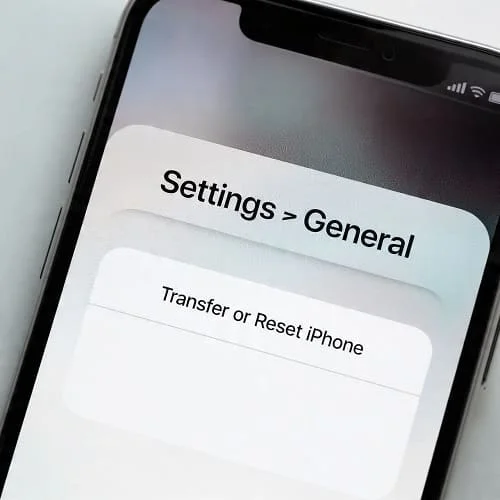
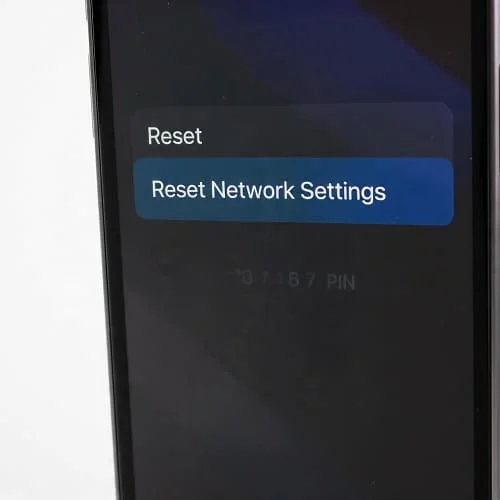
Older iOS (iOS 14 and earlier): You’ll find the option under Settings > General > Reset > Reset Network Settings.
Video Guide: See the Process in Action
Prefer a visual walkthrough? Watch a quick tutorial that shows the steps and what to expect after your iPhone restarts.
After the Reset: Reconnect and Verify
Once your iPhone restarts, you’ll set up connectivity again. This takes just a moment:
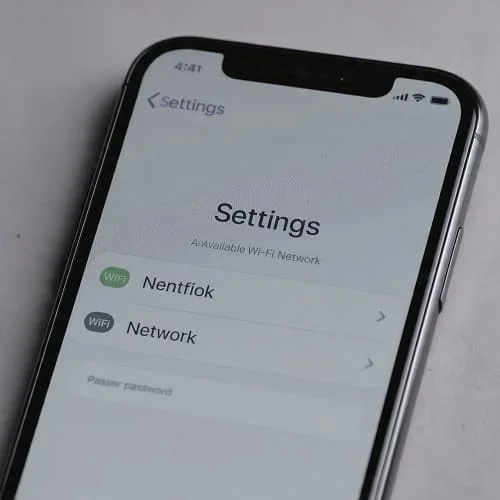
- Open Settings > Wi‑Fi, choose your network, and enter the password.
- Toggle Cellular Data on in Settings > Cellular and ensure your line is active.
- If you use a VPN, reinstall or re‑add the profile and credentials.
- Re‑pair important Bluetooth devices: earbuds, car, speakers, watches (Apple Watch re‑pairs automatically if it was already paired to your iPhone; the Bluetooth pairing is what you’ll re‑establish).
- Test your connection: load a webpage, run a speed test, place a call, send an iMessage, use AirDrop, and try your VPN.
Special Cases: eSIM, Dual SIM, VPN, and MDM
eSIM and Dual SIM
Your eSIM and physical SIM plans remain after a network reset. However, cellular settings (APN/MMS) are refreshed. Most carriers auto‑provision these; if you use a provider that requires manual APN, you may need to re‑enter it.
VPN & Enterprise Profiles
Manually installed VPN profiles are removed. If your company or school manages your device via MDM, those profiles will be re‑applied automatically when your device checks in. If not, contact IT for re‑enrollment steps.
CarPlay and Vehicles
Because Bluetooth pairings are cleared, you’ll re‑pair your car for CarPlay. After pairing, CarPlay settings return to normal.
Fixes to Try Before/After a Reset
If you’re not ready to reset or want extra assurance afterward, these quick actions often help:
- Toggle Airplane Mode: On for 10 seconds, then off.
- Restart your iPhone: A clean boot clears transient glitches.
- Forget and rejoin Wi‑Fi: Settings > Wi‑Fi > [i] > Forget This Network.
- Update iOS: Settings > General > Software Update.
- Update carrier settings: If prompted, tap Update when the carrier settings alert appears.
- Reinsert SIM or toggle eSIM line off/on: In Settings > Cellular, toggle the line off then on (or power cycle if physical SIM).
If you suspect your connectivity problems relate to security updates or urgent patches (especially in Canada), make sure your device is fully updated. If you received Apple’s security alert and need guidance, see: iPhone Security Alert in Canada – What You Must Do.
Troubleshooting by Symptom (Wi‑Fi, Cellular, Bluetooth)
Wi‑Fi won’t connect or drops frequently
- Forget the network, reboot the router, then rejoin with the correct password.
- Disable Private Wi‑Fi Address temporarily to test (Settings > Wi‑Fi > [i]).
- Check router firmware and try a different band (2.4 GHz vs. 5 GHz).
- Consult Apple’s Wi‑Fi guide if issues persist: If your iPhone or iPad won’t connect to a Wi‑Fi network—Apple Support.
“No Service” or data not working
- Ensure Cellular Data is on and your plan is active.
- Toggle Voice & Data to a different option (5G Auto/5G On/LTE) and test.
- Remove and reseat the SIM (if physical) or toggle eSIM line off/on.
- See Apple’s cellular troubleshooting: If you see No Service or Searching—Apple Support.
Bluetooth pairing failures
- Delete the accessory on the iPhone and reset the accessory (headphones/car) if possible.
- Keep devices close, disable other nearby Bluetooth gear during pairing, and try again.
- After a network reset, re‑pair from scratch to clear stale pairings.
Frequently Asked Questions (FAQ)
Will I lose photos, messages, or apps if I reset network settings?
No. A network reset only clears connectivity settings like Wi‑Fi networks, VPN, Bluetooth pairings, and cellular settings. Your personal content and apps remain untouched.
Does a network reset remove my eSIM or phone number?
No. Your eSIM/physical SIM plan remains. You may need to re‑enable cellular data or re‑enter APN if your carrier requires manual settings.
Are Apple Pay cards affected?
No. Network resets do not remove Apple Pay cards. (Note: “Reset All Settings” is different and can affect Wallet content. Stick to “Reset Network Settings.”)
Is this the same as “Reset All Settings” or “Erase All Content and Settings”?
No. “Reset Network Settings” targets connectivity only. “Reset All Settings” resets broader device preferences; “Erase All Content and Settings” wipes the device.
How long does it take?
Usually under 1–2 minutes for the reset plus a reboot. Add a minute or two to rejoin Wi‑Fi and re‑pair key Bluetooth accessories.
What if the problem returns after a day or two?
Run the symptom checklists above, update iOS, and consider router firmware updates. If issues persist across networks and SIMs, contact your carrier or Apple Support.
Does this help with AirDrop or Wi‑Fi Calling problems?
Often, yes. Because AirDrop and Wi‑Fi Calling rely on stable Wi‑Fi/Bluetooth/cellular handoffs, clearing network settings removes stale configurations that cause conflicts.
Will this break work/school VPN or Wi‑Fi?
Manually installed profiles are removed. If your device is MDM‑managed, those profiles will usually be pushed back automatically—check with IT if they don’t reappear.
Summary & Next Steps
If you’ve been asking “how to reset network settings on iPhone without losing everything,” the answer is encouraging: it’s a targeted, low‑risk fix that keeps your photos, messages, and apps safe. Prepare by noting Wi‑Fi passwords and VPN details, perform the reset via Settings > General > Transfer or Reset iPhone > Reset > Reset Network Settings, then reconnect to Wi‑Fi, Bluetooth, and VPN. Use the symptom‑based tips above if problems persist, and keep iOS up to date to benefit from Apple’s reliability and security improvements.
If you continue to see Wi‑Fi or cellular issues across multiple networks and SIMs, consult Apple’s guides (linked above) or contact your carrier for line‑specific checks. For security‑related alerts—especially if you’re in Canada—review: iPhone Security Alert in Canada – What You Must Do.

About the Author
Alex Carter — Founder & Editor‑in‑Chief, GicraMobile
Alex leads GicraMobile’s testing lab and reviews. His methodology focuses on day‑to‑day performance, battery health and thermals, camera consistency, and 5G/LTE reliability—so you can pick the right phone without hype.
Real‑world testing: 90–120 Hz smoothness, idle drain, thermals
Camera checks: HDR, skin tones, low‑light stabilization
Connectivity: band fit, eSIM, VoLTE/VoWiFi, Wi‑Fi performance
You may also like this