Updated for iOS 17/18. This privacy-first walkthrough shows you exactly how to stop tracking without breaking your favorite apps.
If you’re asking how to stop app tracking on iPhone, you’re in the right place. This comprehensive, human-friendly guide explains the settings that matter—App Tracking Transparency (ATT), per‑app permissions, Safari anti‑tracking, Mail privacy, and deeper options—so you can block cross‑app and cross‑site tracking while keeping your iPhone smooth and usable. We’ll walk through step‑by‑step controls, pro tips, a video tutorial, and a troubleshooting section, all designed to help you take control without losing functionality.
Table of Contents
What “App Tracking” Means on iPhone (in Plain English)
On iPhone, “app tracking” usually means an app attempts to follow your activity across other companies’ apps and websites—often to build an advertising profile. Apple’s App Tracking Transparency (ATT) framework requires apps to ask permission before linking your app activity with data from other companies or accessing your device’s advertising identifier for that purpose.
There are two big ideas here:
- Cross‑app/cross‑site tracking: When an app tries to connect dots about you across different apps and websites (not owned by that app’s company) to target ads or measure ad performance.
- First‑party data: Data you generate inside one app remains usable by that app for its features, even if you say “Don’t Allow” to tracking. ATT is about cross‑company tracking, not stopping an app from functioning with its own data.
Your goal: block cross‑company tracking while keeping first‑party features you need. The good news—on iOS 17/18, you can do exactly that, and it only takes a few minutes.
Quick Start: The Fastest Way to Stop App Tracking
If you only have 60 seconds, do this:
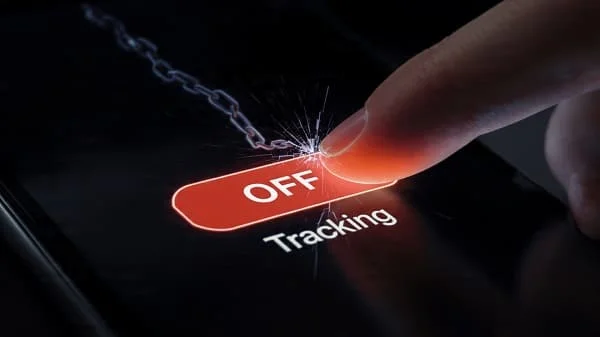
- Open Settings > Privacy & Security > Tracking and toggle Allow Apps to Request to Track to Off.
- Below the master toggle, make sure any listed apps are set to Off.
- Open Settings > Safari and enable Prevent Cross‑Site Tracking and Hide IP Address > From Trackers.
- Open Settings > Mail and switch on Protect Mail Activity to block email trackers.
That’s the high‑impact baseline. Next, let’s go deeper to lock down the rest without breaking your daily flow.
Block Cross‑App Tracking with App Tracking Transparency
ATT is the main switchboard for app tracking on iPhone. Turning off requests stops new prompts and prevents apps from tracking you across other companies’ apps and websites by default.
- Go to Settings > Privacy & Security > Tracking.
- Turn Allow Apps to Request to Track Off. This silently denies new tracking requests.
- Review any apps listed below and make sure their individual toggles are Off.
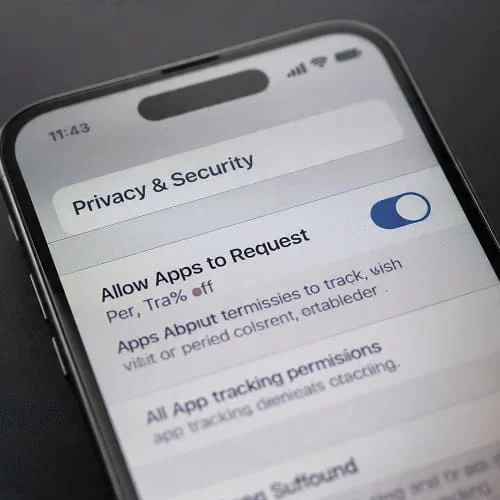
Want Apple’s official explanation of ATT and how prompts work? Read: If an app asks to track your activity across other companies’ apps and websites — Apple Support.
What if I previously allowed tracking?
No problem—just revisit the same screen. If you see any apps listed, set them to Off. You can change your mind anytime.
Will this break my apps?
Most apps continue to function normally. Some may show less personalized ads or require you to sign in more often if they used tracking for cross‑app login. Feature loss is rare, and you can always re‑enable tracking for a specific app if you absolutely need to.
Video Tutorial: Stop App Tracking on iPhone
Prefer to watch? This short video shows the exact steps, plus a quick tour of Safari and Mail privacy settings.
Stop Cross‑Site Tracking in Safari (and Strengthen Web Privacy)
Apps aren’t the only trackers—websites embed trackers too. Safari includes strong, built‑in defenses that are easy to enable:
- Open Settings > Safari.
- Under Privacy & Security, enable:
- Prevent Cross‑Site Tracking
- Hide IP Address > From Trackers (or From Trackers and Websites if available)
- Fraudulent Website Warning
- Optional: Turn on Privacy Preserving Ad Measurement (keeps some ad analytics anonymous).
- Use Private Browsing when you want minimal local traces; in iOS 17+, you can lock it with Face ID/Touch ID.
Apple’s Safari settings reference lives here: Change Safari settings on iPhone — Apple Support.
Audit Sensitive Permissions (Location, Photos, Bluetooth, Local Network)
Many trackers rely on signals beyond ATT. Tightening these access points reduces fingerprinting and data leakage while preserving app utility.
Location
- Go to Settings > Privacy & Security > Location Services.
- Tap each app and select the least‑privilege option that still works:
- Never for apps that don’t need location.
- Ask Next Time Or When I Share if you rarely use location with that app.
- While Using the App for maps/ride‑share/weather.
- Disable Precise Location for most apps; keep it on only for navigation or safety‑critical apps.
Photos
- Go to Settings > Privacy & Security > Photos.
- Set most apps to Selected Photos so you share only what’s needed.
Bluetooth
Some apps use Bluetooth to detect nearby devices (which can enable proximity tracking). In Settings > Privacy & Security > Bluetooth, disable access for apps that don’t genuinely need it.
Local Network
Apps sometimes request your Local Network to discover devices (TVs, speakers). In Settings > Privacy & Security > Local Network, revoke apps that don’t truly require it.
Microphone & Camera
Not tracking per se, but sensitive. Periodically review in Settings > Privacy & Security and disable for any app you don’t trust.
Use App Privacy Report to Catch Silent Trackers
App Privacy Report shows how often apps access sensitive data and which network domains they contact. It’s a powerful audit tool to spot unexpected behavior.
- Go to Settings > Privacy & Security > App Privacy Report and turn it On (if not enabled).
- Use your iPhone normally for a day or two.
- Return to the report to review:
- Data & Sensor Access: When apps accessed location, photos, contacts, etc.
- App Network Activity: Domains contacted by each app.
- Most Contacted Domains: Highlights third‑party services across many apps.
- If an app frequently hits tracking domains or over‑accesses sensors, tighten its permissions—or uninstall it.
Stop Email Tracking: Mail Privacy Protection and More
Marketing emails often use invisible pixels to learn when/where you opened a message and even your IP address. Block this with two switches:
- Open Settings > Mail.
- Enable Protect Mail Activity. This hides your IP and preloads content privately to foil tracking pixels.
Bonus privacy:
- Hide My Email (iCloud+): Create unique relay addresses for sign‑ups to reduce data sharing.
- Block remote content in third‑party email apps if you don’t use Apple Mail.
Advanced: Limit IP Address Tracking, iCloud Private Relay, Content Blockers
Limit IP Address Tracking in Networks
Your IP can be used for coarse tracking. On iOS 17/18, you can reduce this signal:
- Cellular: Settings > Cellular > Cellular Data Options > Limit IP Address Tracking (toggle On).
- Wi‑Fi: Settings > Wi‑Fi > [i next to your network] > Limit IP Address Tracking (toggle On).
iCloud Private Relay (iCloud+)
Private Relay obscures your IP and DNS for most Safari traffic. If you subscribe to iCloud+, consider enabling it in Settings > [your name] > iCloud > Private Relay. It’s not a VPN, but it makes cross‑site tracking harder.
Content Blockers
Safari content blockers can further cut trackers and ads. Choose reputable, privacy‑focused options and enable them under Settings > Safari > Extensions.
Background App Refresh
Some tracking occurs during background activity. Reduce it via Settings > General > Background App Refresh: set it to Wi‑Fi only, or disable for chatty apps.
For Families and Work Devices (Screen Time, MDM, Child Accounts)
Kids’ accounts (by age) may have tracking requests disallowed by default. On managed or school/work devices, an MDM profile can enforce privacy options.
- Family Sharing: On a child’s device, ensure Settings > Privacy & Security > Tracking has Allow Apps to Request to Track off. If it’s grayed out, that’s expected for younger accounts or MDM‑controlled devices.
- Screen Time: Use Content & Privacy Restrictions to lock down privacy settings and prevent changes.
- Work devices: Ask IT if an MDM profile controls tracking or Safari settings; some toggles are intentionally locked.
Troubleshooting: Gray Toggles, Missing Prompts, Weird Behavior
“Allow Apps to Request to Track” is grayed out
- Younger Apple IDs, certain regional compliance settings, or corporate/school MDM can disable tracking prompts entirely.
- Check Settings > Screen Time and any work/school profiles in Settings > General > VPN & Device Management.
I never see the tracking prompt
- If the master switch is Off, iOS auto‑denies requests silently.
- Some apps stopped asking after Apple’s policy changes; they respect your previous choice or simply don’t request tracking.
Safari tracking settings keep flipping or seem ineffective
- Make sure you’re on the latest iOS in Settings > General > Software Update.
- Double‑check that your content blockers are enabled in Settings > Safari > Extensions and updated.
Connectivity feels odd after privacy changes
Occasionally, tightening privacy can surface flaky network settings that were masked before. If Wi‑Fi or cellular gets unreliable, a safe, focused fix is to reset network settings (this does NOT erase personal data) and reconnect:
How to Reset Network Settings on iPhone (No Data Loss)
Myths vs. Reality: What These Settings Do—and Don’t
- Myth: Turning off tracking breaks most apps.
Reality: The vast majority work normally; you’ll just see less personalized ads. - Myth: “Don’t Allow” stops all data collection.
Reality: Apps can still use first‑party data to run features; ATT blocks cross‑company tracking. - Myth: Private browsing hides you completely.
Reality: It reduces local traces but doesn’t make you invisible to websites or ISPs. Pair with Hide IP Address and (optionally) Private Relay for stronger protection. - Myth: You must delete social apps to protect privacy.
Reality: Granular permissions, ATT, and Safari controls give you strong protection without drastic steps.
Privacy Checklist: A 10‑Minute Monthly Tune‑Up
- Verify Settings > Privacy & Security > Tracking master toggle is Off; review per‑app toggles.
- Recheck Safari privacy settings and content blockers.
- Open App Privacy Report and scan Most Contacted Domains for surprises.
- Review Location Services and disable Precise Location for non‑navigation apps.
- Set Photos access to Selected Photos for apps that don’t need your full library.
- Disable Bluetooth and Local Network access for apps that don’t need them.
- Confirm Mail > Protect Mail Activity is enabled.
- Prune unused apps—fewer apps, fewer potential trackers.
Frequently Asked Questions (FAQ)
Does turning off “Allow Apps to Request to Track” stop all tracking?
It stops cross‑company tracking requests and blocks access to the ad identifier for that purpose. Apps can still use data you generate inside the app to run its features.
Will I lose personalized features or my saved preferences?
Generally no. You may see less targeted ads or recommendations. If a feature truly depends on cross‑app tracking, you can re‑enable tracking for that specific app.
Can apps still fingerprint me?
Apple rules prohibit fingerprinting for tracking. Safari’s anti‑tracking also reduces fingerprinting signals. No system can promise “zero tracking,” but these controls shrink the surface significantly.
What about Google Chrome or other browsers on iPhone?
All third‑party browsers on iOS use WebKit under the hood. Most offer privacy settings, but Safari’s system‑level anti‑tracking is tightly integrated and strong.
Is Mail Privacy Protection enough to stop email tracking?
It blocks common tactics like tracking pixels and hides your IP. It’s an excellent default; for extra privacy, avoid clicking unknown links and use Hide My Email for sign‑ups.
Should I reset the Advertising Identifier?
On recent iOS versions, ATT is what matters most. Older “Reset Advertising Identifier” options are less relevant now.
How do I know if an app is behaving?
Use App Privacy Report. If an app frequently contacts tracking domains or accesses sensors without clear reason, tighten permissions or replace it.
Summary & Next Steps
Stopping app tracking on iPhone is straightforward: deny cross‑company tracking with ATT, lock down Safari and Mail, trim sensitive permissions, and periodically audit with App Privacy Report. These steps preserve your iPhone’s functionality while sharply reducing how much of your activity is linkable across apps and the web.
If any network oddities appear after privacy changes, you can safely refresh connectivity without touching your personal data: How to Reset Network Settings on iPhone (No Data Loss). For Apple’s official resources on tracking and Safari privacy, see the Apple Support links included above.

About the Author
Alex Carter — Founder & Editor‑in‑Chief, GicraMobile
Alex leads GicraMobile’s testing lab and reviews. His methodology focuses on day‑to‑day performance, battery health and thermals, camera consistency, and 5G/LTE reliability—so you can pick the right phone without hype.
Real‑world testing: 90–120 Hz smoothness, idle drain, thermals
Camera checks: HDR, skin tones, low‑light stabilization
Connectivity: band fit, eSIM, VoLTE/VoWiFi, Wi‑Fi performance
You may also like this