If your device feels unusually warm, drains battery fast, slows down, or even shuts itself off, you’re not alone. In this guide you’ll learn a safe, step-by-step android phone overheating fix approach that covers the real causes—apps, charging habits, settings, signal issues, updates, and hardware—so you can cool your phone down and keep it that way.
Everything here is written for everyday users (no risky “tricks”), and it’s structured like a practical checklist: start with immediate safety, then diagnose the cause, then apply lasting solutions.
Table of Contents
Value of This Article
This article is designed to save you time and money: instead of random tips, you get a repeatable troubleshooting method that helps you identify why your Android is overheating and apply the safest fix first—without damaging the battery, losing data unnecessarily, or relying on unreliable apps. You’ll also learn when overheating is a warning sign that requires professional service.
1) Safety first: what to do right now
Heat is normal during charging, gaming, video recording, and navigation—but excess heat is not. If your phone is very hot to the touch, prioritize safety:
- Stop charging immediately and unplug the cable. Charging is the fastest way to increase heat.
- Move the phone to a cooler area (shade, room temperature). Avoid putting it in the freezer; rapid temperature changes can cause condensation and damage.
- Remove the case temporarily. Thick cases trap heat.
- Close heavy apps (camera, games, TikTok/Instagram, video calls, navigation).
- Turn on Airplane mode for 2–5 minutes if you suspect weak signal is forcing the phone to work harder.
- Power off if it stays extremely hot or starts lagging/shutting down.
Urgent warning: If you notice a swollen battery (screen lifting), burning smell, crackling, smoke, or the phone becomes dangerously hot, power it off and don’t charge it again. Seek professional service immediately.
2) Why Android phones overheat (quick explanation)
Android phones generate heat mainly from four components:
- CPU/GPU workload: gaming, camera processing, video editing, heavy browsing, background syncing.
- Battery & charging circuitry: fast charging, poor-quality chargers, worn battery, charging while using the phone.
- Cellular/Wi‑Fi radios: weak signal, hotspot, 5G hunting, Bluetooth scanning.
- Environment: direct sunlight, hot car dashboard, thick case, blocked ventilation.
When the phone gets hot, Android may protect itself by thermal throttling (slowing performance), dimming the screen, limiting camera features, or pausing charging. Your goal is to reduce the workload and fix the cause—not just “cool it down once.”
3) Quick diagnosis: find the heat source in 3 minutes
Before changing settings, do a quick check so you don’t waste time:
A) Where is the heat?
- Top/back near camera: camera use, video recording, processor load.
- Middle/back: CPU/GPU (apps, games, background processes).
- Bottom near charging port: charger/cable/port issue or fast charging heat.
B) When does it happen?
- Only while charging → start with charger/cable, battery, and usage while charging.
- Only outdoors / in sunlight → environment + screen brightness + GPS/camera.
- After an update → indexing, app optimization, bugged app, or system cache issues.
- Randomly while idle → runaway app, background sync loop, malware, weak signal.
C) Check battery usage (fastest clue)
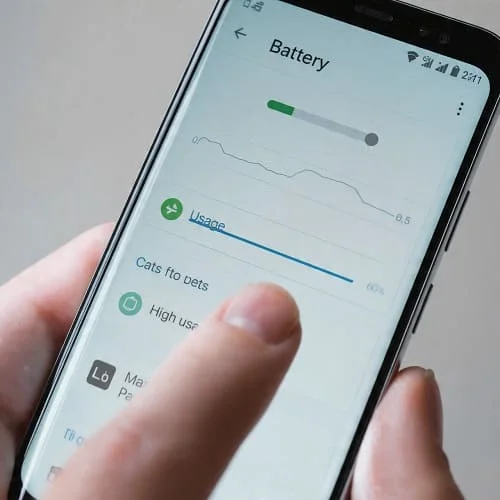
Go to Settings → Battery → Battery usage (wording varies by brand). Look for:
- An app using unusually high battery in a short time
- High “background” usage
- System items spiking: “Mobile network,” “Hotspot,” “Location,” “Google Play services” (sometimes caused by an app loop)
Heat symptom-to-fix table
| What you notice | Likely cause | Best first fix |
|---|---|---|
| Phone gets hot while charging + using apps | Fast charging heat + CPU load | Stop using while charging, switch to slower charger, remove case |
| Hot even when idle | Runaway app/background loop | Check Battery usage, force stop/uninstall suspect app |
| Hot in poor signal areas | Radio working harder (5G/4G) | Airplane mode briefly, switch to LTE, use Wi‑Fi calling |
| Hot during camera/video calls | Camera + screen + data + processing | Lower resolution, reduce brightness, avoid direct sun |
| Hot after update | Indexing + app optimization or bug | Wait 24–48h, update apps, clear cache for heavy apps |
4) Fast fixes that solve most overheating cases
These steps are safe and fix a large percentage of overheating complaints:
1) Restart (not optional)
A restart ends stuck background processes, clears temporary system states, and often immediately improves heat. Hold Power → Restart.
2) Remove the case and clean airflow areas
Cases insulate the phone. If you use a thick case or a case with a built-in battery/wallet, test the phone without it for a day.
3) Reduce screen heat (big impact)
- Lower brightness or enable Adaptive brightness
- Enable Dark theme (especially helpful on OLED screens)
- Reduce screen timeout
4) Turn off features you don’t need (temporarily)
- Hotspot
- GPS (Location)
- Bluetooth scanning / Nearby device scanning
- 5G (test LTE for a day)
5) Update your apps (often overlooked)
Open Google Play → Manage apps & device → Update all. A buggy app version can create a background loop that overheats the phone.
6) Stop charging to 100% every time (battery heat management)
If your phone supports it, enable Optimized charging / Protect battery features and aim for a daily range like 20–80% when possible. This reduces heat and long-term battery wear.
5) App-related overheating (the most common cause)
If you want the most reliable android phone overheating fix, start here. A single misbehaving app can keep the CPU awake, hammer the GPU, or constantly use GPS/data in the background.
A) Identify the app that’s causing heat
Check Settings → Battery → Battery usage. Then:
- Tap the suspicious app
- Look for Background usage percentage/time
- Compare with your normal pattern (social apps should not burn battery while you’re not using them)
B) Apply the “3-step app fix”
- Force stop: Settings → Apps → (app) → Force stop
- Clear cache: Settings → Apps → (app) → Storage & cache → Clear cache
- Update or reinstall: update from Play Store; if still hot, uninstall and reinstall
C) Restrict background activity for problem apps
On many phones: Settings → Apps → (app) → Battery → choose:
- Restricted (strongest) for apps that don’t need background work
- Optimized for most apps
- Avoid leaving heavy apps on “Unrestricted” unless necessary
D) Watch for “crash loops” and instability
Sometimes overheating isn’t the first symptom—frequent crashes can indicate broken app data, corrupted cache, or system conflicts that also spike CPU usage. If you’re dealing with instability too, use this guide: Android apps keep crashing.
E) Common app categories that trigger overheating
- Social media (endless video decoding + background refresh)
- Navigation/ride apps (GPS + screen + data)
- Camera & photo editors (image processing)
- Games (GPU load)
- Antivirus/cleaner apps (some run constantly and do more harm than good)
F) Don’t use “RAM booster/cleaner” apps as an overheating fix
Many “cleaner” apps keep running in the background, show ads, and repeatedly close/reopen apps, which can actually increase heat. Android manages RAM well on its own.
6) Overheating while charging: cables, chargers, battery health
If your phone gets hot mainly during charging, the fix is usually straightforward. Heat comes from fast charging, poor accessories, or a battery that’s aging.
A) Use the right charger (and avoid cheap ones)
- Prefer the original charger or a certified brand (Anker, UGREEN, Belkin, Samsung/Google OEM)
- Avoid unbranded “fast chargers” with unrealistic wattage claims
- For USB‑C, choose cables rated for the wattage (especially for 45W/65W)
B) Try slower charging as a test
For one day, do this experiment:
- Disable Fast charging in Settings (if your phone has the toggle)
- Use a lower-watt charger (or a standard USB port)
If heat drops dramatically, you’ve found the culprit: fast charging + environment/case/usage is pushing temperatures too high.
C) Don’t game or video call while charging
This is the most common “why is my phone burning?” scenario: charging generates heat, and heavy apps generate heat. Combined, temperature spikes quickly.
D) Check the charging port and cable fit
- If the cable feels loose, wobbly, or only charges at certain angles, the port may be worn or dirty.
- Inspect for lint buildup (very common). If you see debris, have it cleaned professionally to avoid damage.
E) Signs the battery may be failing (and causing heat)
- Battery drains much faster than before
- Phone gets hot at light tasks (messaging, idle)
- Random shutdowns at 20–40%
- Swelling or screen lift (urgent)
If you suspect battery wear, the best long-term fix is a battery replacement from an authorized service center or reputable repair shop.
7) Signal, Wi‑Fi, hotspot, GPS: hidden heat sources
Many users chase app fixes, but the real cause is the phone’s radios. When signal is weak, your phone increases transmission power and constantly searches—creating heat and battery drain.
A) Weak signal overheating
Clues:
- Phone is hotter in basements, elevators, or rural areas
- Battery usage shows high “Mobile network”
- Heat improves on Wi‑Fi
Fixes:
- Test switching Preferred network type from 5G to LTE/4G for a day
- Enable Wi‑Fi calling if your carrier supports it
- When signal is terrible, use Airplane mode and Wi‑Fi
B) Hotspot heat
Using your phone as a hotspot is like running a mini-router. It’s normal to get warm, but if it gets too hot:
- Reduce connected devices
- Place the phone on a hard surface (not a bed/sofa)
- Lower screen brightness or turn screen off
- If possible, use a dedicated hotspot device for long sessions
C) GPS + maps heat
Navigation stacks multiple heat sources: bright screen + GPS + data + background processing. Fix it by:
- Lower brightness
- Download offline maps (when available)
- Mount away from direct sunlight and AC vents that create condensation
- Avoid charging at maximum speed during navigation
8) Camera, video calls, gaming, and heavy workloads
Some tasks will always generate heat. The goal isn’t “no warmth,” but preventing throttling, lag, and battery damage.
A) Camera & 4K/60fps recording
- Use 1080p instead of 4K when you don’t need it
- Avoid long continuous recording in direct sun
- Close other apps before recording
B) Video calls (Zoom/Meet/WhatsApp)
- Lower brightness
- Use Wi‑Fi instead of mobile data when possible
- Switch off background blur/effects if available
- Remove the case during long calls
C) Gaming (GPU heat)
- Lower graphics settings and frame rate
- Disable 5G during gaming if it heats your device
- Don’t play while charging
- Keep storage free (very low storage can worsen performance and heat)
9) Updates, bugs, and malware checks
A) After a system update: wait a bit, then verify
Right after an Android update, it’s normal to see temporary warmth due to:
- App optimization
- Photo indexing
- Background syncing
Usually this settles within 24–48 hours. If overheating continues beyond that, move to the steps below.
B) Update Google Play system + security patches
On many devices: Settings → Security & privacy → Updates → Google Play system update and Security update.
C) Run Play Protect (safe malware check)
Google Play → Play Protect → Scan. Also remove apps you installed from unknown sources, especially if overheating started afterward.
D) Watch for these “malware-like” signs
- Overheating + sudden battery drain + lots of pop-ups
- Unknown apps with device admin access
- Browser redirects or new home screen shortcuts you didn’t add
If you suspect compromise, jump to the Advanced troubleshooting section (Safe Mode + uninstall suspicious apps + backup + reset if needed).
10) Advanced troubleshooting (safe mode, cache, reset)
If basic steps didn’t solve it, use these deeper (still safe) methods. They’re also excellent if you want a thorough android phone overheating fix workflow.
A) Boot into Safe Mode (best test for app-caused overheating)
Safe Mode loads Android with system apps only (third‑party apps are disabled). If your phone stays cool in Safe Mode, a downloaded app is almost certainly the cause.
- How to enter: Press and hold Power → press and hold Power off → confirm Safe Mode (steps vary by brand).
- Use the phone for 10–20 minutes in Safe Mode and check temperature behavior.
If Safe Mode fixes the heat: uninstall recently installed apps first, then battery-heavy apps, then anything that has “VPN/cleaner/booster” behavior.
B) Clear cache for the worst offenders (not factory reset)
For apps like social media, maps, browsers, streaming apps:
Settings → Apps → (app) → Storage & cache → Clear cache.
This can stop loops caused by corrupted temporary files.
C) Free up storage (yes, it can reduce heat)
When storage is nearly full, the phone may work harder for basic tasks (indexing, writing temporary files), which can increase heat during normal use.
- Aim for at least 10–15% free storage.
- Delete large videos, unused offline downloads, and old installation files.
D) Reset network settings (for signal-related heat)
If “Mobile network” is always high in battery usage:
- Settings → System → Reset options → Reset Wi‑Fi, mobile & Bluetooth
This can resolve misconfigurations that keep radios scanning.
E) Factory reset (last resort, but highly effective)
If your phone overheats even when idle, in Safe Mode, and after accessory checks, a factory reset can remove deep software corruption.
- Back up your data first (Google backup + photos + important files).
- After reset, don’t install everything immediately. Test the phone for a few hours with minimal apps. Then add apps gradually to catch the culprit.
11) When it’s hardware (and what a repair shop will check)
Hardware-related overheating is less common than app/charging causes, but it happens—especially on older devices or after drops/liquid exposure.
Common hardware causes
- Aging battery with higher internal resistance (generates more heat under load)
- Charging port damage causing unstable charging and heat near the bottom
- Thermal paste/pads issues (rare; more common in gaming phones or after repair)
- Board-level faults (short circuits; often accompanied by severe drain and heat while idle)
When you should stop troubleshooting at home
- Phone becomes extremely hot within minutes of light use
- Overheating happens while the phone is off but charging
- Battery swelling, smell, or visible deformation
- Moisture exposure followed by heat and instability
In these cases, professional diagnostics are the safest path.
For official safety guidance, you can reference: Google Pixel Help: phone is warm or hot and Samsung Support: device overheating.
12) Prevention: keep your phone cool long-term
Once you fix the cause, these habits prevent overheating from coming back:
A) Charging habits that reduce heat
- Charge on a hard surface (desk/table), not on a bed or pillow
- Use quality accessories
- Avoid fast charging when you don’t need it (especially in hot weather)
- Don’t keep the phone under a pillow overnight while charging
B) Case and environment
- Use a slimmer case in summer
- Avoid leaving the phone in a car
- Keep it out of direct sunlight during navigation and filming
C) App discipline
- Review battery usage weekly
- Limit background permissions for apps you rarely use
- Uninstall apps that misbehave after updates (you can always reinstall)
D) Settings that help without hurting performance
- Enable Adaptive Battery / Battery optimization
- Use Dark theme on OLED screens
- Keep auto-updates enabled for security and stability
Video walkthrough
FAQ
Is it normal for an Android phone to get warm?
Yes. Warmth is normal during fast charging, gaming, video recording, long calls, hotspot use, and in hot environments. It becomes a problem when you see thermal warnings, sudden throttling, or heat during idle.
Why does my Android overheat at night while charging?
Usually it’s a combination of fast charging, poor airflow (bed/pillow), a thick case, or a cable/charger issue. Charge on a hard surface, remove the case, and test with a quality slower charger.
Can a software update cause overheating?
Yes, temporarily (indexing/optimization). If it continues after 48 hours, update apps, check battery usage, and test in Safe Mode.
Does replacing the battery fix overheating?
If overheating is linked to battery aging (heat under light load, fast drain, random shutdowns), battery replacement can be the most effective long-term fix.
Should I install an app to cool my phone down?
No. “Cooling apps” typically just close apps or show ads. The real fix is identifying the cause (battery usage, charging accessories, signal issues, heavy workloads) and correcting it.
Final checklist & conclusion
Use this quick checklist whenever overheating appears:
- Unplug charger, remove case, move to cooler place
- Restart
- Check Battery usage and find the top draining app
- Force stop → clear cache → update/reinstall the suspect app
- Test slower charging + different cable/charger
- Reduce brightness; disable hotspot/GPS/5G as a test
- Try Safe Mode to confirm app vs. system/hardware
- If still overheating while idle: back up and consider factory reset or professional battery/port diagnostics
When you approach the problem methodically, an android phone overheating fix is usually achievable without replacing the phone. The key is to treat heat as a symptom: identify what’s consuming power (apps, radios, charging) and remove that load safely.

About the Author
Alex Carter — Founder & Editor‑in‑Chief, GicraMobile
Alex leads GicraMobile’s testing lab and reviews. His methodology focuses on day‑to‑day performance, battery health and thermals, camera consistency, and 5G/LTE reliability—so you can pick the right phone without hype.
Real‑world testing: 90–120 Hz smoothness, idle drain, thermals
Camera checks: HDR, skin tones, low‑light stabilization
Connectivity: band fit, eSIM, VoLTE/VoWiFi, Wi‑Fi performance
You may also like this