Waking up to a battery drop of 15%, 25%, or even 40% can be frustrating—especially when your phone was just sitting on the nightstand. If your phone battery drains overnight, the problem is usually not “a bad Android.” It’s typically one (or more) of these: weak signal, Wi‑Fi reconnect loops, a runaway app keeping the CPU awake, background location/scanning, sync loops, or a battery that’s starting to wear out.
This guide focuses on Android phones and gives you a clear, evidence-based process to diagnose the cause and fix it safely—without sketchy “battery saver” apps, and without breaking important notifications.
Table of Contents
Why does my Android battery drain so fast overnight?
Value of this article (قيمة هذا المقال): You won’t get generic advice like “turn on battery saver and hope.” Instead, you’ll learn a practical troubleshooting method used by technicians: run simple overnight tests, confirm the culprit using Battery usage, and apply targeted fixes (apps, network, scanning, sync, display, or battery wear). This approach saves time, protects your data, and avoids breaking essential notifications.
When your phone is idle, Android should enter low-power states (often called Doze) where background work is limited. Overnight drain happens when something prevents the phone from staying in that low-power state for long periods. The most common reasons are:
- Weak cellular signal forcing the radio to work harder
- Wi‑Fi instability causing repeated reconnects/scans
- A misbehaving app running in the background (social apps, VPNs, launchers, backup/sync apps)
- Location services or scanning (Wi‑Fi/Bluetooth scanning for “better accuracy”)
- Sync loops (email/calendar/drive/photos repeatedly trying to sync)
- Heat (charging + insulation, or charging on a soft surface)
- Battery aging (older batteries drop faster at idle and can “leak” charge more noticeably)
If you also notice heavy battery loss during daytime, use this full guide too: Android Battery Draining Fast: Fix Overnight & Daily Drain.
1) What’s normal overnight drain vs. a real problem?
Before changing anything, set a realistic benchmark.
Typical standby drain ranges (general guidance)
- 1–5% overnight: usually normal (depends on signal strength and background syncing)
- 6–10% overnight: borderline; often fixable with one or two adjustments
- 10–30%+ overnight: abnormal; likely a runaway app, weak signal, Wi‑Fi loop, or battery wear
Quick signs it’s not normal
- The phone is warm in the morning even though you didn’t use it
- Battery usage shows high Mobile network or a single app dominating
- You see many notification retries or repeated “syncing” activity
- Drain began right after you installed a new app, paired a wearable, enabled a VPN, or updated Android
Don’t confuse “percentage drop” with real battery capacity
On older batteries, the percentage can fall quickly in certain ranges (especially below 20–30%). That’s why you should use Battery usage data (later) and run controlled overnight tests (next).
2) The quick 3 tests that reveal the cause (in one night)
If your phone battery drains overnight, these tests help you narrow the cause without guesswork. Do them on separate nights if possible.
Test A: Airplane Mode overnight (best signal/radio test)
- Charge to a consistent level (e.g., 80–90%).
- Turn on Airplane mode.
- Leave the phone idle for 6–8 hours.
Interpretation:
- If drain drops dramatically (e.g., from 20% to 3%), your main culprit is likely cellular signal, Wi‑Fi, or background network activity.
- If drain stays high even in Airplane mode, the issue is more likely apps, system processes, heat, or battery wear.
Test B: Wi‑Fi OFF overnight (Wi‑Fi loop test)
Repeat a normal night, but turn Wi‑Fi off (leave cellular on). If the drain improves, your router/network configuration or Wi‑Fi scanning behavior may be the cause.
Test C: Safe Mode overnight (third‑party app proof)
Safe Mode disables downloaded apps temporarily. If drain is much better in Safe Mode, a third‑party app is preventing sleep. (Steps vary by brand; see Section 12.)
These tests quickly tell you whether you’re chasing the right category: radios, Wi‑Fi, or apps.
3) Check Battery usage correctly (and how to read it)
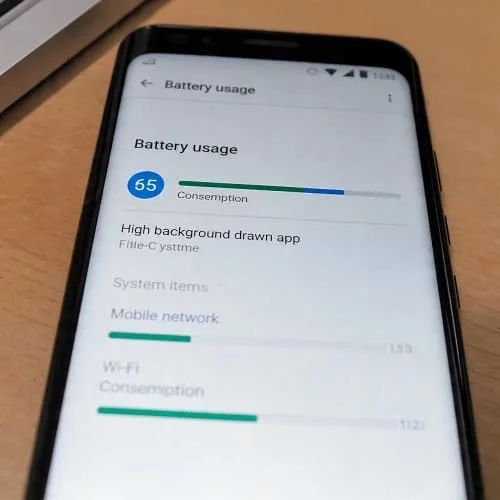
Android already records the evidence you need. The most effective fix usually comes from correctly reading the Battery usage screen.
How to open Battery usage
- Common: Settings → Battery → Battery usage
- Samsung: Settings → Battery and device care → Battery
- Some brands: Settings → Power or Settings → Battery
What to look for (overnight-specific)
- Top apps with high percentage despite no use
- Background activity time (apps shouldn’t run heavily while you sleep)
- System items that point to the category:
- Mobile network high → weak signal or radio issues
- Wi‑Fi high → reconnect/scanning loops
- Location high → GPS/scanning or always-on location permissions
- Google Play services high → often triggered by another app looping
A technician tip: compare two nights
Take screenshots of Battery usage after:
- A “bad” night (big drain)
- A test night (Airplane mode / Wi‑Fi off / Safe Mode)
When you compare them, the culprit category almost always becomes obvious.
4) Runaway apps: the most common overnight drain (and the safe fix)
A runaway app can keep the CPU awake, repeatedly sync data, or constantly request location/network access. The result: your battery drops even when the phone is untouched.
Step 1: Update apps (yes, this matters)
Open Google Play Store → Manage apps & device → Update all. Battery drain bugs are frequently fixed by app updates—especially after Android security patches.
Step 2: Force stop + clear cache for the top offender
- Settings → Apps → choose the draining app
- Tap Force stop
- Tap Storage & cache → Clear cache
This is a safe first step and doesn’t usually sign you out.
Step 3: Restrict background battery (selectively)
For apps that don’t need real-time background updates:
- Settings → Apps → (app) → Battery → set to Optimized or Restricted
Do not restrict critical apps without testing (messaging, alarms, work authentication), because some phones may delay notifications aggressively.
Step 4: Check permissions that enable overnight drain
- Location permission set to Allow all the time
- Physical activity permission (fitness tracking)
- Nearby devices / Bluetooth permission (constant scanning)
- Unrestricted background data
Change most apps to While using the app for Location.
Step 5: Remove “cleaner/booster” apps
Many “battery saver” or “RAM booster” apps run constantly and can actually worsen drain. If your overnight drain started after installing one, uninstall it and retest for 24 hours.
Common app categories that cause standby drain
- VPNs and ad blockers (especially with custom DNS/VPN tunnels)
- Social apps with background refresh and video preloading
- Backup/sync apps trying repeatedly on bad networks
- Wearable companion apps with constant sync
- Launchers and live wallpaper apps
5) Mobile signal and 5G/LTE drain while idle
One of the most overlooked causes of overnight drain is the cellular radio. When signal is weak, your phone increases transmit power and searches for better towers—consuming battery even while idle.
How to confirm it’s signal-related
- Battery usage shows high Mobile network
- Drain is worse at home/work and better elsewhere
- Airplane mode overnight test improves drain significantly
Fixes that often help
- Try LTE/4G only for a couple of nights (5G can be less efficient in some coverage areas)
- Enable Wi‑Fi calling if your carrier supports it (reduces cellular radio work indoors)
- If signal is consistently poor at night, consider scheduling Airplane mode during sleep (if you don’t need calls)
When “mobile network drain” is actually an app problem
If a messaging/social app keeps uploading or syncing on mobile data, Android may report it partly as “mobile network.” That’s why you should correlate the mobile network percentage with the top apps list.
6) Wi‑Fi reconnect loops, scanning, and router issues
Wi‑Fi should be efficient, but it can become a drain source when the phone constantly reconnects or scans.
Signs of a Wi‑Fi loop
- Wi‑Fi battery usage is high overnight
- Your router logs show reconnects (if you check them)
- You wake up to “Connected, no internet” or captive portal prompts
Fix steps
- Forget and re-add your home Wi‑Fi network (Settings → Network → Wi‑Fi).
- Restart the router (simple, but it fixes many overnight loops).
- Disable “auto connect” for problematic networks you don’t trust.
- If your phone has “Wi‑Fi power saving” settings, test enabling them.
Turn off Wi‑Fi scanning (if you’re troubleshooting)
Some Android phones scan for Wi‑Fi networks even when Wi‑Fi is off (for faster location and smarter switching). Disabling scanning can reduce overnight drain (details in the next section).
7) Location, Bluetooth/Wi‑Fi scanning, and sensors (silent killers)
Location isn’t just GPS. Android can use Wi‑Fi and Bluetooth scanning to refine location. That’s great for maps—but unnecessary overnight for most people.
Step 1: Review Location permissions
Settings → Location → App permissions:
- Change most apps from Allow all the time to While using the app
- Remove Location access from apps that don’t need it
Step 2: Disable Wi‑Fi and Bluetooth scanning (optional)
On many devices:
- Settings → Location → Location services → turn off Wi‑Fi scanning and Bluetooth scanning
Step 3: Check connected devices and wearables
Smartwatches and fitness bands can increase background sync. If your drain started after pairing a wearable:
- Update the wearable companion app
- Reduce notification mirroring to essential apps
- Test one night with Bluetooth off (comparison test)
8) Email, cloud backup, photos syncing, and notification loops
Overnight is when many phones try to “catch up” on uploads and sync tasks—especially on Wi‑Fi. If the network is unstable or an account is stuck, it can loop all night.
A) Email and calendar
- If you have multiple accounts, disable sync for accounts you don’t use.
- Reduce aggressive fetch settings for less important email.
B) Cloud photos and drive backups
If you took many photos/videos or installed large updates, your phone may upload for hours. That can be normal once—but not every night. If it happens repeatedly:
- Check if uploads are stuck (e.g., “waiting to upload” forever).
- Switch Wi‑Fi networks temporarily to test whether your home network is causing retries.
C) Messaging apps with media auto-download
Apps that auto-download media can keep working overnight. Disable auto-download on mobile data or reduce it on Wi‑Fi if you don’t need it.
D) App crashes can cause battery drain
Repeated crash/restart loops can keep services active in the background. If you suspect this, fix app instability first.
For how Android manages background work (including Doze and App Standby), see the official documentation: Android Developers: Doze and App Standby.
9) Always-On Display, wake gestures, and screen-related standby drain
Overnight drain isn’t always “background apps.” Sometimes the display keeps waking up.
A) Always-On Display (AOD)
- Set AOD to Tap to show or schedule it (e.g., off while sleeping).
- Disable “Show always” as a test for 2 nights.
B) Wake gestures
Features like “Lift to wake” and “Double tap to wake” can trigger often if your phone moves slightly on a soft surface or if it’s in a pocket/blanket.
- Disable lift-to-wake for a night and compare drain.
C) Lock screen notifications
Lots of apps lighting up the screen for notifications can create real drain. Reduce notification “importance” for noisy apps while keeping important alerts enabled.
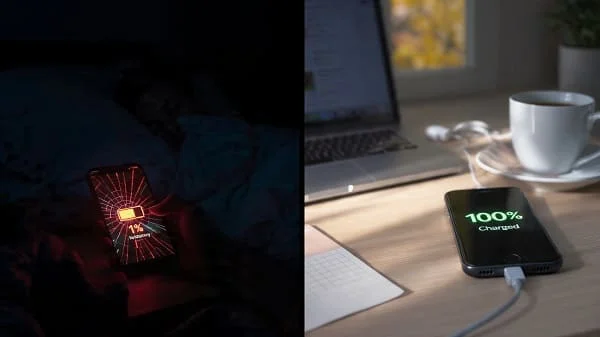
10) Heat at night: charging habits and thermal drain
Heat increases battery drain and speeds up battery aging. If your phone is warm in the morning, investigate charging habits.
Common heat mistakes at night
- Charging under a pillow/blanket (traps heat)
- Using a thick case while charging
- Fast charging in a hot room
- Using cheap/unstable chargers
Safer overnight charging tips
- Charge on a hard surface with airflow.
- Enable optimized charging or “protect battery” limits if available.
- If your phone supports it, use a slower charger overnight to reduce heat.
If your phone is also overheating, heat can amplify standby drain. Address heat issues promptly (especially if you see thermal warnings).
11) Battery health: when the battery is the real issue
If your phone is 2–4+ years old, a worn battery may be the main reason your phone battery drains overnight (and during the day). Even with perfect settings, aging batteries lose capacity and can drop faster at idle.
Signs you may need a battery replacement
- Fast drain persists after app/network troubleshooting
- Phone shuts down unexpectedly at 20–40%
- Battery percentage jumps or drops irregularly
- Phone warms up during light tasks or idle
What to do next
- Check if your manufacturer provides a battery health screen (some do).
- If symptoms match aging, a battery replacement from an authorized service center (or reputable repair shop) can restore normal standby performance.
Official battery troubleshooting guidance: Google Support: Fix battery drain on Android.

12) Advanced fixes (Safe Mode, resets, and clean setup)
If you’ve done the tests and still can’t pinpoint the cause, use these advanced steps.
A) Safe Mode overnight test (most reliable app proof)
Safe Mode temporarily disables downloaded apps. If your standby drain becomes normal in Safe Mode, the problem is one of your installed apps.
- Common method: press and hold Power → press and hold “Power off” → confirm Safe Mode (varies by device).
- Leave it overnight and compare drain.
Next step: uninstall recently installed apps first, then battery-heavy apps, then anything that runs constantly (VPNs, launchers, cleaners, wearable apps). Test overnight after each change.
B) Reset network settings (if “Mobile network” is always high)
Settings → System → Reset options → Reset Wi‑Fi, mobile & Bluetooth.
This can fix odd configurations causing constant scanning/reconnect.
C) Clean setup / factory reset (last resort)
If drain remains severe even with minimal apps (or in Safe Mode), you may have system corruption or hardware issues. A factory reset can help—but back up first.
After reset, don’t restore everything immediately. Set up the phone, observe standby drain for one night, then install apps gradually until the drain returns (this identifies the culprit).
13) Prevention checklist: keep standby drain low long-term
- Keep apps updated and uninstall apps you don’t trust or don’t use.
- Limit “Allow all the time” location permissions.
- Disable Wi‑Fi/Bluetooth scanning if you don’t need it.
- If your signal is poor at home, consider Wi‑Fi calling or LTE-only at night.
- Schedule AOD off during sleeping hours.
- Charge with airflow; avoid heat traps (blankets, thick cases).
- Replace the battery when aging symptoms appear instead of fighting settings forever.
FAQ
How much battery drain overnight is normal on Android?
Often around 1–5% overnight is normal, but it depends on signal strength, Wi‑Fi stability, background syncing, and battery health. Consistent 10%+ drain is usually fixable.
Why does my battery drain faster at home than elsewhere?
Weak signal indoors is a top reason. Your phone may work harder to maintain a cellular connection. Test overnight Airplane mode and consider Wi‑Fi calling or LTE-only.
Can a VPN cause overnight battery drain?
Yes. VPNs can keep a persistent connection and trigger background networking. If your drain started after enabling a VPN, disable it overnight and compare results.
Does turning on Battery Saver fix overnight drain?
It can reduce background activity, but it’s not the best “root fix.” First identify what is keeping the phone awake (Battery usage + tests). Then apply targeted restrictions.
When should I replace my battery?
If the phone is a few years old and drain stays severe after troubleshooting—especially with random shutdowns, heat at light use, or percentage jumps—a battery replacement is often the best long-term solution.
Final checklist
- Measure drain over one night (same starting % and similar conditions).
- Run Airplane mode overnight test (radio/signal diagnosis).
- Run Wi‑Fi off overnight test (Wi‑Fi loop diagnosis).
- Check Battery usage for background-heavy apps and system items.
- Fix runaway apps: update → force stop → clear cache → restrict background (selectively).
- Reduce scanning: limit “always” location + disable Wi‑Fi/Bluetooth scanning if helpful.
- Adjust AOD/wake gestures and reduce notification screen wake-ups.
- Fix heat: airflow while charging, optimized charging, quality charger.
- If still severe: Safe Mode overnight → network reset → clean setup or battery replacement.
With these steps, you can usually bring overnight drain back to a normal level and stop wondering why your phone battery drains overnight despite “not using it.”

About the Author
Alex Carter — Founder & Editor‑in‑Chief, GicraMobile
Alex leads GicraMobile’s testing lab and reviews. His methodology focuses on day‑to‑day performance, battery health and thermals, camera consistency, and 5G/LTE reliability—so you can pick the right phone without hype.
Real‑world testing: 90–120 Hz smoothness, idle drain, thermals
Camera checks: HDR, skin tones, low‑light stabilization
Connectivity: band fit, eSIM, VoLTE/VoWiFi, Wi‑Fi performance
You may also like this