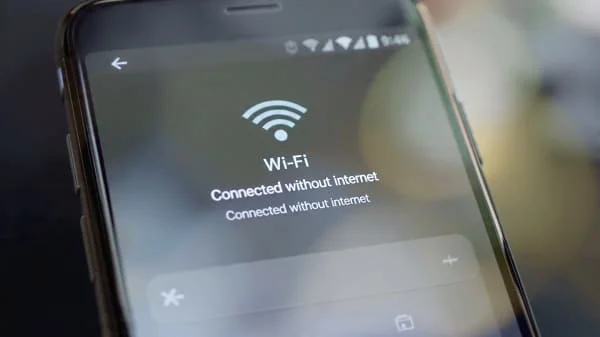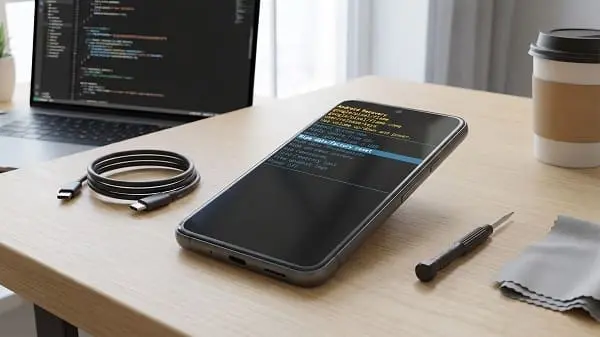
Seeing the Wi‑Fi icon but no pages loading is one of the most frustrating Android problems. If you’re dealing with Wifi connected no internet android phone not working, it usually means your phone is connected to the router (local network), but something is blocking access to the internet—most commonly DNS issues, a captive portal sign-in, an IP/DHCP problem, VPN/Private DNS conflicts, or a router/ISP outage.
This guide gives you a technician-style workflow: start with fast checks, run 2–3 simple tests to identify whether the issue is the phone or the network, then apply targeted fixes. No risky apps, no “one-click boosters,” and no unnecessary factory resets.
Table of Contents
Value of This Article
This article saves you time by using a decision-tree approach instead of random tips. You’ll learn how to:
- Quickly identify whether the problem is your phone, the router, or the ISP.
- Fix the most common causes—especially Private DNS/VPN conflicts and DNS failures—without wiping your phone.
- Avoid unnecessary resets and keep your settings stable, which is safer and more reliable long-term.
1) What “Connected, no internet” actually means on Android
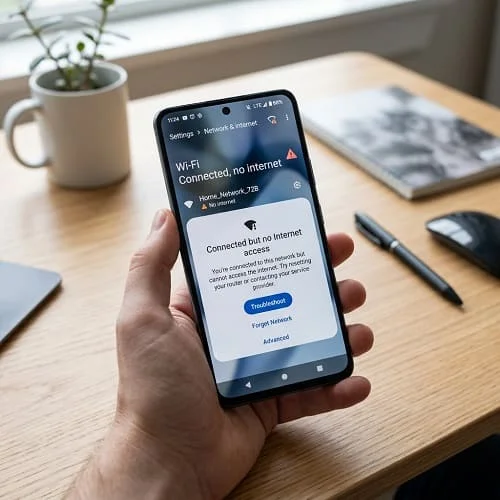
When Android says “Connected, no internet” (or you see a Wi‑Fi icon with an exclamation mark), it usually means:
- Your phone is connected to the Wi‑Fi access point (router).
- But it can’t reach the internet reliably due to DNS, gateway, authentication, or ISP issues.
Think of it like this:
- Wi‑Fi connection = you can “talk” to the router.
- Internet access = the router can “talk” to the outside world and DNS can resolve websites.
2) Fast fixes (2–5 minutes) that solve most cases
Do these in order. Stop when the internet starts working—don’t change everything at once.
A) Toggle Airplane mode (10 seconds)
- Turn on Airplane mode.
- Wait 10 seconds.
- Turn it off and reconnect to Wi‑Fi.
B) Restart the phone
A restart clears stuck networking services and can immediately fix the issue after updates or long uptime.
C) Restart the router/modem
Unplug the router (and modem if separate) for 30–60 seconds. Plug it back in and wait 2–3 minutes.
D) Try a different website/app (quick sanity check)
- Test Chrome + another browser (Firefox/Samsung Internet).
- Test an app like YouTube or Play Store.
If only one app fails, the issue may be app-specific—not Wi‑Fi.
E) Disable VPN temporarily
A VPN that’s down or blocked can make Android look “connected” but unable to load anything.
3) Is it your phone, your router, or your ISP? (quick isolation test)
This is the most important step because it prevents wasted time.
Test 1: Check other devices on the same Wi‑Fi
- If other devices also have no internet: it’s likely the router/modem/ISP → go to Section 10.
- If other devices work fine: it’s likely your Android phone settings → continue to Section 4.
Test 2: Switch to mobile data
Turn off Wi‑Fi and test mobile data:
- Mobile data works: your phone is fine—Wi‑Fi/router/DNS is the issue.
- Mobile data also fails: check Airplane mode, VPN, Private DNS, carrier service, or SIM issues.
Test 3: Connect to a different Wi‑Fi network
Try a hotspot from another phone or a different network:
- Works elsewhere: your home router or ISP is the problem.
- Fails everywhere: your Android phone settings (or an interfering app) are likely the culprit.
4) Forget the network + reconnect correctly
A corrupted Wi‑Fi profile is a very common reason for Wifi connected no internet android phone not working, especially after router password changes, firmware updates, or Android updates.
- Go to Settings → Network & Internet → Internet/Wi‑Fi.
- Tap the connected network.
- Tap Forget (or “Remove”).
- Restart your phone (recommended).
- Reconnect and enter the password carefully.
Tip: If you have both 2.4 GHz and 5 GHz networks with the same name, you may be reconnecting to the “problem band” repeatedly. See Section 9.
5) Captive portal networks (hotel/cafe/school) and sign-in fixes
Public Wi‑Fi often requires a sign-in or “Accept Terms” page. Android can show “connected” but block internet until you sign in.
A) Force the sign-in page to appear
- Open a browser and go to: http://neverssl.com
- Or: http://example.com
If the sign-in page appears, complete it and test again.
B) Check for the “Sign in to Wi‑Fi network” notification
Swipe down notifications—Android often prompts you there.
C) Fix Date & Time (surprisingly common)
Wrong time can break HTTPS and make it feel like the internet is down.
- Settings → System → Date & time → enable Use network-provided time
6) VPN, Private DNS, and ad-blockers: the #1 “looks connected” cause
In the last few years, the most common real-world cause I see is a conflict created by:
- VPN apps (especially free VPNs)
- Ad-blocking DNS
- Private DNS set to a provider that’s down or blocked
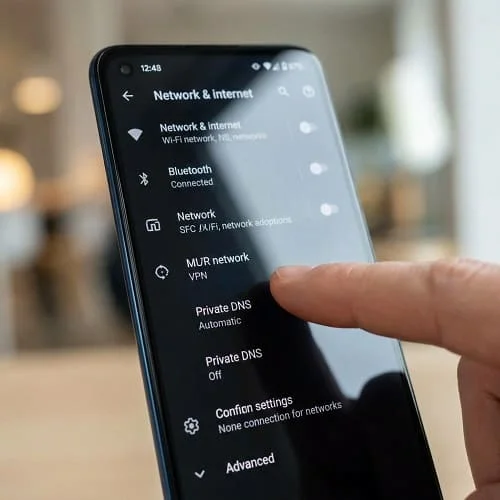
A) Turn off Private DNS (test)
Go to:
- Settings → Network & Internet → Private DNS
Set it to Automatic (or Off temporarily). Then test Wi‑Fi again.
B) Disable “Always-on VPN” (if enabled)
Some phones have Always-on VPN enabled even when you think the VPN is “off.” Disable it and test again.
C) Remove suspicious “network helper” apps
If the issue started after installing a DNS changer, VPN, firewall, or “internet booster,” uninstall it and restart.
7) DNS troubleshooting (the most common root cause)
DNS converts names (google.com) into IP addresses. If DNS fails, apps often can’t load—even if the Wi‑Fi connection is “connected.”
A) Quick DNS test
Try loading these in your browser:
- https://1.1.1.1
- https://8.8.8.8
If those load but normal websites don’t, DNS is the problem.
B) Set a reliable DNS (safe test)
On many Android versions, you can set DNS per Wi‑Fi network (exact steps vary by brand):
- Settings → Wi‑Fi → tap your network
- Tap Advanced
- Change IP settings to “Static” (only to reveal DNS fields), then enter DNS:
- 1.1.1.1 and 1.0.0.1 (Cloudflare)
- or 8.8.8.8 and 8.8.4.4 (Google)
- Save and test internet.
Important: If you switch IP settings to Static and accidentally change the IP/gateway incorrectly, you can break the connection. If unsure, use Reset network settings later to revert everything.
Trusted references:
8) IP/DHCP problems (Invalid IP, 169.254.x.x, IP conflict)
Even if Wi‑Fi shows “connected,” your phone might not have a valid IP configuration from the router.
A) Check your IP address details
Go to Wi‑Fi details and look for:
- IP address
- Gateway
- DNS
B) Common red flags
- 169.254.x.x IP address → DHCP failed (phone didn’t get a proper IP lease)
- Missing gateway → the phone doesn’t know where the router is
- Internet works for some devices but not yours → possible IP conflict or filtering
C) Fix DHCP/IP issues
- Forget the Wi‑Fi network and reconnect (renews lease).
- Restart the router (clears DHCP tables on many routers).
- Disable/enable Wi‑Fi and reconnect.
If you’re using a manually set “Static IP,” switch back to DHCP for testing.
9) 2.4 GHz vs 5 GHz vs Wi‑Fi 6/6E: stability & compatibility
Sometimes the phone is connected but the network is unstable, causing timeouts that look like “no internet.” Band issues are common in apartments, schools, and mesh systems.
A) Switch bands for testing
- If you’re on 5 GHz and it’s unstable through walls, test 2.4 GHz (often more stable at range).
- If you’re on 2.4 GHz and it’s crowded, test 5 GHz (often faster and cleaner).
B) If your router uses one Wi‑Fi name for both bands
Band steering can sometimes confuse devices. A good troubleshooting step is to temporarily split SSIDs (e.g., Home_2G and Home_5G) in router settings.
C) WPA3 / Wi‑Fi 6 compatibility
Some older Android devices may struggle with WPA3-only networks. If the issue started after changing router security, test:
- Set security to WPA2-Personal temporarily
- Update router firmware
10) Router-side fixes (when other devices also have no internet)
If multiple devices on the same Wi‑Fi have no internet, your Android phone is probably not the main cause. Focus on the router/modem/ISP link.
A) Check the router’s WAN/Internet status
Many routers continue broadcasting Wi‑Fi even if the ISP line is down. Check:
- WAN/Internet light (red/orange/off suggests upstream issue)
- Router app/web dashboard for “Internet: Disconnected” messages
B) Power cycle correctly (modem + router)
- Power off modem and router.
- Power on modem first and wait until fully online.
- Power on router and wait 2 minutes.
C) Router DNS fix (helps everyone)
If your ISP DNS is unreliable, set router DNS to Cloudflare (1.1.1.1) or Google (8.8.8.8). This often eliminates random “connected but no internet” moments across all devices.
D) Check router features that can block devices
- Parental controls
- MAC filtering / access control lists
- “New device quarantine” or guest network isolation
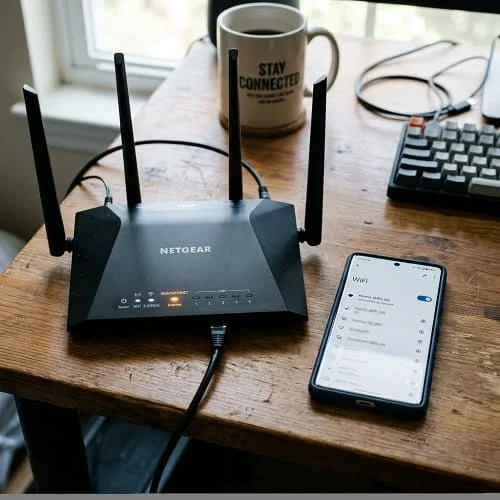
11) Android settings that can break Wi‑Fi (rare but real)
These are less common, but worth checking if the issue persists.
A) Disable “Data Saver” temporarily
Some configurations can restrict background network behavior or cause weird app loading behavior.
B) Check for proxy settings
If a proxy is configured on the Wi‑Fi network, it can break internet access:
- Wi‑Fi network details → Advanced → Proxy → set to None (unless you intentionally use one)
C) Randomized MAC vs Phone MAC (advanced networks)
Some routers or school networks don’t like randomized MAC addresses. On the Wi‑Fi network settings, look for “Privacy” or “MAC address type” and test switching between:
- Randomized MAC
- Device MAC
Only do this if you suspect the network is restricting devices.
12) Safe Mode test (prove if an app is interfering)
If you installed a VPN, firewall, DNS changer, “internet optimizer,” or security app, it may be interfering even when it looks inactive.
Safe Mode temporarily disables third-party apps. If Wi‑Fi works in Safe Mode, the cause is almost certainly an installed app.
- Common method: press and hold Power → press and hold Power off → Safe Mode (varies by brand).
In Safe Mode:
- Test Wi‑Fi browsing and Play Store.
- If it works, uninstall recently installed network-related apps first.
13) Reset network settings (what it resets and when to use it)
If the problem seems phone-specific and none of the above fixes helped, resetting network settings is often the cleanest solution.
What it resets
- Saved Wi‑Fi networks
- Bluetooth pairings
- Some cellular configuration (depends on phone)
How to do it (general Android)
Settings → System → Reset options → Reset Wi‑Fi, mobile & Bluetooth
Then restart and reconnect to Wi‑Fi.
Samsung-specific guide (recommended)
If you’re using a Samsung Galaxy phone, this dedicated guide includes One UI paths and Samsung-specific toggles:
Samsung Wi‑Fi Connected But No Internet: Fix Guide
Video walkthrough
FAQ
Why does my Android say Wi‑Fi connected but no internet?
Usually DNS failure, Private DNS/VPN conflicts, captive portal sign-in required, DHCP/IP issues, or an ISP outage while the router still broadcasts Wi‑Fi.
Can Private DNS really break the internet?
Yes. If Private DNS points to an unavailable server or blocks required domains, your phone can look connected but fail to load websites and apps.
Is resetting network settings safe?
Yes. It won’t delete photos or apps, but it will remove saved Wi‑Fi networks and Bluetooth pairings, so you’ll need to reconnect.
Why does it work on other phones but not mine?
That points to phone-side settings: a bad Wi‑Fi profile, Private DNS, VPN/firewall apps, proxy settings, or MAC randomization conflicts.
Why does this happen randomly at night?
Often router DNS issues, ISP instability, Wi‑Fi band steering problems, or an ad-blocking DNS/VPN service that becomes unstable.
Final checklist
- Restart phone and router/modem.
- Check if other devices have internet on the same Wi‑Fi.
- Forget the Wi‑Fi network and reconnect.
- Disable VPN and set Private DNS to Automatic/Off.
- Test DNS by visiting 1.1.1.1 and 8.8.8.8.
- Check IP address (avoid 169.254.x.x) and renew DHCP lease.
- Switch between 2.4 GHz and 5 GHz networks.
- Try Safe Mode to rule out app interference.
- Reset network settings if the issue is phone-specific.
- If multiple devices fail, focus on router WAN/ISP and router DNS settings.
Follow the steps above in order and you’ll solve the majority of Wifi connected no internet android phone not working cases without unnecessary resets.

About the Author
Alex Carter — Founder & Editor‑in‑Chief, GicraMobile
Alex leads GicraMobile’s testing lab and reviews. His methodology focuses on day‑to‑day performance, battery health and thermals, camera consistency, and 5G/LTE reliability—so you can pick the right phone without hype.
Real‑world testing: 90–120 Hz smoothness, idle drain, thermals
Camera checks: HDR, skin tones, low‑light stabilization
Connectivity: band fit, eSIM, VoLTE/VoWiFi, Wi‑Fi performance
You may also like this