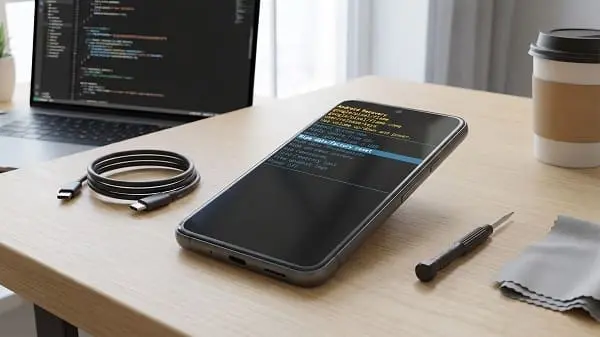
If your Samsung Galaxy feels slow—apps open late, scrolling stutters, the keyboard lags, or the phone heats up for no reason—you’re not alone. The good news: most performance problems on One UI are fixable without risky “booster” apps or factory resets.
In this guide you’ll learn how to speed up android phone samsung step by step, starting with the fastest improvements (minutes), then moving into deeper Samsung-specific settings (Device Care, RAM Plus, processing speed, background limits, and safe troubleshooting). I’ll also explain why each step works, so you can keep your phone fast long-term.
Table of Contents
Value of This Article
This article gives you a technician-style troubleshooting path for Samsung Galaxy phones. Instead of random tips, you’ll learn the real causes of lag (low storage, background apps, heat throttling, update indexing, and misconfigured performance settings) and fix them in the safest order—without breaking notifications, deleting important data, or installing questionable “RAM booster” apps.
1) The 1-minute speed boost (safe and effective)
If you need your Samsung to feel faster immediately, do these quick steps first. They don’t delete your data.
A) Restart (often the fastest real fix)
Restarting clears stuck background processes and memory leaks.
- Hold Power → Tap Restart
B) Turn off Power saving mode (if enabled)
Power saving can throttle CPU performance and background activity, which feels like lag.
- Settings → Battery → Turn Power saving off (test)
C) Run Device Care optimization once (then don’t spam it)
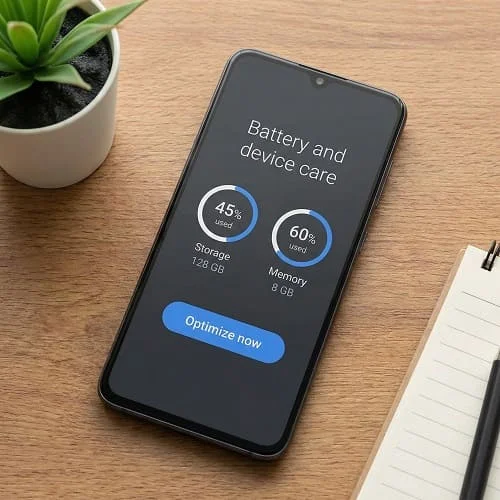
- Settings → Battery and device care → Tap Optimize now
This can close misbehaving processes and clean temporary states. Don’t run it repeatedly every hour—use it as a quick reset, not a habit.
If you want the fastest “feel-snappier” trick (animations), you can also use the method in this guide: Speed Up Android Phone in 10 Seconds (Real Fixes).
2) Diagnose your slowdown: what exactly feels slow?
“My phone is slow” can mean different problems. Identifying the symptom prevents wasted effort.
| What feels slow | Most likely cause | Best first fix |
|---|---|---|
| Apps take long to open | Low storage, heavy background activity | Free space + limit background apps |
| Keyboard lags while typing | Low storage, keyboard cache, RAM pressure | Free space + update keyboard + restart |
| Scrolling stutters in One UI | Animations, heavy launcher/widgets, overheating | Reduce animations + remove heavy widgets |
| Phone is fast after restart then slow again | Runaway app, background sync, heat | Check app battery usage + Safe Mode test |
| Only browsing/YouTube is slow | Network/DNS/Wi‑Fi problem | Test Wi‑Fi vs mobile data |
Now let’s fix the common root causes in the best order.
3) Use Samsung Device Care the right way (not just “Optimize now”)
Samsung’s Battery and device care is useful—but the real value is in the details, not just the button.
A) Check “Care report” or issues detected
- Settings → Battery and device care
- Review warnings like: storage nearly full, apps crashing, overheating, abnormal battery usage
B) Use “Auto optimization” carefully
Some Samsung phones can auto-restart or auto-optimize. This may help stability, but don’t enable aggressive settings that close apps you rely on (like messaging or work apps).
C) Look for the actual bottleneck
Inside Device Care, check:
- Storage (critical for speed)
- Memory (helps with multitasking issues)
- Battery (find runaway apps that cause heat and lag)
4) Free storage: the #1 reason Samsung phones get laggy
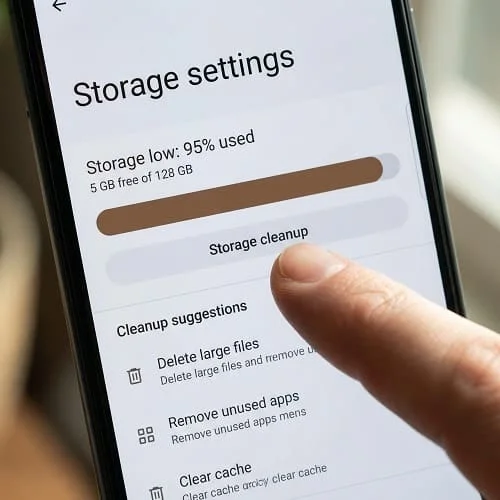
When internal storage is nearly full, your Samsung can slow down dramatically: apps launch slower, updates fail, the camera stutters, and the phone may heat up more. Android needs free space for app updates, caches, databases, and system tasks.
A) How much free space should you keep?
- Aim for at least 10–15% free storage.
- If you’re under 5–8% free, performance issues are very common.
B) Where to check
- Settings → Battery and device care → Storage
C) What to delete first (high impact, low risk)
- Downloads folder (often full of forgotten files)
- Large videos / screen recordings
- Offline downloads in YouTube/Netflix/Spotify
- Unused apps (especially heavy social/games)
D) Clear cache (selectively, not obsessively)
Clearing cache can help when an app becomes bloated or buggy. Good candidates:
- Browsers
- Social apps
- Maps
- Streaming apps
Path: Settings → Apps → (app) → Storage → Clear cache
Official reference (safe and reliable): Google: Free up space on Android
5) Stop hidden background drain (apps that slow the phone silently)
Many slow Samsung phones are not “weak”—they’re busy. A few apps can keep running in the background, using CPU, RAM, and network. That causes heat, battery drain, and lag.
A) Find the apps that are causing load
- Settings → Battery and device care → Battery → Battery usage
Look for:
- Apps with high background usage
- Apps you didn’t use recently but still consume power
- System items that spike (sometimes triggered by apps): Mobile network, Location, Google Play services
B) Fix the worst offenders (safe order)
- Update the app (Play Store → Update)
- Force stop (Settings → Apps → app → Force stop)
- Clear cache (Storage → Clear cache)
- Restrict background battery (if it’s not essential)
C) Use Samsung’s “Sleeping apps” (smart, if used correctly)
Samsung offers app sleep controls that reduce background work:
- Settings → Battery and device care → Battery → Background usage limits
Common options:
- Sleeping apps: limited background activity
- Deep sleeping apps: rarely run in background (great for games and rarely used apps)
- Never sleeping apps: keep only critical apps (messaging/alarms/work auth)
Tip: Don’t deep-sleep messaging apps if you need instant notifications. Test changes for one day.
6) RAM Plus, memory, and multitasking: what helps vs what’s a myth
Samsung phones handle memory well, but certain settings and habits can make multitasking feel worse.
A) RAM booster apps: avoid them
Many “RAM booster/cleaner” apps run constantly, show ads, and force apps to restart more often—making the phone feel slower. Android already manages RAM efficiently.
B) RAM Plus (virtual memory) explained
RAM Plus uses part of storage as extra memory. It can help keep more apps open, but it’s slower than real RAM and can sometimes reduce responsiveness on older devices.
Recommended approach:
- If your phone has 8–12GB RAM, RAM Plus often isn’t necessary; try lowering it or turning it off (if your model allows) and test.
- If your phone has 4–6GB RAM, a moderate RAM Plus value may help multitasking, but don’t expect miracles.
Where to find it (varies by One UI):
- Settings → Battery and device care → Memory → RAM Plus
C) When “clearing memory” helps
Clearing memory can help if a specific app is leaking memory or the phone has been running for weeks. But doing it constantly can backfire because apps must reload again.
7) Processing speed & performance profile (Samsung-only)
Samsung includes performance controls that can make your phone feel noticeably faster—especially if it’s stuck in power-saving behavior.
A) Processing speed
Some Samsung devices have:
- Settings → Battery and device care → Battery → More battery settings → Processing speed
Try setting it to Optimized or High as a test (names vary). If “High” improves lag significantly, the phone was likely throttled for power saving.
B) Performance profile (Light vs Standard)
Some devices offer a performance profile that affects heat, battery, and speed.
- Settings → Battery and device care → Battery → More battery settings → Performance profile
For speed troubleshooting, test Standard (or equivalent). If you were on “Light,” you may feel slower performance during heavier tasks.
C) Don’t confuse “fast” with “hot”
Higher performance settings can increase heat. If your phone throttles from overheating, you’ll lose performance again. The goal is a balanced setup that stays cool enough.
8) Make One UI feel faster: reduce animations (safe settings)
This is one of the fastest ways to make a Samsung phone feel snappier. It doesn’t increase raw power, but it reduces the time spent on UI transitions.
A) Use “Reduce animations” (easy)
- Settings → Accessibility → Visibility enhancements (or search “animations”) → Reduce animations
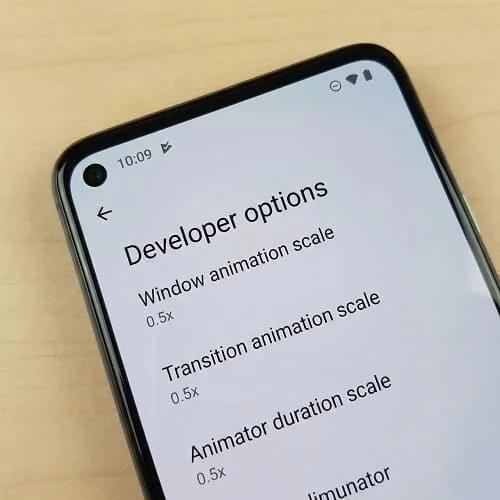
B) Developer options animation scales (power user method)
- Settings → About phone → Software information
- Tap Build number 7 times to enable Developer options
- Settings → Developer options → set to 0.5x:
- Window animation scale
- Transition animation scale
- Animator duration scale
Recommended: Use 0.5x rather than “Off” for a smoother feel with fewer UI glitches.
9) Updates, app cache, and post-update lag (what to do)
If your Samsung became slow right after an update, you may be seeing temporary background work: app optimization, indexing, photo processing, and syncing.
A) Wait 24–48 hours (sometimes it’s normal)
If the phone is only slightly warm and performance gradually improves, it may settle naturally after a couple of charge cycles.
B) Update all apps after a system update
Play Store → Manage apps & device → Update all. Older apps can behave poorly after a One UI update.
C) Clear cache for the most affected apps
If one app is slow (e.g., Chrome, Instagram, TikTok), clear its cache first instead of wiping everything.
D) Check for Google Play system updates
- Settings → Security and privacy → Updates → Google Play system update
10) When “slow internet” feels like a slow phone
Sometimes the phone is fast, but apps hang because the connection is slow or unstable. Signs:
- UI is smooth, but content takes forever to load
- Only online apps are slow
- Switching Wi‑Fi to mobile data changes everything
Quick tests
- Try mobile data vs Wi‑Fi
- Restart the router
- Disable VPN/Private DNS temporarily
If your Wi‑Fi connects but has no internet, your apps will “timeout,” which feels like a slow phone. Fixing the network often makes the phone feel instantly faster.
11) Heat and throttling: why your Samsung slows down when warm
Heat is one of the biggest hidden causes of lag. When the phone gets hot, it reduces CPU/GPU speed (thermal throttling) to protect the battery and chipset.
Common heat triggers
- Fast charging + using the phone at the same time
- Gaming at high brightness
- Video calls, navigation, 5G in weak signal areas
- Direct sunlight
- Thick case trapping heat
Fixes that work
- Remove the case temporarily
- Don’t game or video call while fast charging
- Lower brightness
- Close heavy apps and let the phone cool for 5–10 minutes
Technician note: If your phone gets hot during light use, a runaway app or aging battery may be the real cause. Check battery usage and consider a battery health evaluation.
12) Malware/adware and “cleaner apps” (what to remove)
Samsung phones often slow down after installing ad-heavy apps, fake cleaners, or sketchy VPN/DNS tools. These can run in the background, show pop-ups, and consume CPU.
A) Red flags of adware-like behavior
- Pop-ups outside browsers
- Random battery drain + heat while idle
- New unknown apps you didn’t install
- Home screen shortcuts appearing by themselves
B) Safe checks
- Play Store → Play Protect → Scan
- Uninstall suspicious apps (especially “cleaner/booster” apps)
For official Samsung troubleshooting on performance issues, see: Samsung Support: device is slow or freezing
13) Safe Mode test: prove if an app is the cause
Safe Mode disables third-party apps. If your phone becomes fast in Safe Mode, an installed app is almost certainly responsible.
How to enter Safe Mode (common Samsung method)
- Press and hold the Power button.
- Press and hold Power off until Safe Mode appears.
- Tap Safe mode.
What to do in Safe Mode
- Test speed: scrolling, keyboard, opening apps.
- If performance improves: uninstall recently installed apps first.
- Pay special attention to VPNs, cleaners, launchers, and accessibility apps.
Exit Safe Mode by restarting normally.
14) Advanced fixes: reset app preferences, wipe cache partition, factory reset
If you’ve done the earlier steps and the phone is still slow, use these in order (least risky first).
A) Reset app preferences (doesn’t delete app data)
This can fix problems caused by disabled system apps, broken defaults, or notification settings conflicts.
- Settings → Apps → (three dots) → Reset app preferences
B) Wipe cache partition (only if you’re confident)
Some Samsung models allow wiping the cache partition from Recovery Mode. This can help after updates, but steps vary by device and can be confusing. If you’re not sure, skip this and use the safer options.
C) Factory reset (last resort)
A factory reset can restore performance if the system is heavily corrupted or overloaded with years of app leftovers. But it wipes data, so:
- Back up everything first
- After reset, install apps gradually and test performance to identify any app that reintroduces lag
15) Keep it fast: monthly maintenance checklist
- Keep at least 10–15% storage free.
- Update apps monthly (or enable auto-updates).
- Remove apps you don’t use (less background load).
- Limit “Deep sleeping” only to non-essential apps; keep messaging apps reliable.
- Reduce heat: avoid heavy use while fast charging.
- Restart once a week if you rarely power off.
Related guide
If you want the fastest “instant feel” improvements plus general Android tips (not only Samsung), read: Speed Up Android Phone in 10 Seconds (Real Fixes).
Video walkthrough
This embedded player loads current YouTube walkthroughs focused on speeding up Samsung Galaxy phones (One UI):
FAQ
Do I need a “phone booster” app to speed up my Samsung?
No. Most booster apps run in the background and can make things worse. Focus on storage, background apps, heat, and Samsung’s built-in Device Care tools.
Is it safe to reduce animation scales?
Yes. Setting animation scales to 0.5x is a safe tweak that improves perceived speed without harming performance or data.
Should I turn RAM Plus off?
It depends on your phone. If you have plenty of RAM, turning RAM Plus down (or off if available) can improve responsiveness. Test for a day and keep the setting that feels best.
Why is my Samsung slow only when charging?
Charging creates heat. Heat triggers throttling. Avoid heavy apps while fast charging, remove the case, and keep the phone on a hard surface with airflow.
When should I factory reset?
Only after you’ve freed storage, removed problem apps, updated everything, and tested Safe Mode. A reset is effective but should be a last resort because it wipes data.
Final checklist
- Restart your phone.
- Turn off Power saving mode (test).
- Check Storage and free up space to keep 10–15% free.
- Update apps and uninstall suspicious “cleaner/booster” apps.
- Use Battery usage to find runaway apps; restrict/deep-sleep non-essential apps.
- Adjust Processing speed / Performance profile (if available).
- Reduce animations (Accessibility or Developer options 0.5x).
- Fix heat causes (don’t heavy-use while fast charging; remove case).
- Test Safe Mode to confirm if an app is causing the slowdown.
- Only then consider reset options or a factory reset.
Follow this order and you’ll fix most Samsung lag cases safely—and you’ll understand exactly how to speed up android phone samsung without relying on risky shortcuts.

About the Author
Alex Carter — Founder & Editor‑in‑Chief, GicraMobile
Alex leads GicraMobile’s testing lab and reviews. His methodology focuses on day‑to‑day performance, battery health and thermals, camera consistency, and 5G/LTE reliability—so you can pick the right phone without hype.
Real‑world testing: 90–120 Hz smoothness, idle drain, thermals
Camera checks: HDR, skin tones, low‑light stabilization
Connectivity: band fit, eSIM, VoLTE/VoWiFi, Wi‑Fi performance
You may also like this