
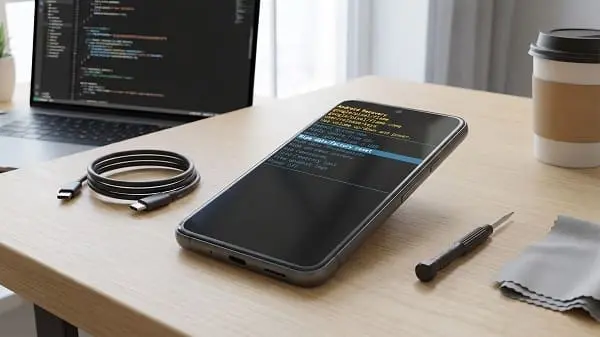
If you need to reset android phone without password, this guide will show you the safest and most reliable methods that actually work in 2026. Whether your screen lock is forgotten, the phone is frozen, or you cannot access Android settings anymore, there are still legitimate ways to perform a factory reset on your own device. I will explain when a reset is possible, what you need to prepare first, how to use Recovery Mode, how to erase the phone remotely with Google tools, and what to do after the reset if Google asks for account verification.
This is an educational guide written for owners of Android phones who are locked out of their own devices. It is not about bypassing security on a stolen phone. Also remember that a factory reset erases your apps, files, settings, and most locally stored data, so it should be your last option if easier solutions have failed.
Table of Contents
Value of This Article
This article is designed to save you time, reduce mistakes, and help you reset your phone the right way. Many tutorials online are too short, outdated, or written without explaining what happens after the reset. Here, you get the full picture: safe preparation, brand-specific button combinations, Google account verification warnings, remote erase options, and common troubleshooting steps if Recovery Mode does not appear. In other words, this guide does not only tell you how to reset a locked Android phone; it helps you understand what to expect before, during, and after the process.
Can You Factory Reset an Android Phone Without the Password?
Yes, in many cases you can factory reset a locked Android phone even if you do not know the PIN, pattern, or password. Android devices usually allow a full wipe through Recovery Mode, and in some situations you can also erase the device remotely using Google Find My Device if the phone is connected to the internet and linked to your Google account.
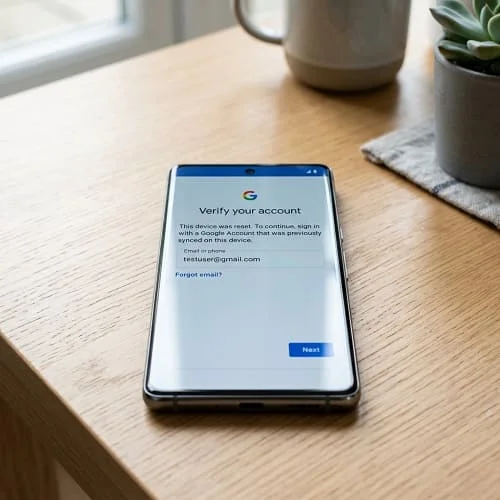
However, there is an important limit that many websites fail to explain clearly: resetting the phone does not remove modern Android security. After the wipe, you may still be asked to sign in with the same Google account that was previously synced on the device. This feature is called Factory Reset Protection (FRP). It exists to protect lost or stolen phones from unauthorized use.
So if your goal is to reset android phone without password, the reset itself is usually possible. But if you also forgot the Google account password used on that device, you may need to recover the account before you can finish setup after the reset.
Before You Start: Important Things to Know
Before performing a factory reset, take a minute to check these points. This simple preparation can prevent bigger problems later.
- Make sure the phone belongs to you. Only reset a device you own or are authorized to manage.
- Charge the battery. Try to have at least 50% battery before entering Recovery Mode. If the battery dies during a reset, it may create software problems.
- Remove the SIM card and microSD card if possible. A factory reset usually does not erase the SD card unless you choose to format it, but removing it is still a good precaution.
- Understand that local data will be erased. Photos, downloads, messages not backed up, app data, and settings stored on the phone will be deleted.
- Know your Google account if you can. After the reset, Android may ask you to verify the account previously used on the phone.
- Use the least destructive option first. If your real problem is only a forgotten lock screen, and you use Samsung, you may want to first read how to unlock samsung phone forgot password without factory reset before wiping all your data.
In practical terms, most people search for solutions like “how to factory reset an Android phone without accessing settings” or “how to forcefully factory reset Android.” The truth is that both are usually done the same way: by turning the phone off and entering Recovery Mode with hardware buttons.
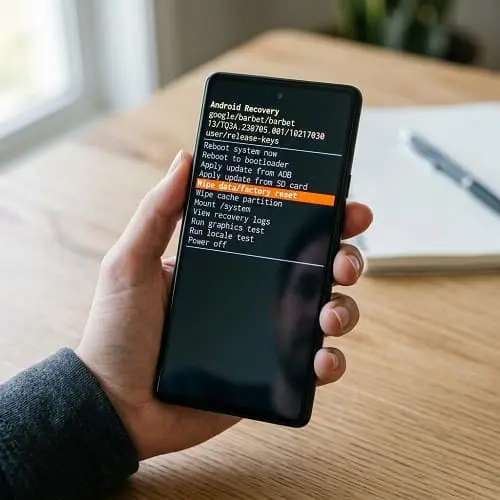
Method 1: Use Recovery Mode to Reset a Locked Android Phone
This is the most reliable method when you cannot open the settings menu. It works on most Android brands, including Samsung, Google Pixel, Motorola, Xiaomi, OnePlus, Oppo, Realme, Vivo, and others, although the button combination may be slightly different.
Step 1: Power off the phone completely
If the screen is responsive, hold the power button and turn the device off. If it is frozen, press and hold the power button for longer, or use a forced restart by holding the power and volume keys until the phone powers down.
Step 2: Enter Recovery Mode
The exact key combination depends on the brand and model. Try the one that applies to your device:
- Samsung: Hold Volume Up + Power/Side button. On some newer Galaxy phones, connecting a USB cable to a computer before pressing the buttons helps Recovery Mode appear.
- Google Pixel: Hold Power + Volume Down to open the bootloader, then use the volume keys to highlight Recovery Mode and press Power.
- Motorola: Hold Power + Volume Down, then choose Recovery Mode.
- Xiaomi / Redmi / POCO: Hold Volume Up + Power.
- OnePlus: Usually Volume Down + Power or Volume Up + Power, depending on model.
- Oppo / Realme / Vivo: Often Volume Down + Power, but menu layout may vary.
If you see a screen that says No command, do not panic. This is normal on some phones. Usually, you can press and hold Power, then tap Volume Up once to reveal the recovery menu.
Step 3: Select “Wipe data/factory reset”
Use the volume keys to move through the menu. Use the power button to confirm your selection.
- Highlight Wipe data/factory reset
- Press Power
- Choose Factory data reset or Yes
The phone will begin erasing data. This may take a few seconds or several minutes depending on the model and storage condition.
Step 4: Reboot the phone
Once the reset is complete, the menu will return to Recovery Mode. Highlight Reboot system now and press the power button. The first boot after a reset usually takes longer than normal. Wait patiently.
What this method actually does
When people search for “reset android phone without password,” they often expect the lock screen to disappear instantly while their files stay safe. A factory reset does not work like that. It completely wipes the phone and restores it to default software settings. Think of it as starting over from scratch.
This method is ideal if:
- You forgot the screen lock
- The phone is frozen or stuck
- You cannot enter Android settings
- You want a complete clean reset of the device
This method is not ideal if:
- You only want to remove the lock screen without losing data
- You forgot the Google account that was previously on the phone
- The phone has hardware button problems
Brand-specific notes that can save you frustration
Samsung: Many recent Galaxy phones will not show Recovery Mode unless the device is fully powered off and connected by USB to a PC or another powered device. If the usual key combo seems not to work, this is often the missing step.
Google Pixel and Motorola: These phones usually take you to a bootloader first, not directly to Recovery Mode. You must use the volume keys to highlight Recovery Mode, then press Power to open it.
Xiaomi / Redmi / POCO: Some versions of MIUI or HyperOS show a recovery screen with touch support instead of classic Android text menus. The reset option is still there, usually under Wipe Data.
Oppo, Realme, Vivo: In some regions, the recovery interface may appear in multiple languages. Read carefully before confirming the wipe option.
If Recovery Mode works, this is the fastest direct answer to the question “How do you do a factory reset on a locked Android phone?”
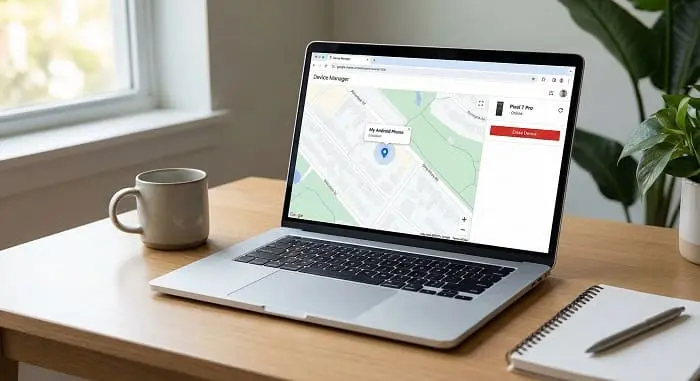
Method 2: Erase the Phone with Google Find My Device
If your locked phone is still powered on, connected to the internet, and linked to your Google account, you may be able to erase it remotely. This is useful if the buttons are not working or if the phone is not physically with you.
You can use Google’s official Find My Device service from another phone or computer.
Requirements for this method
- The phone must be signed into your Google account
- The device must be online
- Find My Device must be enabled
- The phone should be visible in your Google device list
Steps to erase remotely
- On another device, open Find My Device in a browser or app.
- Sign in with the same Google account used on the locked phone.
- Select the correct device.
- Choose Erase device.
- Confirm the action.
After the erase command is completed, the phone will reset itself. Again, this removes local data but may still require Google account verification during setup.
This is one of the cleanest solutions for users who need to reset android phone without password and cannot enter Recovery Mode for any reason.
Method 3: Samsung-Specific Notes and Steps
Samsung phones deserve a separate section because Galaxy devices are among the most searched when users forget their lock screen credentials. If you have a Samsung phone, the reset process is similar to other Android phones, but there are a few details that matter.
How to reset a locked Samsung phone using Recovery Mode
- Power off the phone completely.
- If needed, connect it to a computer using a USB cable.
- Press and hold Volume Up + Power/Side key.
- Release the buttons when the Samsung logo appears and wait for Recovery Mode.
- Use the volume keys to choose Wipe data/factory reset.
- Confirm with the power key.
- Select Factory data reset.
- After completion, select Reboot system now.
If your goal is not a full wipe, but rather trying every reasonable option first, read this guide before proceeding: how to unlock samsung phone forgot password without factory reset. That article focuses on non-destructive Samsung solutions first, which is often the smarter path when you still hope to preserve data.
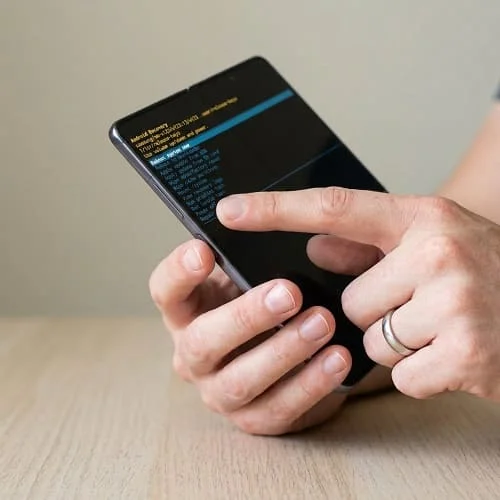
One more important note for Samsung users: after the reset, the setup wizard may ask for the Google account previously synced to the device. This is normal FRP behavior, not an error.
What to Do If the Reset Is Not Working
Sometimes the reset method is correct, but something still goes wrong. Here are the most common problems and practical fixes.
1. The phone keeps restarting and never enters Recovery Mode
Make sure the phone is fully powered off before pressing the button combination. On some models, you need to hold the buttons longer than expected. If the battery is too low, charge the phone for at least 30 minutes and try again.
2. Recovery Mode does not appear on Samsung
Try connecting the phone to a PC with a USB cable first. This small detail solves the issue on many newer Galaxy models.
3. The physical buttons are damaged
If the volume or power button is broken, remote erase through Google Find My Device is the better option, provided the phone is online and linked to your account.
4. The phone is stuck on the logo after reset
Wait longer than usual during the first boot. If the phone still loops after a long time, go back into Recovery Mode and repeat the factory reset once. If it continues, the device may need a software reinstallation by an authorized service center.
5. You can reset the phone, but setup stops at Google verification
This is Factory Reset Protection. You must sign in with the Google account previously used on the phone. If you forgot that password, the correct next step is account recovery, not another reset.
6. The phone says “No command”
This is not a failure. Use the proper key combination for your brand to reveal the recovery menu, usually by holding Power and tapping Volume Up once.
What Happens After the Reset?
Once the reset is finished, the phone will boot like a brand-new device. You will choose language, connect to Wi-Fi, and sign in again. But this is where many users get confused, especially after searching for how to forcefully factory reset Android. The reset itself may succeed, but Android security still continues after the wipe.
Factory Reset Protection (FRP) explained simply
FRP is a built-in Android security feature. If the phone was previously linked to a Google account, Android may ask you to log in with that same account after the reset. This prevents thieves from wiping and reusing a stolen device.
So if you factory reset your phone and forgot your Google account password, use Google’s official Account Recovery tool. Recover the account first, then complete the phone setup with the restored credentials.
How long should you wait before trying to sign in again?
If you just changed the Google account password, wait a little before setting up the phone again. Sometimes Google’s security systems need time to update across devices. If you sign in too quickly after a password change, the phone may still reject it temporarily.
Can a reset remove all software problems?
Not always, but it can solve many issues such as lock screen access problems, severe app crashes, settings corruption, and some persistent malware. It will not fix broken hardware, damaged buttons, water damage, or battery failure.
How to Avoid This Problem Next Time
Once your phone is working again, take a few minutes to make sure you never face the same issue without preparation.
- Write down your Google account details in a secure password manager.
- Turn on cloud backups for photos, contacts, and app data.
- Enable Find My Device so you can locate or erase the phone remotely in the future.
- Use a screen lock you can remember, but keep it secure.
- Add a recovery email and phone number to your Google account.
- Test your backup options before a real emergency happens.
This is especially important if you use your phone for work, banking, or family photos. A factory reset is useful, but good preparation is even better.
Video Guide
FAQ
How to factory reset an Android phone without accessing?
You can usually factory reset an Android phone without unlocking it by turning it off and entering Recovery Mode with the hardware buttons. From there, select Wipe data/factory reset and confirm. If the phone is online and connected to your Google account, you may also be able to erase it remotely using Find My Device.
How to forcefully factory reset Android?
A forceful factory reset normally means using Recovery Mode instead of the settings menu. Power off the device, press the correct key combination for your brand, open Recovery Mode, choose Wipe data/factory reset, and reboot. This is the standard solution when the screen is locked, frozen, or inaccessible.
How do you do a factory reset on a locked Android phone?
On a locked Android phone, the usual method is Recovery Mode. Turn the phone off, enter the recovery screen using the physical buttons, and then select the factory reset option. The exact keys vary by brand, but Samsung often uses Volume Up + Power, while Pixel and Motorola usually start with Power + Volume Down.
What if I factory reset my phone and forgot my Google account password?
If the phone asks for the previously synced Google account after reset, that is Factory Reset Protection. You will need to recover your Google account first using Google’s official recovery page. Once you regain access to that account, you can sign in on the phone and complete setup normally.
Conclusion
If you need to reset android phone without password, the safest path is usually Recovery Mode, followed by Google Find My Device if the phone is still online. The most important thing to remember is that a factory reset removes your local data and may still require your old Google account during setup. That is why preparation matters as much as the reset itself.
For most users, the process is straightforward once the correct button combination is known. Follow the steps carefully, be patient during the first reboot, and do not ignore the Google verification step after the wipe. If the device still does not respond, or if hardware buttons are broken, professional support may be the next step.

Hi, I’m Emma! I’m a busy home cook who loves creating quick, delicious recipes that real people can actually make. At GICRA Kitchen, I share easy air fryer meals, high-protein recipes, and meal prep ideas that fit into your busy life. Welcome to my kitchen! About Emma Carter