Worried about strange behavior on your iPhone? This practical guide walks you through exactly How to Check If Your iPhone Is Hacked: Signs and Fixes. You’ll learn the quick signs to look for, how to verify with built‑in Apple tools, and the safest ways to clean, harden, and restore your device—without panic or guesswork. If you need urgent patching and hardening tips, see our companion article: iPhone Security Alert: Millions at Risk – Update Now 🚨.
Table of Contents
5‑Minute Quick Check (Fast Triage)
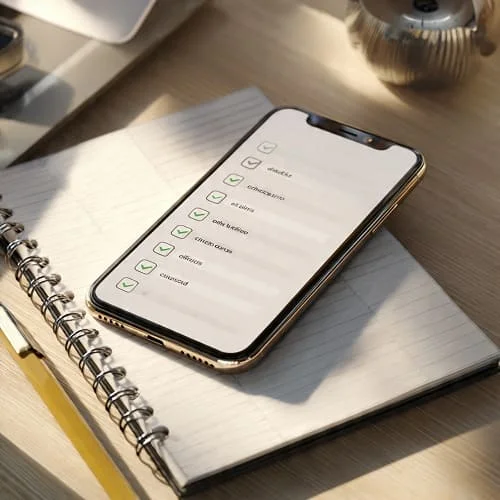
Start here if you just noticed something odd. These steps surface obvious red flags quickly.
- Battery and heat: Settings → Battery → check Last 24 Hours. Any unknown app at the top?
- Data spikes: Settings → Cellular/Mobile Data → scroll app usage for unexpected spikes.
- Safari oddities: Random pop‑ups/redirects? Go to Settings → Safari → Clear History and Website Data.
- Apple ID devices: Settings → [your name] → scroll Devices. Remove any you don’t recognize.
- Profiles/VPN: Settings → General → VPN & Device Management (or Profiles). Delete unknown profiles.
- Update now: Settings → General → Software Update → install. Many attacks vanish after patching.
Symptoms That Really Matter (And What They Mean)
Not every glitch equals a hack. Focus on patterns and persistence:
- Persistent pop‑ups or auto‑redirects in Safari → Often malicious sites or adware scripts; usually fixed by clearing Safari data and avoiding shady links.
- Unusual battery drain/overheating → Background processes, runaway apps, or analytics/debug logs; rarely “spyware,” but worth investigating.
- Data usage surges when idle → Cloud sync loops, rogue apps, or tethering left on; check per‑app data.
- Unknown configuration profiles or root certificates → High‑risk. Remove immediately unless installed by your employer/school.
- New devices in Apple ID → Possible account compromise. Remove unknown devices and change password with 2FA enabled.
- Accounts sending messages you didn’t write → Usually account‑level compromise (password reuse); rotate passwords, enable 2FA.
Verify with Built‑In iOS Tools
Use Apple’s own diagnostics and privacy controls to confirm or dismiss suspicions:
1) Battery and app activity
- Settings → Battery → review app energy impact and screen‑on/off activity.
- Tap an app to inspect usage by hour—spikes without you using the phone warrant a closer look.
2) Cellular/Mobile Data
- Settings → Cellular → per‑app data usage. Toggle off data for unknown or rarely used apps.
- Reset statistics (bottom) and re‑check in 24 hours to isolate culprits.
3) App Privacy Report
- Settings → Privacy & Security → App Privacy Report (enable if off).
- Watch for apps frequently accessing location, microphone, camera, or contacting many domains unexpectedly.
4) Passwords & Security Recommendations
- Settings → Passwords → Security Recommendations.
- Fix reused/compromised passwords; adopt passkeys where supported.
5) Apple ID devices and sign‑ins
- Settings → [your name] → review all Devices.
- Remove unfamiliar devices; change Apple ID password; verify Two‑Factor Authentication is on.
6) Profiles, VPN, and device management
- Settings → General → VPN & Device Management (or Profiles).
- Delete unknown configuration profiles or root certificates; they can route traffic or install restrictions.
7) Analytics Data (advanced)
- Settings → Privacy & Security → Analytics & Improvements → Analytics Data.
- Occasional crash logs are normal; repeated logs tied to a specific unknown process merit removing that app and updating iOS.
8) Safari security and privacy
- Settings → Safari → enable Fraudulent Website Warning and Prevent Cross‑Site Tracking.
- Use Hide IP Address (Trackers) for added protection; consider Ask To Track off in Tracking.
Network, Profiles, and Certificates Checks
Many “weird” issues stem from network settings or untrusted profiles—not full compromises.
- Wi‑Fi: Settings → Wi‑Fi → tap info (i) → Private Wi‑Fi Address on; forget unknown networks.
- VPN: Settings → VPN. Remove any you did not install; verify On Demand is off for unknown profiles.
- DNS/content filters: Profiles can change DNS and blocklists; remove unknown ones in Profiles.
- Certificates: Settings → General → About → Certificate Trust Settings. Untrust unknown root certificates.
Rule Out Common False Alarms
Before you wipe your phone, consider these frequent non‑threat causes:
- Battery drain after updates → iOS re‑indexes photos and data for 24–48 hours.
- Ads and pop‑ups → Aggressive websites, not device malware. Use reader mode or avoid the site.
- Spam calendar invites → Remove the subscribed calendar in Settings → Calendar → Accounts.
- Shared Apple ID → Family members seeing your messages; split accounts and use Family Sharing.
- Third‑party keyboards → Revoke “Full Access” if unneeded in Settings → General → Keyboard → Keyboards.
Step‑by‑Step Fixes (From Light to Deep)
A) Light cleanup (5–10 minutes)
- Update iOS: Settings → General → Software Update.
- Clear Safari data: Settings → Safari → Clear History and Website Data.
- Audit apps: delete apps you don’t use or don’t trust. Reinstall from the App Store if needed.
- Rotate passwords: Settings → Passwords → Security Recommendations → fix issues; enable 2FA.
- Review Apple ID devices and sign out unknown sessions.
B) Network and profile reset (10–15 minutes)
- Remove unknown Profiles and VPN configurations.
- Reset network settings: Settings → General → Transfer or Reset iPhone → Reset → Reset Network Settings.
- Reconnect only to trusted Wi‑Fi; set strong router passwords; disable WPS on routers.
C) Deep clean (30–45 minutes)
- Full encrypted backup (Finder on Mac or iTunes on Windows).
- Erase All Content and Settings: Settings → General → Transfer or Reset iPhone → Erase All Content and Settings.
- Set up as new temporarily (do not restore yet). Log in to Apple ID and test 24 hours. If stable, restore selectively (apps you trust) or restore full backup if necessary.
- Enable advanced protections: Stolen Device Protection, Advanced Data Protection, strong passcode, and Security Keys for Apple ID if available.

When to Erase, Restore, or Get Help
Consider a full erase if:
- Unknown profiles or root certificates keep returning.
- There’s persistent abnormal behavior after updates and app cleanup.
- Your Apple ID shows recurring unfamiliar devices or sign‑ins.
If you’re unsure or this is a work/school device, contact Apple Support or your IT admin. For official security release notes and fixes, consult Apple’s documentation in the sources below.
Also review our step‑by‑step hardening checklist here: iPhone Security Alert: Millions at Risk – Update Now 🚨.
Special Cases: SIM Swap, Kids’ Phones, Work/MDM
SIM swap or number port‑out
- No signal + account takeovers? Call your carrier immediately and enable a port freeze or number lock.
- Rotate passwords and set app‑specific 2FA (prefer app‑based codes over SMS).
Kids’ and family devices
- Use Family Sharing, Screen Time, and Ask to Buy.
- Limit profile installations and third‑party keyboard access.
Work/MDM‑managed devices
- Profiles and restrictions may be intentional; don’t remove them unless approved.
- Report suspicious behavior to IT; they can push updates and run diagnostics.
Video Walkthrough
Tip: Replace this search‑based embed with your preferred tutorial or your own video for maximum relevance.
FAQ: How to Check If Your iPhone Is Hacked
Can an iPhone really be hacked?
iOS has strong protections, but web and account‑level attacks still happen. The most common issues are risky profiles, weak passwords, malicious sites, and reused credentials—less often device‑level “malware.”
Do I need antivirus on iPhone?
Traditional antivirus isn’t necessary for most users. Prioritize iOS updates, safe browsing, and strong account security. Some security apps provide useful anti‑phishing filters and identity‑breach alerts.
Is a pop‑up a sign of infection?
Not necessarily. Many pop‑ups are site‑level. Clear Safari data, avoid the site, and ensure Fraudulent Website Warning is enabled.
What is the fastest way to rule out serious compromise?
Update iOS, remove unknown profiles/certificates, reset Safari data, and check Apple ID devices. If symptoms persist, back up, erase, and set up as new for 24 hours.
Should I use a VPN?
Use a reputable VPN on public Wi‑Fi to encrypt traffic. It doesn’t fix OS vulnerabilities but reduces exposure on untrusted networks.
What about Lockdown Mode?
Recommended for high‑risk users (journalists, activists). It reduces the attack surface by restricting potentially risky features.
Trusted Sources
- Apple Security Releases (Official)
- If you see suspicious Apple messages, pop‑ups, or calls
- WebKit Blog (Engineering Updates)
Conclusion
Diagnosing a “hacked” iPhone doesn’t require guesswork. Use the quick triage to surface immediate red flags, confirm (or dismiss) concerns with iOS’s built‑in tools, and escalate fixes from light cleanup to a full restore only if needed. Harden your device afterward to minimize repeat incidents, and always keep iOS up to date. For a complete hardening checklist and urgent patch guidance, read: iPhone Security Alert: Millions at Risk – Update Now 🚨.

About the Author
Alex Carter — Founder & Editor‑in‑Chief, GicraMobile
Alex leads GicraMobile’s testing lab and reviews. His methodology focuses on day‑to‑day performance, battery health and thermals, camera consistency, and 5G/LTE reliability—so you can pick the right phone without hype.
Real‑world testing: 90–120 Hz smoothness, idle drain, thermals
Camera checks: HDR, skin tones, low‑light stabilization
Connectivity: band fit, eSIM, VoLTE/VoWiFi, Wi‑Fi performance
You may also like this