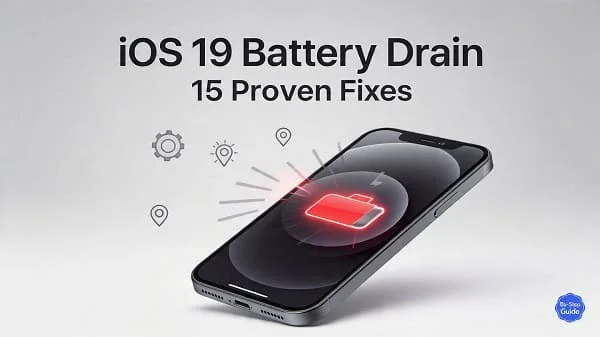
If your iPhone’s battery is running down faster than usual after updating, you’re not alone. This comprehensive, step-by-step guide tackles iOS 19 Battery Drain: 15 Fixes that actually work. You’ll learn how to diagnose the real cause of the drain, apply targeted system and app-level optimizations, and understand when hardware service is justified—all while keeping your data safe and your iPhone performing smoothly.
In this tutorial, we’ll cover quick diagnostics, the 15 proven fixes, advanced resets, healthy charging habits based on lithium-ion best practices, and a practical prevention checklist. Whether the drain happens on-screen, in your pocket, or overnight, these solutions are built to restore predictable, all-day battery life on iOS 19.
Table of Contents
Quickly diagnose iOS 19 battery drain
Before changing settings, find out what’s draining your power. Two minutes of diagnosis can save hours of guesswork:
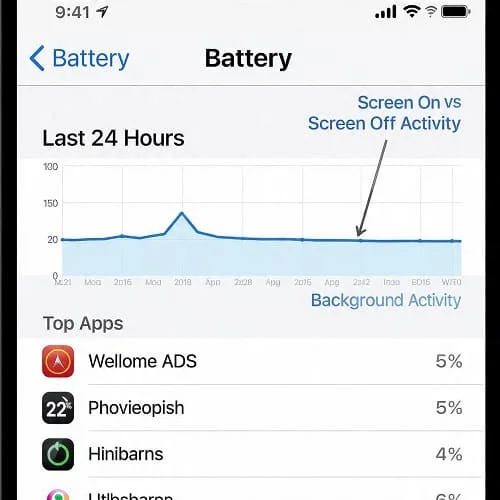
- Open Settings > Battery. Review the “Last 24 Hours” and “Last 10 Days.” Note any apps with unusually high percentage use or “Background Activity.”
- Tap the graph bars. Compare “Screen On” vs “Screen Off” time. High “Screen Off” drain signals background tasks; high “Screen On” drain suggests heavy display/radios usage.
- Check if battery drops rapidly only on cellular but not Wi‑Fi; this points to poor signal or 5G overhead (see Fix 8).
- If the update was recent, expect extra indexing (Photos, Spotlight, Siri, etc.) for up to 48 hours (see Fix 2). Keep the phone idle, plugged in, and on Wi‑Fi overnight to finish.
iOS 19 Battery Drain: 15 Fixes (step-by-step)
Fix 1 — Update iOS 19 and restart
Apple routinely ships point releases that squash runaway background processes, indexing loops, and radio bugs.
- Go to Settings > General > Software Update and install the latest iOS 19 build.
- After updating, force restart: quickly press Volume Up, then Volume Down, then press and hold the Side button until the Apple logo appears.
Why it helps: Power leaks often trace back to bugs fixed in incremental updates. A clean restart clears stuck daemons and cached processes.
Fix 2 — Let iOS finish post‑update indexing
Right after major updates, Spotlight, Photos, and on-device intelligence reindex and re-learn.
- Plug in your iPhone, connect to Wi‑Fi, and leave it locked for several hours (ideally overnight).
- Open Photos to ensure “Analyzing” or “Syncing” can complete. Avoid heavy use during this time.
Why it helps: Indexing spikes CPU and background I/O temporarily. Giving iOS time to finish prevents ongoing drain.
Fix 3 — Read Battery Usage and isolate culprits
Use Settings > Battery to find apps with “Background Activity,” “High Background Location,” or unexpected percentages.
- If a single app dominates, tap it to see activity patterns. Consider force-quitting, logging out/in, or reinstalling.
- Disable background privileges for that app (see Fix 4) or location precision (see Fix 5).
- If a cloud or mail app is constantly syncing, adjust accounts and fetch intervals (Fix 7).
Why it helps: One misbehaving app can account for most of the drain—even when the screen is off.
Fix 4 — Tame Background App Refresh
Background App Refresh keeps apps updated but can be expensive on weak signal or power-hungry apps.
- Go to Settings > General > Background App Refresh.
- Select Wi‑Fi (instead of Wi‑Fi & Cellular) or Off entirely.
- Toggle Off for heavy apps you don’t need updating in the background (social, shopping, news, crypto).
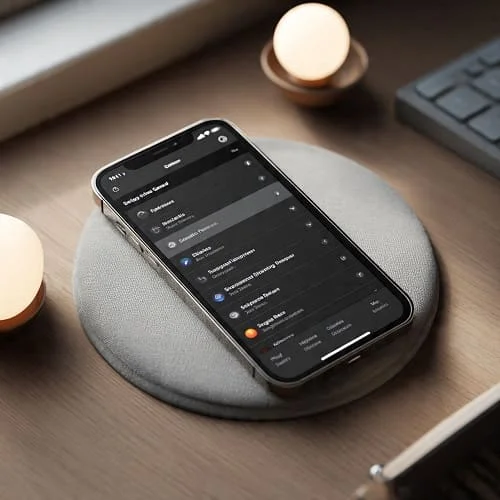
Why it helps: Reduces CPU, network, and wakeups triggered by background fetches.
Fix 5 — Optimize Location Services
Location queries can wake radios frequently.
- Go to Settings > Privacy & Security > Location Services.
- For non-essential apps, set While Using or Never rather than Always.
- Disable Precise Location unless an app truly needs pinpoint accuracy.
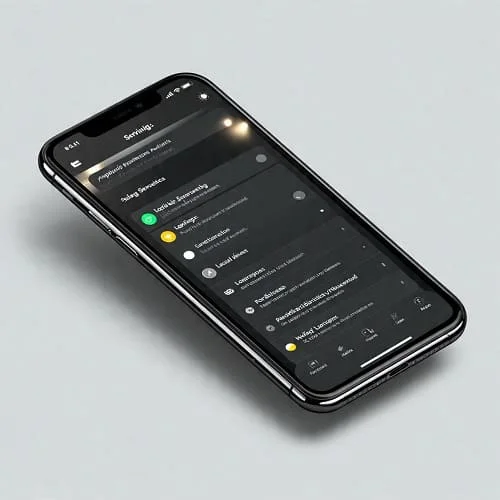
Why it helps: Coarse location is often enough; fewer high-precision queries mean less GPS/Wi‑Fi/cell polling.
Fix 6 — Control Live Activities and widgets
Live Activities and widget updates keep data fresh—but can cost battery if you have many.
- On the Lock Screen, long‑press > Customize > remove unnecessary widgets.
- Open Settings > Face ID & Passcode and disable “Live Activities” on the Lock Screen for apps you don’t need.
- In each app’s settings, turn off persistent Live Activities (e.g., ride-hailing, sports trackers) when not needed.
Why it helps: Cuts background refreshes and screen wakeups for glanceable data you rarely need.
Fix 7 — Adjust Mail/Calendar sync (Push vs Fetch)
Mail Push keeps you instant—but can wake radios frequently. Balance timeliness with efficiency.
- Settings > Mail > Accounts > Fetch New Data.
- Turn Push Off and set Fetch to Every 30 Minutes or Hourly for less critical accounts.
- Switch high-traffic accounts to Manual to sync only when you open Mail.
Why it helps: Reduces constant background network connections and pings.
Fix 8 — Optimize cellular (5G vs LTE)
In weak 5G areas, your phone may burn energy hunting for a stable 5G signal.
- Settings > Cellular > Cellular Data Options > Voice & Data: choose LTE temporarily in weak 5G zones.
- Turn off Data Roaming if you’re near borders or prone to roam.
- Enable Wi‑Fi Calling where supported to keep the radio on lower-power Wi‑Fi indoors.
Why it helps: Avoids high transmit power and connection churn that drain batteries rapidly.
Fix 9 — Use Low Power Mode smartly
Low Power Mode reduces background activity, visual effects, mail fetch, and more—excellent when you need the phone to last.
- Settings > Battery > Low Power Mode: toggle on when battery dips early in the day or during travel.
- Create automations in Shortcuts: turn on Low Power Mode at 30–40% or in specific locations.
Why it helps: System-wide throttling and fewer background jobs extend uptime.
Apple’s guide to Low Power Mode explains what’s limited and when.
Fix 10 — Display & Haptics optimizations
The display is usually the #1 power consumer when in use.
- Settings > Display & Brightness: lower brightness or enable Auto-Brightness.
- Disable Always-On display (on supported models) when you don’t need it.
- Reduce motion and haptics: Settings > Accessibility > Motion & Touch.
- Shorten Auto-Lock to 30 seconds or 1 minute.
Why it helps: Fewer lit pixels and fewer haptic motors mean immediate savings.
Fix 11 — Limit automatic updates & background tasks
Automatic downloads or app updates can kick off at inconvenient times.
- Settings > App Store: turn off App Updates and Automatic Downloads if you prefer manual control.
- Disable video autoplay in App Store to reduce foreground drain.
- Pause big cloud syncs (e.g., Files, Photos) when on cellular or low battery.
Why it helps: Prevents unplanned network and CPU activity during your day.
Fix 12 — Audit System Services
Some system-level toggles quietly use location and analytics in the background.
- Settings > Privacy & Security > Location Services > System Services: disable nonessential items like Product Improvement, iPhone Analytics, and Routing & Traffic if you rarely use them.
- Settings > Privacy & Security > Analytics & Improvements: disable sharing analytics if you prefer.
Why it helps: Fewer background pings and less telemetry can reduce idle drain.
Fix 13 — Reset Network and All Settings (safely)
Corrupted profiles or network stacks can cause drain from connection retries.
- First try Reset Network Settings: Settings > General > Transfer or Reset iPhone > Reset > Reset Network Settings.
- If issues persist, try Reset All Settings (non-destructive): this resets system preferences but not your data.
Why it helps: Clears stuck configurations that repeatedly wake radios, Bluetooth, VPN, or iCloud services.
Fix 14 — Calibrate and charge with healthy habits
Li‑ion batteries age. Good habits reduce stress and keep readings accurate.
- Occasionally calibrate: charge to 100%, use down to ~10–15%, then charge uninterrupted back to 100%.
- Daily habit: keep between ~20–80% when practical; avoid heat and full discharges.
- Enable Optimized Battery Charging to slow charging above 80% when you sleep.
- Use certified chargers and cables; avoid prolonged charging in hot cars.
Why it helps: Reduces chemical wear and corrects the meter so iOS can manage power predictably.
For science-backed charging care, see Battery University’s Li‑ion best practices.
Fix 15 — Clean reinstall or replace the battery
When all else fails, either your software state is corrupted, or your battery has aged.
- Clean reinstall: Backup, erase, and install iOS fresh via Finder (Mac) or iTunes (Windows). Test battery life before restoring your full backup—add apps gradually to identify triggers.
- Replace the battery: If Battery Health is under ~80–83% or cycles are high, a new battery restores capacity and peak performance. Use Apple or a trusted technician.
Why it helps: Fresh OS removes legacy cruft; new cells solve permanent capacity loss and voltage sag.
Apple’s official guidance on battery and performance: iPhone Battery and Performance. Considering DIY or third-party service? Review model-specific guides on iFixit.
After an iOS update: what’s normal?
It’s normal to see higher drain for a day or two after a major update as background tasks complete. If drain remains elevated beyond 48 hours, and your Battery graphs show high “Background Activity” or a specific app dominating, apply Fixes 3–5 and 7–9. If the issue persists across multiple point releases and after a clean reinstall (Fix 15), your battery may simply be worn.
Battery Health: when service is worth it
Go to Settings > Battery > Battery Health & Charging. Check:
- Maximum Capacity: Below ~80–83% often correlates with faster drops and unexpected shutdowns under load.
- Important Battery Message: iOS flags degraded or non‑genuine batteries.
If you’re under 80% or frequently hit Low Power Mode mid‑day despite sane usage, replacement is usually the most cost‑effective fix. Review service options via Apple: Battery and performance guidance.
Related: Overheating and battery drain
Heat accelerates chemical aging and increases drain. If your iPhone 16 or newer runs hot during gaming, charging, or poor signal conditions, handle heat first—battery life will follow.
Practical thermal fixes: better airflow when charging, avoid cases during fast charge, reduce 5G in weak-signal areas, and cap frame rates in games.
Deep dive: iPhone 16 Overheating? 10 Solutions
Advanced tips & pro automations
- Shortcuts automations: Toggle Low Power Mode at selected battery levels; disable Background App Refresh on the go; switch to LTE at work.
- Focus modes: Use Work/Travel Focus to limit notifications, Live Activities, and home screen pages with heavy widgets.
- Per‑app cellular/Wi‑Fi: Settings > Cellular: disable cellular for data‑hungry apps you only use on Wi‑Fi.
- Cloud sync hygiene: Keep large Photos/Files syncs for overnight on charger and Wi‑Fi.
- Accessory sanity checks: Faulty Bluetooth accessories can cause wake storms—remove and re‑pair if battery drops when connected.
Battery life prevention checklist
- Keep iOS 19 updated; reboot weekly.
- Let post‑update indexing complete overnight on Wi‑Fi and charger.
- Audit Battery Usage monthly; remove repeat offenders.
- Use Low Power Mode during travel or long days.
- Prefer Wi‑Fi indoors; switch to LTE in weak 5G areas.
- Limit Always-On display, reduce brightness, shorten Auto-Lock.
- Set noncritical Mail/Calendar accounts to Fetch or Manual.
- Use Optimized Battery Charging and avoid heat.
- Consider battery replacement under ~80–83% health.
FAQs about iOS 19 battery drain
Does iOS 19 drain more than previous versions?
It depends on your device, apps, and signal. Some releases improve efficiency; others expose app bugs. If drain persists after 48 hours, follow the fixes here.
Is overnight drain of 1–3% normal?
Yes. More than ~5–8% suggests background activity or poor signal. Try Airplane Mode or Wi‑Fi only overnight to compare.
Will closing apps help?
Constantly force‑quitting can cause more relaunches and drain. Better to limit Background App Refresh and location per app (Fixes 4–5).
Should I reset my iPhone?
Start with Reset Network Settings; only use Reset All Settings or a clean reinstall (Fix 15) after trying targeted fixes.
When is a new battery the right choice?
If health is below ~80–83% or you experience sudden drops/shutdowns, a replacement is often the fastest, most reliable solution.
References and further reading: Use Low Power Mode • iPhone Battery and Performance • Battery University on Li‑ion care • iFixit iPhone device hub • iPhone 16 Overheating? 10 Solutions

About the Author
Alex Carter — Founder & Editor‑in‑Chief, GicraMobile
Alex leads GicraMobile’s testing lab and reviews. His methodology focuses on day‑to‑day performance, battery health and thermals, camera consistency, and 5G/LTE reliability—so you can pick the right phone without hype.
Real‑world testing: 90–120 Hz smoothness, idle drain, thermals
Camera checks: HDR, skin tones, low‑light stabilization
Connectivity: band fit, eSIM, VoLTE/VoWiFi, Wi‑Fi performance
You may also like this