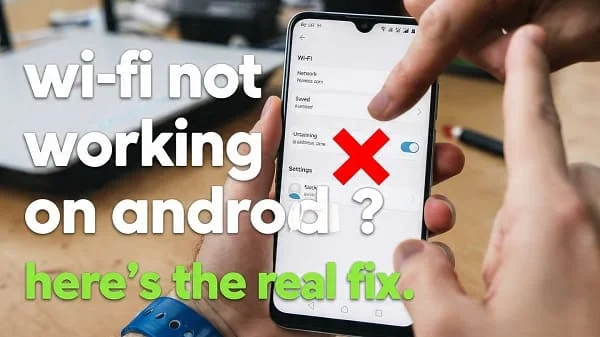
Wi‑Fi Not Working on Android? This step‑by‑step, education‑first guide walks you through fast fixes and deeper diagnostics for phones that won’t connect, keep disconnecting, show “Connected, no internet,” or crawl at unusable speeds. You’ll learn how to triage the problem in minutes, verify router and account settings, reset Android network components cleanly, and tune tricky options like Private DNS, MAC randomization, WPA2/WPA3 security, 2.4/5/6 GHz bands, captive portals, VPNs, and enterprise Wi‑Fi (EAP/802.1X). There’s also an advanced section (Developer options, verbose logging, adb), a 10‑step cheat sheet, and links to official resources—so you can fix the issue calmly and keep it fixed.
Table of Contents
How to fix Wi‑Fi Not Working on Android: Two‑Minute Triage (Quick Wins)
Try these first. They fix a surprising number of Wi‑Fi issues caused by stale state, power policies, or router hiccups.
- Toggle Airplane Mode for 15–20 seconds, then turn it off.
- Turn Wi‑Fi off/on from Quick Settings, not just the Settings page.
- Reboot the phone and the router (power‑cycle router/modem for 20–30 seconds).
- Move closer to the access point (AP). Thick walls, microwaves, cordless phones, and baby monitors disrupt Wi‑Fi.
- Try another SSID/band from the same router (e.g., switch from 5 GHz to 2.4 GHz or vice versa).
Before You Begin: What’s Required for Stable Wi‑Fi
- Correct password/security: Modern Android connects best to WPA2‑PSK (AES) or WPA3. WEP or “WPA/WPA2 Mixed TKIP” can fail or be unstable.
- Router firmware updated and broadcasting on legal channels for your country/region.
- Android date/time automatic: Wrong time breaks HTTPS/certificates and captive portal detection.
- Enough DHCP leases: Small DHCP pools on crowded homes cause “no IP” issues; expand to at least 100 leases.
Android’s Wi‑Fi stack and APIs evolve over time; understanding the basics helps with persistent cases: Android Developers: Wi‑Fi.
Core Android Fixes (Connect, Forget, Reset)
1) Forget and Re‑Add the Network
- Settings → Network & Internet → Internet (or Wi‑Fi) → your network → Forget.
- Toggle Wi‑Fi off/on, then select the SSID and re‑enter the password carefully.
- Tap the gear → Auto‑connect On; ensure Proxy = None (unless required).
2) Disable “Randomized MAC” on MAC‑filtered networks
Some routers use MAC allowlists. If your router expects your device’s real MAC, set: Wi‑Fi → Network → gear → Privacy → Use device MAC.
3) Reset Network Settings (non‑destructive for files)
- Settings → System → Reset options → Reset Wi‑Fi, mobile & Bluetooth.
- Reboot, then reconnect to Wi‑Fi and re‑pair Bluetooth devices.
4) Check Private DNS and VPN
- Settings → Network & Internet → Private DNS → set to Automatic (or Off for testing). Mis‑typed DNS domains block internet while Wi‑Fi “connects.”
- Disable VPN/Firewall/Ad‑blockers temporarily; some block captive portals or TLS handshakes.
Google’s official connectivity troubleshooting is a helpful cross‑check: Google Support: Fix internet connection.
Router‑Side Fixes that Solve Most Cases
- Reboot router/modem and leave off for 20–30 seconds.
- Update firmware from the router’s admin page. Out‑of‑date firmware causes random disconnects.
- Split SSIDs (optional): name 2.4 GHz and 5 GHz differently (e.g., “Home‑2G”, “Home‑5G”) to choose bands explicitly when testing.
- Channel selection: Use non‑overlapping 2.4 GHz channels (1/6/11). On 5 GHz, avoid DFS channels for older phones. Auto channel often works; crowded apartments may require manual choice.
- Security mode: Prefer WPA2‑PSK (AES) or WPA3‑SAE. Avoid “WPA/WPA2 mixed TKIP.” If WPA3‑only fails, switch to WPA2/WPA3 mixed.
- DHCP pool size: Set at least 100–150 addresses; lease time 12–24 hours is fine.
- Guest networks: Many block local devices by design; if printers or cast devices vanish, use main SSID or enable “intra‑LAN” on guest.
Background on Wi‑Fi generations and capabilities (for 6/6E/7 routers): Wi‑Fi Alliance: Discover Wi‑Fi and Wi‑Fi Alliance: Wi‑Fi 6E.
2.4 vs 5 vs 6 GHz, WPA2 vs WPA3, and Hidden SSIDs
- 2.4 GHz: Long range, lower speeds, more interference (crowded). Good for older IoT.
- 5 GHz: Faster, shorter range, better for phones and streaming.
- 6 GHz (Wi‑Fi 6E): Very fast, very clean spectrum, shorter range; requires WPA3. Not all Android phones support 6E.
- Hidden SSID: Hiding an SSID does not improve security and causes flaky connects on Android. Prefer visible SSIDs.
Tip: If your phone sees the SSID but fails to connect on 5/6 GHz, test 2.4 GHz. If that works, revisit security mode (WPA3 → WPA2/WPA3 mixed) or channel/width (try 80 → 40 MHz for stability).
Private DNS, VPNs, Proxies, and Captive Portals
Private DNS
Incorrect Private DNS breaks internet while Wi‑Fi “connects.” Set: Settings → Network & Internet → Private DNS → Automatic (or Off to test). More on Private DNS behavior: Google Support: Private DNS.
VPNs / Security Apps
Pause VPNs, ad‑blockers, and firewalls. They often interfere with captive portals (airports/hotels) and TLS. Re‑enable after the portal page completes.
Proxies
Network → gear → Advanced → Proxy = None unless your office requires it. Old proxy entries cause “no internet.”
Captive Portals
- After connecting, open a plain http (not https) page like http://neverssl.com to trigger the sign‑in.
- If the portal never appears, turn off Private DNS and VPN, then try again.
IP, DHCP, DNS: “Connected, No Internet” Diagnostics
- Check IP on the phone: Wi‑Fi → network gear → see IP, Gateway, DNS. If there’s no IPv4 or it’s 169.254.x.x (APIPA), DHCP failed; reboot router and phone, then try again.
- Static IP (temporary test): Advanced → IP settings → Static → set IP inside your subnet, correct Gateway, and DNS (try 1.1.1.1/8.8.8.8). If this works, DHCP is the problem.
- DNS test: If IP works but websites don’t load, set DNS to Automatic or try a reputable resolver; be sure Private DNS domain (if used) is correct.
Learn DNS fundamentals to understand why a bad DNS entry breaks everything: Cloudflare: What is DNS?
Wi‑Fi Calling, VoIP, IMS, and Time/Certificate Issues
- Enable Wi‑Fi Calling if your carrier supports it—better indoor calling and fewer LTE fallbacks.
- Correct time/date (Automatic)—certificate mismatches break secure sites and some portal pages.
- IMS reliance: Some carriers require IMS registration; VPN/Private DNS can block it. Test with them off.
Battery Saver, Adaptive Connectivity, and Network Switching
- Battery Saver/Data Saver: Temporarily turn off during troubleshooting; aggressive modes can throttle Wi‑Fi or prefer cellular.
- Adaptive Connectivity / “Switch to mobile data”: Some OEMs switch to mobile when Wi‑Fi seems poor. Turn this off while testing to avoid “phantom” drops.
- Background restrictions: If a messaging/VoIP app goes offline on Wi‑Fi only, remove “Unrestricted battery” exemptions or re‑optimize appropriately.
Office/School Networks (EAP/802.1X, Certificates)
- EAP method: Ensure the correct one (PEAP, TTLS, TLS) and proper identity/anonymous identity.
- CA certificate: Install from your IT portal if required; mismatched CA = silent failures or “Connected, no internet.”
- Proxy/On‑device VPN: Enterprise profiles may force proxies or VPNs that block certain traffic; test on a non‑managed profile if possible.
After Android 15/16 Updates: What to Re‑Check
- Re‑verify Private DNS, Proxy, and Auto‑connect on your saved networks.
- Apply Google Play system updates and OEM firmware; then reboot.
- Perform a Network settings reset if Wi‑Fi stays unstable after an OTA.
If cellular also misbehaves (e.g., 5G attach flakiness), see our companion guide: 5G Not Working on Android: How to Fix (Full Guide).
Advanced Tools: Verbose Logging, adb, and Channel Analysis
Wi‑Fi Verbose Logging
- Enable Developer options (Settings → About phone → tap Build number 7×).
- Developer options → turn on Wi‑Fi verbose logging (wording varies by OEM).
- Wi‑Fi details now show link speed, frequency, and more—handy for spotting bad channels or band mismatches.
adb Snapshot (no root)
- Install Android Platform Tools on a PC. Connect the phone with USB debugging on.
- Collect a bugreport while the failure occurs:
adb bugreport bugreport.zipLook for Wi‑Fi stack logs (wificond/supplicant) and connectivity service messages.
Channel Crowding
Use a trusted analyzer (router’s own analysis or a reputable app) to inspect nearby APs. Choose channels 1/6/11 (2.4 GHz) or a less crowded 5 GHz channel. For 6 GHz, ensure your device supports 6E and WPA3, and consider 80 MHz width for stability.
Developer connectivity references for deeper reading: Android Wi‑Fi APIs.
Travel/Public Wi‑Fi: Safer, More Reliable Connections
- Captive portals: Open a plain http page to trigger sign‑in; disable VPN/Private DNS just for the join step.
- Public safety: Prefer a reputable VPN after sign‑in for privacy on open networks.
- Roaming settings: Some travel eSIMs block Wi‑Fi Calling; don’t assume network switching is the culprit if VoIP drops.
10‑Step Cheat Sheet (Copy/Paste)
- Toggle Airplane Mode 20s, then off; reboot phone and router.
- Forget network → reconnect; ensure Proxy = None; Auto‑connect On.
- Set Private DNS = Automatic (or Off to test); disable VPN/ad‑blockers.
- Switch bands (2.4/5/6 GHz) and move closer to the AP.
- Router: update firmware, pick clean channels (1/6/11; stable 5 GHz), use WPA2/WPA3.
- IP/DHCP: confirm IPv4 address; if missing, try Static IP (test) then fix DHCP.
- Disable “Switch to mobile data” and Battery/Data Saver during testing.
- If MAC‑filtered network: set Privacy → Use device MAC.
- Reset Network Settings on Android; re‑add Wi‑Fi/BT; reboot; retest.
- Enterprise/captive: correct EAP/CA cert; for portals, open http page and pause VPN/Private DNS.
FAQs
Why does my phone say “Connected, no internet”?
DHCP or DNS usually. Verify you have a valid IPv4 address and gateway. If DNS is custom/invalid (Private DNS set to a bad domain), switch to Automatic and test.
Why does Wi‑Fi drop when I walk away from the router?
5/6 GHz range is short. Either band‑steer to 2.4 GHz for distance or add a mesh/second AP.
WPA3‑only network won’t connect. Why?
Some phones or IoT devices don’t support WPA3 or the chosen transition mode. Use WPA2/WPA3 mixed on the router.
Why can’t I see my network?
Hidden SSIDs cause flaky behavior. Unhide the SSID or ensure your region/channel is legal and supported by the phone.
Captive portal never appears?
Turn off VPN/Private DNS temporarily and open a plain http site to trigger the portal, then re‑enable security tools after sign‑in.
Helpful References (Official)
- Google Support: Fix internet connection problems on Android
- Google Support: Use Private DNS
- Android Developers: Wi‑Fi Overview
- Wi‑Fi Alliance: Wi‑Fi 6E basics
- Cloudflare Learning: What is DNS?
Verdict
Most “Wi‑Fi Not Working on Android” cases boil down to four things: stale state (fixed by toggles/reboots), router configuration (channels, security mode, DHCP), Android options (Private DNS/VPN/proxy/power modes), or special networks (captive portals, enterprise EAP). Work the checklist: forget/rejoin, verify Private DNS and proxies, pick stable bands and security, expand DHCP, and reset network settings if needed. For stubborn cases, enable verbose logging and analyze channels. With the steps above—and a little patience—you’ll restore a fast, stable Wi‑Fi connection and keep it that way.

About the Author
Alex Carter — Founder & Editor‑in‑Chief, GicraMobile
Alex leads GicraMobile’s testing lab and reviews. His methodology focuses on day‑to‑day performance, battery health and thermals, camera consistency, and 5G/LTE reliability—so you can pick the right phone without hype.
Real‑world testing: 90–120 Hz smoothness, idle drain, thermals
Camera checks: HDR, skin tones, low‑light stabilization
Connectivity: band fit, eSIM, VoLTE/VoWiFi, Wi‑Fi performance
You may also like this