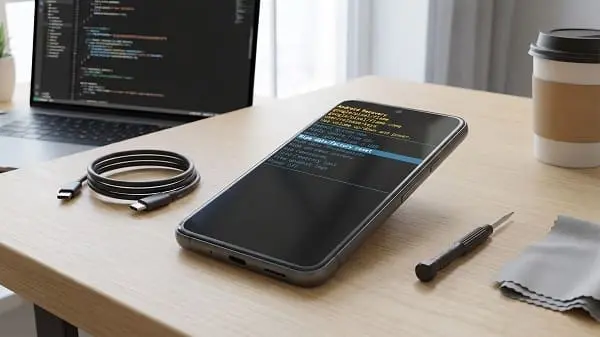
Whether you’re troubleshooting serious bugs, preparing a phone for resale, or simply starting fresh, learning how to Reset Android phone correctly can save hours of frustration—and prevent data loss. This guide walks you through every safe reset option (from a simple restart to a full factory reset), explains what each one does, and shows you how to reset even if your phone won’t boot or you forgot the lock screen PIN.
You’ll also get practical checklists for backups, security (FRP/Google lock), eSIM/SIM handling, and what to do after the reset so you don’t bring the same problems back.
Table of Contents
Value of This Article
This article gives you a safe, technician-style reset workflow that prevents the two biggest mistakes people make: (1) factory resetting without backing up critical accounts/data (photos, authenticator apps, WhatsApp, notes), and (2) triggering Factory Reset Protection (FRP) issues by resetting without knowing the original Google/Samsung account credentials. You’ll learn the right reset type for each situation, plus recovery-mode and remote-reset methods when the phone won’t cooperate.
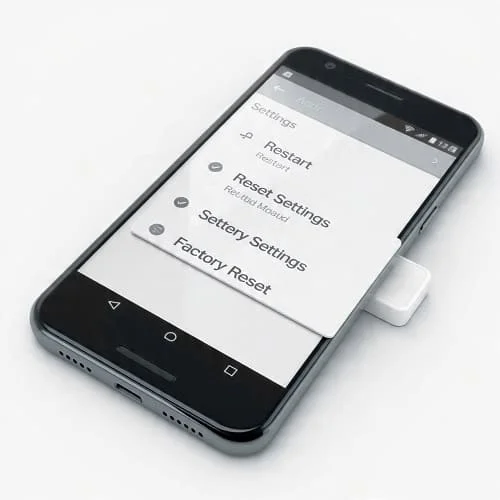
1) Reset options explained (restart vs. resets vs. factory reset)
“Reset” can mean very different things on Android. Before you wipe anything, understand the main types:
| Reset type | What it does | What you lose | Best used for |
|---|---|---|---|
| Restart (Reboot) | Reloads Android and clears temporary processes | Nothing | Glitches, minor lag, random app issues |
| Reset network settings | Resets Wi‑Fi, Bluetooth, cellular settings | Saved Wi‑Fi, Bluetooth pairings | Wi‑Fi/Bluetooth problems, mobile data issues |
| Reset app preferences | Resets defaults/disabled apps/permission prompts (varies) | No app data | Default app issues, “open with” problems |
| Factory reset | Erases user data and returns the phone to “new” state | Apps, photos (unless backed up), accounts, settings | Major bugs, malware, selling the device, severe instability |
Key idea: Most problems don’t require a factory reset. Start small, escalate only if needed.
2) When you should (and should not) reset your Android phone
Good reasons to reset
- Selling or giving away the phone (factory reset + security steps)
- Persistent system crashes, boot loops, or “System UI isn’t responding”
- Severe malware/adware symptoms you can’t remove
- After major updates when the phone becomes unusable and other fixes fail
- Repeated issues that return even after uninstalling apps and clearing cache
Times a reset is usually not necessary
- One app is misbehaving (try updating, clearing cache/data, reinstalling)
- Wi‑Fi issues (try network reset first)
- Battery drain after an update (often settles; check battery usage first)
- Storage is full (free space can fix many slowdowns and crashes)
If your problem is specifically related to a locked screen or forgotten credentials, read this guide before you wipe anything: Unlock Android phone.
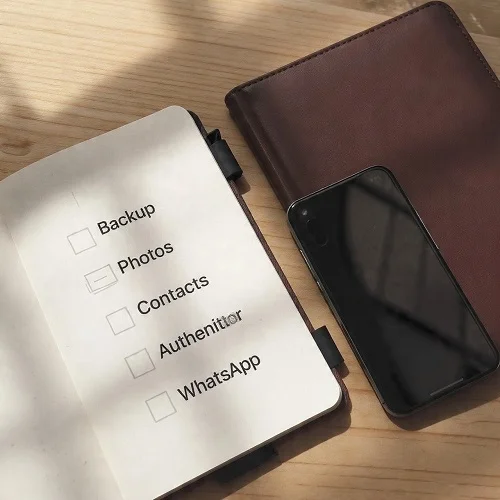
3) Before you reset: the no-regrets backup & security checklist
A factory reset can be the right solution—but only if you prepare. Use this checklist to avoid permanent loss and account lockouts.
A) Backup checklist (what most people forget)
- Google backup: Settings → Google → Backup → make sure it’s on, then run a backup.
- Photos/videos: confirm Google Photos (or your cloud service) finished uploading.
- Contacts: ensure they’re synced to Google (not only stored on SIM).
- WhatsApp/Telegram: confirm backups (WhatsApp: Settings → Chats → Chat backup).
- Authenticator apps (very important): move/backup 2FA codes (Google Authenticator/Microsoft Authenticator/Authy). Losing these can lock you out of accounts.
- Notes/voice recordings: verify they sync (some apps store locally).
- Files: copy Downloads/DCIM to a PC or cloud if needed.
B) Account & lock screen preparation (avoid FRP problems)
Android has Factory Reset Protection (FRP) to stop thieves from wiping a phone and using it. That’s good—but it can also block you if you reset and don’t remember the original account.
- Make sure you know the Google account email/password currently on the phone.
- If it’s a Samsung phone, make sure you know your Samsung account too.
- If you’re selling the phone, remove accounts before resetting (details in the selling section).
C) eSIM, SIM, and SD card
- SIM card: remove it if you’re handing the phone to someone else.
- eSIM: some factory reset flows ask whether to erase eSIMs—choose carefully if you need the line on this device later.
- microSD card: remove it before selling; it may contain photos/files.
D) Charge the phone
Keep battery above 50% before doing a reset—especially if you plan to use Recovery Mode.
4) Soft reset & basic fixes (often enough)
Before you factory reset, try these “low-risk resets.” They solve a surprising number of issues.
A) Restart (standard reboot)
Hold the Power button → tap Restart. This clears temporary glitches and memory issues.
B) Forced restart (when the phone is frozen)
Method varies, but commonly:
- Power + Volume Down for 10–20 seconds
- Some devices use Power + Volume Up
This does not delete data. It’s basically a “hardware reboot.”
C) Clear cache for a problematic app (not a full reset)
If only one app is broken:
- Settings → Apps → (app) → Storage & cache → Clear cache
D) Update everything
- Update Android (system update)
- Update Google Play system update (if available)
- Update apps in Play Store
If the phone becomes stable after these steps, you avoided a factory reset.
5) Reset specific settings (network, app preferences, accessibility)
If your phone works but a feature is broken, a targeted settings reset is usually the best approach.
A) Reset network settings
Use this if you have:
- Wi‑Fi won’t connect, keeps dropping, or “Obtaining IP address” loops
- Bluetooth pairing problems
- Mobile data issues after switching carriers or traveling
Typical path: Settings → System → Reset options → Reset Wi‑Fi, mobile & Bluetooth
You will lose: saved Wi‑Fi networks and Bluetooth pairings. (You’ll re-add them later.)
B) Reset app preferences
Useful when:
- Links open in the wrong app
- “Open by default” behavior is broken
- Some system apps were disabled and now things crash
Typical path: Settings → Apps → (⋮ menu) → Reset app preferences
C) Reset accessibility/overlay culprits (manual, but effective)
If touch, permissions, or pop-ups behave strangely:
- Disable unused Accessibility services
- Disable apps that “draw over other apps” (chat heads, screen filters) temporarily
6) Factory reset from Settings (recommended method)
This is the cleanest way to factory reset because Android can prepare storage, encryption, and account removal properly.
Step-by-step (general Android)
- Open Settings
- Go to System (or “General management” on Samsung)
- Tap Reset options (or “Reset”)
- Select Erase all data (factory reset)
- Review what will be erased
- Confirm with your PIN/password
- Tap Erase all data / Reset
Samsung path (common)
- Settings → General management → Reset
- Factory data reset → Reset → Delete all
Important options you may see
- Erase eSIMs: choose this only if you’re selling the phone or no longer need the eSIM profile.
- Back up my data: don’t rely on last-second backup prompts—confirm backups beforehand.
For official documentation, see: Google Support: Reset your Android device to factory settings and Samsung Support: How to factory reset your device.
7) Factory reset using Recovery Mode (when phone won’t boot)
If your Android phone is stuck on the logo, boot looping, or the screen is unresponsive, you may need a reset through Recovery Mode. This method can be powerful—but it’s also easier to make mistakes, so go slowly.
What Recovery Mode reset does
It performs a factory reset (data wipe). Your personal data is erased from internal storage. After reboot, the phone will require the original Google account during setup if FRP is triggered.
General Recovery Mode steps (most devices)
- Power the phone off completely.
- Enter Recovery Mode (varies by brand):
- Common: Power + Volume Up
- Some: Power + Volume Down then select Recovery
- Some newer devices require a USB cable connected to a PC
- When the recovery menu appears, use volume keys to navigate.
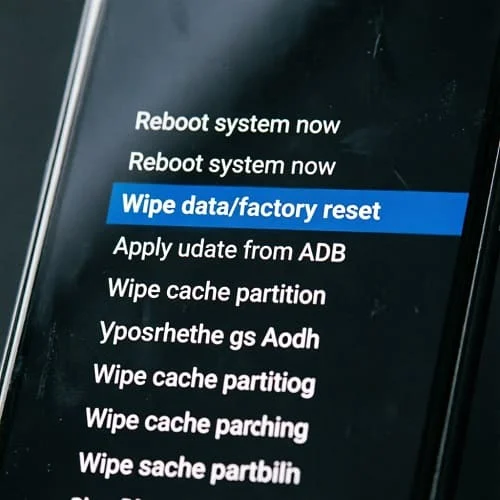
- Select Wipe data/factory reset.
- Confirm Factory data reset.
- Select Reboot system now.
Try wiping cache partition first (if available)
Some recoveries offer Wipe cache partition. This does not delete personal data and can fix post-update glitches. If cache wipe doesn’t help, then proceed to factory reset.
Note: Recovery menus differ between manufacturers. If your buttons don’t work or the menu isn’t accessible, use the remote reset method (next section) or visit authorized service.
8) Remote reset with Find My Device / Samsung services
If you can’t access the phone normally (lost phone, broken screen, forgotten PIN in some cases), remote wipe can be the safest option—assuming the device is online and linked to your account.
A) Google Find My Device (Erase device)
Requirements:
- Phone is signed into a Google account
- Location/Find My Device enabled (often on by default)
- Phone has internet access
Go to Find My Device (web) → select your phone → choose Erase device.
B) Samsung Find My Mobile (Samsung phones)
If you use a Samsung account and enabled remote controls, you may have additional options, sometimes including unlock features depending on settings.
If your main issue is being locked out, read this first: Unlock Android phone.
9) Forgot PIN/pattern? What reset can and can’t do
A factory reset can remove the lock screen—but it does not remove FRP. After reset, Android may require you to sign in with the same Google account previously used on the device.
What this means in practice
- If you reset because you forgot the PIN, you must still know the Google account credentials used on the phone.
- If you don’t, you may be blocked at setup with “This device was reset. To continue, sign in…”
Best approach if you forgot your lock
- Try official unlock paths first (Google/Samsung account methods when available).
- If you must reset, make sure you can log in with the original account afterward.
10) After the reset: setup, restore, and avoid repeating the problem
Resetting is only half the job. The way you set up the phone afterward determines whether it stays stable.
A) Initial setup tips
- Connect to stable Wi‑Fi (setup downloads updates in the background).
- Sign in with the correct Google account (and Samsung account if applicable).
- Install system updates first before restoring everything.
B) Restore selectively (recommended)
If you reset due to bugs, crashes, or lag, avoid restoring everything automatically at once. Instead:
- Restore contacts/photos first.
- Install essential apps only.
- Use the phone for a few hours.
- Install remaining apps gradually.
This method helps you identify if a specific app (or a restored setting) causes the problem to return.
C) Re-check key settings
- Battery optimization for messaging apps (if notifications were delayed)
- Permissions for camera/storage apps
- Private DNS / VPN (if apps had connectivity problems)
11) Common reset problems (stuck, FRP lock, boot loop) and fixes
A) Phone stuck on logo after reset
Try:
- Wait 10–20 minutes (first boot can be slow)
- Forced restart (Power + Volume Down)
- Boot to Recovery and wipe cache partition (if available)
- If still stuck, perform factory reset again from Recovery (rarely needed, but possible)
B) “This device was reset” (FRP/Google lock) during setup
This is normal FRP behavior. The legitimate fix is to sign in with the Google account previously on the phone. If you recently changed the Google password, Google may enforce a waiting period before allowing sign-in on a reset device.
- Ensure you’re using the correct account.
- Connect to Wi‑Fi and set date/time correctly.
- If you changed password recently, wait and try again later.
C) Can’t access Recovery Mode
Possible causes:
- Wrong key combo for your model
- Buttons are faulty
- Device requires USB cable connected to a PC to enter recovery
If keys are broken or the screen doesn’t respond, remote reset (Find My Device) or service center help is more realistic.
D) Reset didn’t fix the issue
If the phone is still unstable after a clean setup with minimal apps, consider:
- Hardware problems (failing storage, battery issues, overheating, moisture damage)
- Carrier/cellular problems (test with another SIM or Wi‑Fi only)
12) Resetting before selling or giving away your phone (secure steps)
If you’re transferring ownership, do more than a basic reset. You want the next user to activate the phone smoothly, and you want your data and accounts protected.
Secure handover checklist
- Back up everything you need.
- Remove Google account: Settings → Passwords & accounts (or Accounts) → Google → Remove.
- Remove Samsung account (Samsung phones): Settings → Accounts and backup → Manage accounts → Samsung account → Remove.
- Disable screen lock (optional but helpful): remove PIN/pattern (after accounts removed).
- Remove SIM and microSD.
- Perform factory reset from Settings.
- At the welcome screen after reset, stop there—don’t sign back in. Power off and hand it over.
Why remove accounts first? It reduces the chance of FRP blocking the next owner and ensures your account is fully detached.
FAQ
Will a factory reset delete everything?
It deletes user data on internal storage: installed apps, app data, settings, and most local files. Items synced to your Google account (contacts, some app data) can be restored. Always verify backups before resetting.
Does resetting fix a slow Android phone?
Often yes—especially if slowdowns are caused by accumulated app data, misbehaving apps, or corrupted settings. But if performance is slow due to aging hardware (battery, storage wear), a reset may only help temporarily.
Can I reset an Android phone without losing photos?
Only if the photos are backed up (e.g., Google Photos) or copied to another device. A factory reset is not selective—it wipes internal storage data.
What’s the difference between “Reset network settings” and a factory reset?
Network reset only clears Wi‑Fi/Bluetooth/mobile configurations. It doesn’t remove apps, photos, or accounts. Factory reset wipes almost everything and restores the phone to a new-like software state.
If I reset, will it remove viruses?
A factory reset removes most malware because it deletes installed apps and data. However, if you restore the same apps/settings blindly, you can reintroduce the problem. After reset, install apps carefully and avoid unknown sources.
Final checklist
- Start with a restart and targeted resets (network/app preferences) before factory reset.
- Before factory reset: confirm backups, authenticator migration, and account passwords.
- Factory reset from Settings is best; use Recovery Mode only if the phone won’t boot.
- Expect FRP: after reset, you may need the original Google account to activate the phone.
- After reset, restore selectively to prevent the issue from returning.
Done right, a Reset Android phone process is safe, predictable, and one of the most effective ways to return an Android device to stable performance—without unnecessary risk.

About the Author
Alex Carter — Founder & Editor‑in‑Chief, GicraMobile
Alex leads GicraMobile’s testing lab and reviews. His methodology focuses on day‑to‑day performance, battery health and thermals, camera consistency, and 5G/LTE reliability—so you can pick the right phone without hype.
Real‑world testing: 90–120 Hz smoothness, idle drain, thermals
Camera checks: HDR, skin tones, low‑light stabilization
Connectivity: band fit, eSIM, VoLTE/VoWiFi, Wi‑Fi performance
You may also like this