If you’re trying to unlock android phone access after forgetting your PIN/pattern, dealing with a broken screen, or getting stuck in a lockout timer, the safest path depends on what you still have available: your Google/Samsung account, biometrics, Smart Lock, a trusted device, or recovery options. This guide explains legitimate, owner-friendly methods to regain access—without risky “bypass” tricks—plus what to do if a reset is the only option.
Important: This article is for unlocking phones you own (or have permission to service). If the phone is found or suspected stolen, the correct action is returning it or contacting the carrier/manufacturer—attempting to access someone else’s device is illegal and unsafe.
Table of Contents
Value of This Article
This guide saves you time by giving you a safe decision path: you’ll learn which unlock method fits your situation, how to avoid data loss, and how to prevent common mistakes like triggering Factory Reset Protection (FRP) without knowing your account details. It focuses on legitimate owner methods (accounts, trusted features, and official recovery) that are accepted by manufacturers and service centers.
1) What does “unlock” mean on Android? (Screen vs SIM vs bootloader)
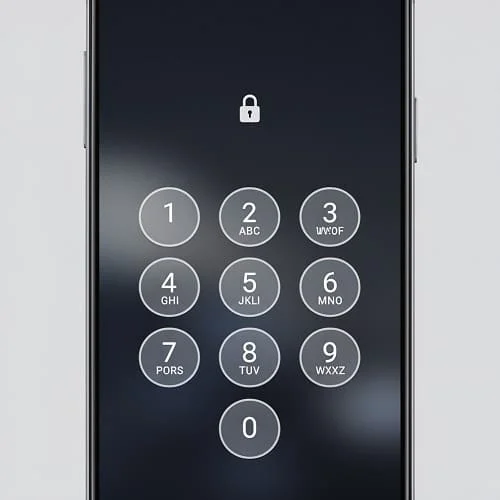
People search “unlock android phone” for different reasons. Before you follow any steps, confirm which type of “unlock” you need:
- Screen unlock (most common): regain access when you forgot your PIN/pattern/password or biometrics fail.
- SIM/network unlock: use the phone with another carrier (requires carrier approval/unlock code).
- Bootloader unlock: developer-level unlocking to flash firmware/custom ROMs (usually wipes data and may void warranty).
This article focuses mainly on screen unlock, while also explaining SIM and bootloader unlock at the end for completeness.
2) Start here: identify your exact lock scenario
Use this quick map to choose the right method:
- You remember the PIN, but the phone won’t accept it → try Section 6 and Section 7 (possible keyboard/layout or lockout issue).
- You forgot the PIN/pattern but you have a Samsung account with remote unlock enabled → Section 4.
- You forgot the PIN/pattern and Smart Lock was enabled → Section 5.
- Screen is broken but phone is on → Section 8.
- You have none of the above → your realistic path is usually a factory reset → Section 9.
Reality check: Modern Android security is designed so that if you don’t have the correct lock credential (or a pre-enabled official remote unlock feature), there is no “safe secret trick” to unlock without wiping data. Be cautious of tools and videos promising one-click bypass—many are scams or malware.
3) Unlock Android phone without losing data (best options first)
If your top priority is keeping photos/files/app data, your best chance is using something that was already enabled before you got locked out.
Option A: Use biometrics (if available)
If you still have fingerprint/face unlock working, unlock normally. If biometrics suddenly fail, don’t rush into repeated attempts—use Section 6 first.
Option B: Use a linked manufacturer account (Samsung is the most helpful)
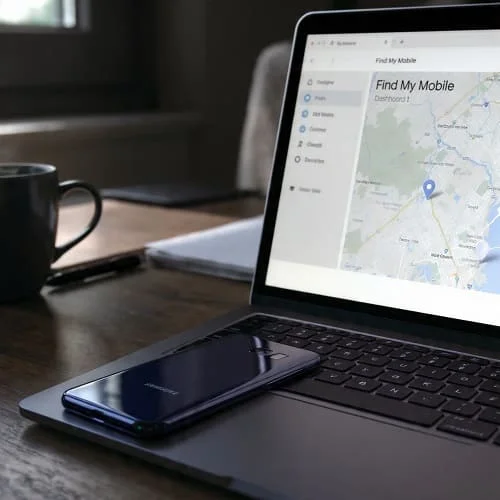
Some brands offer remote device services. The best-known is Samsung’s Find My Mobile, which can remotely unlock if you enabled it beforehand.
Option C: Use Smart Lock / trusted environments
If Smart Lock was enabled (trusted places/devices/on-body detection), you may be able to get the phone into an “unlocked state” again without wiping it.
Option D: If the display is broken, use OTG/external display to input the correct code
If you remember the PIN but can’t type it, a mouse/keyboard can save you from a reset. See Section 8.
4) Samsung phones: remote unlock with Find My Mobile
If you have a Samsung Galaxy device, this is often the best “no data loss” way to unlock—but only if it was enabled before you were locked out.
Requirements
- You are signed into a Samsung account on the phone
- Remote unlock (or “Remote controls”) was enabled
- The phone is online (Wi‑Fi or mobile data)
Steps (high level)
- Open Samsung Find My Mobile from a browser and sign in with the same Samsung account.
- Select your device.
- Choose the Unlock option (if available).
- Follow the confirmation prompts.
Official reference: Samsung SmartThings Find (Find My Mobile)
5) Smart Lock & trusted devices (if you enabled it earlier)
Smart Lock can keep your phone unlocked in certain situations. The exact options vary by Android version and brand, but typically include:
- Trusted places (home/work)
- Trusted devices (Bluetooth watch/car)
- On-body detection
How to use Smart Lock to regain access
If Smart Lock was already configured, try these practical moves:
- Go to a trusted place (for example, your home address if set).
- Turn on Bluetooth and connect the trusted device (watch/car).
- Keep the phone on you and walk a bit if you used on-body detection.
Important limitations
- After a reboot, Android typically requires your PIN/password at least once before Smart Lock can keep the device unlocked again.
- Smart Lock is convenience, not a guaranteed recovery method. Don’t depend on it as your only plan.
6) Fingerprint/Face unlock not working: fixes before you enter PIN
Sometimes you know your PIN, but biometrics are failing and you’re worried about lockout timers—or you think you typed the right code but it’s being rejected. Try these safe checks:
A) Fingerprint tips
- Clean the sensor and your finger (oil/water can reduce accuracy).
- If your finger is very dry, slightly moisturize and try again.
- Remove a thick screen protector if your model uses an under-display sensor and it recently started failing.
B) Face unlock tips
- Clean the front camera area.
- Try better lighting; avoid strong backlight.
- Remove sunglasses/hat temporarily.
C) If the correct PIN is “not working”
- Confirm you’re entering the code on the right keyboard layout (some lock screens can switch languages/number formats).
- If you recently changed the PIN, try the previous one (people often mix them up during transitions).
- Restart the phone only if you’re sure you remember the PIN—because rebooting may disable biometric unlock until PIN is entered.
7) “Try again in 30 seconds / 1 minute”: dealing with lockout timers
Android lock screens apply time delays after repeated wrong attempts. To avoid making things worse:
- Stop guessing randomly. More attempts = longer delays.
- Wait for the timer to finish, then enter the code slowly and carefully.
- If you’re stressed and unsure, pause and check your password manager/notes for the correct code.
If you truly don’t remember the code, jump to Section 9 to avoid endless lockouts.
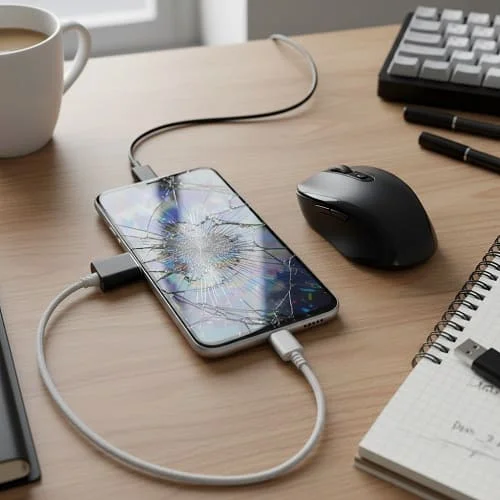
8) Unlock with a broken screen: OTG mouse, external display, and service-friendly steps
A broken display is one of the most common reasons people think they must reset. If the phone is powered on and you remember the PIN, you may be able to unlock it long enough to back up your data.
Method A: Use an OTG adapter + USB mouse (works on many Android phones)
What you need:
- USB‑C OTG adapter (or micro‑USB OTG for older phones)
- A simple USB mouse (or USB keyboard)
Steps:
- Connect the OTG adapter to the phone.
- Plug the mouse into the adapter.
- Use the pointer to draw the pattern or tap the PIN keypad.
- Once unlocked, back up data immediately (photos, files, chats).
Method B: USB‑C to HDMI (external display) if your phone supports it
Some Android devices support display output (often called “DisplayPort Alt Mode”). With a USB‑C hub, you can connect to a monitor/TV and use a mouse/keyboard to control the phone.
Method C: If touch is broken but screen works
- Try enabling accessibility features using hardware keys if possible.
- Use OTG mouse to navigate to backup options.
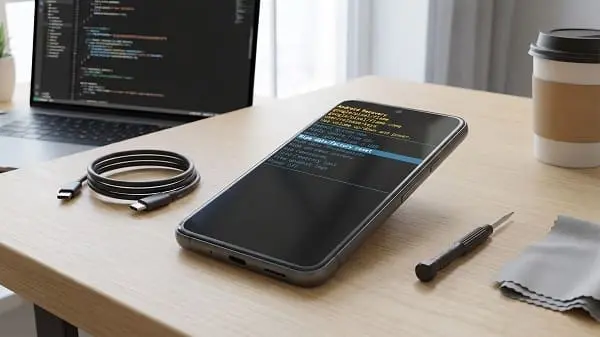
9) Forgot PIN/pattern and nothing works: factory reset (and what FRP means)
If you forgot the screen lock and you don’t have a working remote unlock feature (like Samsung’s), a factory reset is usually the only supported way to regain access. This will erase apps and local data.
Use this complete step-by-step reset guide (recommended): Reset Android Phone Safely: Backup, Factory Reset & Fixes.
Before you reset: understand the consequence
- A factory reset erases local files that aren’t backed up.
- After reset, Android may require the previous Google account during setup (FRP).
When a reset still makes sense
- You already have cloud backups (Google Photos/Drive, etc.).
- The phone is unusable and you need access again.
- You know the Google/Samsung account credentials previously used on the device.
10) Factory Reset Protection (FRP): avoid getting stuck after reset
FRP is a theft-prevention feature. If a phone is factory reset, Android may ask you to sign in with the Google account that was previously on the device.
How to prepare (owner-safe)
- Make sure you know the correct Google account email and password.
- If you recently changed your Google password, be aware there may be a security waiting period before sign-in is accepted on a freshly reset device.
- Keep access to your 2FA method (SMS/Authenticator).
If you’re resetting because you’re selling the phone
Remove accounts first (Google/Samsung), then reset from Settings. This reduces the chance of FRP blocking the next owner.
11) SIM/network unlock (carrier unlock) explained
Sometimes “unlock” means using your phone with a different carrier (SIM unlock). This is not related to the screen PIN.
How SIM unlock works
- Your carrier provides an unlock (often automatically when eligible).
- Eligibility usually requires: phone fully paid, not reported lost/stolen, account in good standing, and a minimum time on the network.
What you should do
- Contact your carrier support and request a network unlock.
- Follow the carrier’s steps (some use an app, some send an unlock code, some do it server-side).
Tip: Beware of third-party “paid unlock” services. Use your carrier first whenever possible.
12) Bootloader unlock (developer unlocking) explained
Bootloader unlocking is a developer feature for installing custom firmware. It’s not meant for bypassing the lock screen and usually wipes the device.
Key points
- It can void warranty or reduce device security depending on the brand/region.
- It may trigger data wipe and security warnings at boot.
- It’s unrelated to recovering a forgotten PIN without data loss.
13) After you regain access: secure your phone so this doesn’t happen again
Once you unlock your phone (by any legitimate method), take 10 minutes to prevent a repeat lockout:
A) Add a recovery-friendly screen lock setup
- Use a PIN you can remember (avoid birthdays).
- Consider a password manager for storing important device/account info.
B) Enable backups
- Enable Google backup and verify it completes.
- Confirm photo backup (Google Photos or alternative).
C) If you use Samsung
- Sign in to Samsung account and consider enabling remote services (if you’re comfortable with them).
D) Prepare for emergencies
- Keep your Google account recovery options updated (recovery phone/email).
- Store 2FA backup codes for critical accounts.
Video walkthrough
If you want to follow along visually, here’s an embedded player that loads relevant tutorials:
FAQ
Can I unlock my Android phone without losing data if I forgot the PIN?
Only if you had a legitimate recovery method enabled beforehand (for example, Samsung remote unlock, Smart Lock, or you can still use biometrics). Otherwise, a factory reset is usually required.
Does Google Find My Device unlock a forgotten PIN?
Google’s Find My Device is mainly for locating, securing, or erasing a device. It typically does not remove an unknown screen lock without wiping data. Official info: Google Find My Device help.
My phone says “Try again later.” What should I do?
Wait for the timer, then enter the code carefully. Stop random guessing because it increases lockout time. If you don’t remember the code, plan for account-based recovery or reset.
What if my touchscreen is broken but I know the PIN?
Use an OTG mouse/keyboard or an external display solution (if supported) to input your PIN and back up data. This is one of the best ways to avoid a reset.
I reset the phone and now it asks for the old Google account. Is that normal?
Yes—this is Factory Reset Protection (FRP). Sign in with the Google account previously on the device. If you don’t have it, use Google account recovery options and wait if you recently changed the password.
Final checklist
- Confirm which “unlock” you need (screen vs SIM vs bootloader).
- Try no-data-loss methods first: biometrics fixes, Smart Lock, Samsung Find My Mobile (if enabled).
- If the screen is broken, use OTG mouse/external display to enter the correct PIN and back up.
- If you must reset, follow a safe reset guide and be prepared for FRP (know your Google credentials).
- After access is restored, enable backups and set recovery-friendly security settings.
Done the right way, the goal isn’t just to unlock android phone access once—it’s to regain access safely and ensure you never lose your data if it happens again.

About the Author
Alex Carter — Founder & Editor‑in‑Chief, GicraMobile
Alex leads GicraMobile’s testing lab and reviews. His methodology focuses on day‑to‑day performance, battery health and thermals, camera consistency, and 5G/LTE reliability—so you can pick the right phone without hype.
Real‑world testing: 90–120 Hz smoothness, idle drain, thermals
Camera checks: HDR, skin tones, low‑light stabilization
Connectivity: band fit, eSIM, VoLTE/VoWiFi, Wi‑Fi performance
You may also like this