Overheating on a Samsung Galaxy isn’t just uncomfortable—it can cause lag, fast battery drain, camera shutdowns, charging pauses, and long-term battery wear. If you’re searching for How to fix overheating phone Samsung in 2026, you need more than generic tips. You need a clear diagnosis plan that tells you why your phone is heating up (apps, signal, charging, updates, or hardware) and what to do—safely.
This guide is written like a repair technician’s checklist. Start with the quick “cool down now” steps, then identify the exact trigger, then apply long-term fixes so the problem doesn’t come back.
Table of Contents
Value of This Article
This article gives you a structured, evidence-based way to stop Samsung overheating—without risky “cooling apps” or random setting changes. You’ll learn:
- How to quickly cool your phone safely (without condensation damage).
- How to identify the true cause using Device Care, battery stats, and simple tests.
- Which fixes are best for common 2026 scenarios: fast charging heat, 5G signal hunting, background app loops, and post-update indexing.
- When overheating is a sign of battery wear or hardware fault that needs service.
Safety first: what to do immediately
If your phone is extremely hot (painful to touch), prioritize safety before troubleshooting:
- Stop charging and unplug the cable immediately.
- Remove the case (thick cases trap heat).
- Close heavy apps (camera, games, video calls, navigation).
- Move the phone to a cool, shaded area.
- If heat doesn’t drop within minutes, power it off.
Do not put your phone in the freezer. Rapid cooling can create condensation inside the device and damage components.
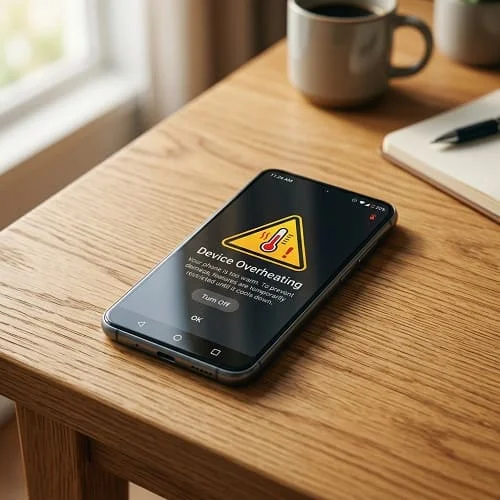
Why Is My Phone Hot and Losing Battery?
Heat and battery drain usually happen together because both come from one thing: high power usage. When the CPU/GPU, radios (5G/Wi‑Fi), or charging circuitry work harder than normal, energy turns into heat and the battery drops faster.
The most common causes (2026 reality)
- Runaway apps: a social app, VPN, or buggy update keeps the phone awake.
- Charging + using the phone: fast charging already creates heat; adding gaming/video calls can push it over the edge.
- Weak signal / 5G hunting: the phone boosts transmission power and repeatedly searches for a stable tower.
- Hotspot: turning your phone into a router generates sustained heat.
- Location (GPS) + bright screen: navigation at high brightness is a classic heat combo.
- Background sync loops: photos/drive/email trying to sync on unstable Wi‑Fi.
- Battery aging: older batteries generate more heat under load.
Quick “where is it hot?” clue
- Near the charging port → charger/cable/charging heat
- Middle back → CPU/app load
- Top near camera → camera/video processing or heavy chipset work
If overheating appears specifically with a Galaxy S22, you may also want this model-focused guide: How to fix overheating phone samsung s22.
Samsung Overheating Warning When Charging
If your Samsung shows an overheating warning during charging (or charging pauses), treat it as a serious signal. Charging heat is normal to a point—but warnings usually mean temperature crossed a safe threshold.
Why it happens during charging
- Fast charging (high wattage) increases heat
- Poor-quality cable/charger or wrong standard
- Lint or damage in the USB‑C port causing resistance
- Using the phone while charging (gaming, calls, hotspot)
- Charging environment: on a bed/pillow, in a hot car, in direct sun
Fixes (safe order)
- Stop using the phone while charging for one test session.
- Remove the case and place the phone on a hard surface.
- Switch to a slower charger (or disable fast charging temporarily if your model allows).
- Try a different cable (quality USB‑C cable rated for the wattage).
- Check the port: if the plug feels loose or the phone heats at the bottom, get the port cleaned/checked professionally.
When to stop charging and get help
- Burning smell, crackling, or visible damage
- Battery swelling (back cover lifting)
- Heat becomes extreme within minutes on any charger
Official reference: Samsung Support: Device overheating
Samsung Phone Overheating But Not Hot
Sometimes your phone displays a temperature warning or closes apps due to “overheating,” yet it doesn’t feel very hot. This can happen—and it’s usually one of these situations:
1) Localized heat near a sensor
The phone’s sensor might be near a component that warms quickly (battery area, chipset area), even if the outer frame feels only warm.
2) Temperature rises fast, then Android reacts early
Samsung’s thermal management can throttle performance and show warnings before the phone becomes painfully hot—especially during charging or camera use.
3) Background load you don’t notice
The phone may be “busy” while the screen is off—syncing, uploading, scanning location, or dealing with a stuck service. You feel it as battery drain more than heat.
4) Case insulation hides the real temperature
A thick case can keep heat inside. The phone may be hotter than it feels externally.
What to do
- Remove the case and test behavior for 24 hours.
- Check Battery usage and Device Care for abnormal background activity.
- Run a Safe Mode test (later in this guide) to confirm if a third‑party app is causing it.
How to Fix Samsung Phone Overheating
This is the core checklist. Follow it in order to avoid wasted time.
Step 1: Restart and observe
Restart clears stuck processes. After restart, watch for:
- Heat while idle
- Fast battery drain
- One app dominating battery usage quickly
Step 2: Use the phone lightly for 10 minutes
If it heats quickly with light tasks (messages, settings), suspect a runaway app, system service loop, or battery wear.
Step 3: Reduce the biggest heat multipliers
- Lower brightness (or enable Adaptive brightness)
- Disable hotspot when not needed
- Turn off GPS when not needed
- Test LTE/4G instead of 5G for a day (especially in weak coverage)
Step 4: Fix charging heat (if charging is the trigger)
- Use a reputable charger and correct cable
- Avoid heavy use while charging
- Try slower charging as a diagnostic test
Step 5: Identify and fix the app/service causing heat
Use Samsung Device Care and battery usage (next section). In most cases, one app is responsible.
Use Samsung Device Care to pinpoint the cause
Samsung’s built-in tools can show you what’s happening without installing anything.
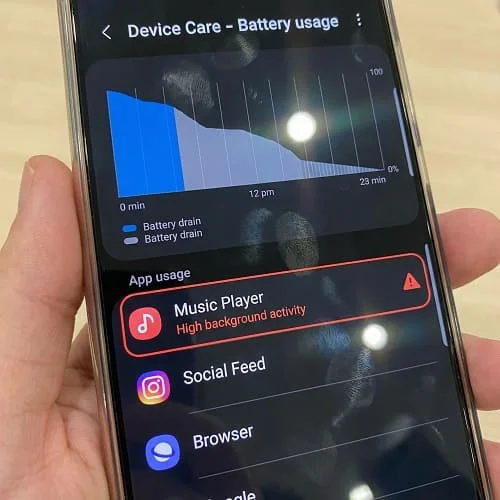
A) Check battery usage
Path (varies slightly by One UI version):
- Settings → Battery and device care → Battery → Battery usage
Look for:
- An app using unusually high battery in a short period
- High background usage
- System items spiking: Mobile network, Location, Hotspot
B) Device Care warnings
- Settings → Battery and device care → review any warnings about overheating, abnormal app behavior, or storage issues.
C) Background usage limits (Sleeping apps)
Samsung allows you to reduce background activity:
- Settings → Battery and device care → Battery → Background usage limits
Use Deep sleeping apps for apps you rarely need in the background (games, shopping apps). Keep messaging/alarms out of deep sleep.
App fixes: permissions, background limits, and runaway processes
Apps are the #1 cause of overheating complaints. Here’s the safest way to fix app-driven heat.
1) Update apps first
Play Store → Manage apps & device → Update all. Buggy builds can cause loops after system updates.
2) Force stop and clear cache for the worst offender
- Settings → Apps → (app)
- Force stop
- Storage → Clear cache
3) Check permissions that keep apps running
Especially:
- Location set to “Allow all the time”
- Physical activity permissions (fitness apps)
- Nearby devices (Bluetooth scanning)
Downgrade to “While using the app” when possible.
4) Remove “cleaner/booster” apps
Many “optimizer” apps run constantly, show ads, and can increase heat. Android and One UI already manage memory well.
Signal, 5G, hotspot, GPS: hidden heat sources
Your phone’s radios can generate serious heat—especially with weak signal.
A) Weak signal heat (very common)
Clues:
- Phone heats more in certain buildings/rooms
- Battery usage shows high “Mobile network”
- Heat improves in Airplane mode or on Wi‑Fi
Fixes:
- Test LTE/4G only for a day
- Enable Wi‑Fi calling if your carrier supports it
- If coverage is terrible overnight, use Airplane mode + Wi‑Fi (if you don’t need calls)
B) Hotspot heat
- Reduce connected devices
- Turn screen brightness down
- Put the phone on a hard surface (not bed/sofa)
C) GPS heat
Navigation combines high brightness + GPS + data. Try:
- Lower brightness
- Mount away from direct sun
- Avoid fast charging while navigating
Camera, video calls, gaming: reduce heat without ruining quality
Some tasks naturally produce heat. The goal is staying below thermal limits.
Camera and video recording
- Use 1080p instead of 4K if you don’t need 4K
- Avoid long continuous recording in direct sunlight
- Close other apps before recording
Video calls
- Use Wi‑Fi (if stable) instead of mobile data
- Lower brightness
- Turn off background effects/blur if available
Gaming
- Lower graphics settings and frame rate
- Don’t game while charging
- Remove thick case during long sessions
After updates: what’s normal vs. a bug
After a One UI or Android security update, it’s normal to see temporary warmth because the phone may optimize apps and rebuild indexes.
Normal
- Warmth and slightly higher drain for 24–48 hours
Not normal
- Overheating while idle for days
- Rapid drain + heat with light tasks
- One app dominating background usage repeatedly
If it’s not normal, update apps, clear cache for top offenders, and run a Safe Mode test.
Additional trusted reference (general device warmth guidance): Google Help: Phone is warm or hot
Battery health: when replacement is the real fix
If your Samsung is 2–4+ years old, the battery may be aging. Aging batteries can generate more heat under the same workload and can cause “random” overheating behavior.
Signs the battery may be failing
- Fast drain even when you barely use the phone
- Heat with light tasks
- Random shutdowns at 20–40%
- Swelling, screen lifting, or back cover bulge (urgent)
Best long-term fix
If symptoms match, a battery replacement from an authorized service center or reputable repair shop often restores normal temperatures and stability.
Video walkthrough
FAQ
How do I get my Samsung to stop overheating?
Start by unplugging the charger, removing the case, closing heavy apps, and letting it cool. Then check Battery usage in Device Care to find the app or service causing high background activity, and update/restrict/uninstall it.
How to cool down a Samsung phone fast?
Unplug it, move it to a cool shaded place, remove the case, lower brightness, turn on Airplane mode for a few minutes (if signal is weak), and stop heavy tasks. Avoid the freezer to prevent condensation damage.
Can an overheating phone be fixed?
Yes—most overheating is caused by apps, charging habits, weak signal, or settings and can be fixed. If overheating happens during idle with severe battery drain, it may be battery wear or hardware, which is still fixable (often by replacing the battery).
How do I know if my Samsung battery is bad?
Common signs include fast drain, heat during light use, random shutdowns, percentage jumps, and any physical swelling. If you see swelling or smell burning, stop charging and seek service immediately.
Final checklist
- Unplug + remove case + cool down safely.
- Restart the phone.
- Check Device Care → Battery usage for high background drain apps.
- Update apps, then force stop + clear cache for the top offender.
- Restrict/deep-sleep non-essential apps (don’t break messaging/alarms).
- Fix charging heat: try slower charger, quality cable, don’t game while charging.
- Test LTE instead of 5G in weak signal areas; use Wi‑Fi calling if available.
- If still overheating while idle: Safe Mode test, then consider battery health/service.
Follow these steps and you’ll solve most Samsung overheating cases in 2026 safely—while also protecting your battery lifespan. If you want model-specific tuning, see the S22-focused guide linked above.

About the Author
Alex Carter — Founder & Editor‑in‑Chief, GicraMobile
Alex leads GicraMobile’s testing lab and reviews. His methodology focuses on day‑to‑day performance, battery health and thermals, camera consistency, and 5G/LTE reliability—so you can pick the right phone without hype.
Real‑world testing: 90–120 Hz smoothness, idle drain, thermals
Camera checks: HDR, skin tones, low‑light stabilization
Connectivity: band fit, eSIM, VoLTE/VoWiFi, Wi‑Fi performance
You may also like this