
When Android apps keep crashing, it’s more than a minor annoyance: it can interrupt work, break notifications, drain battery, and sometimes point to deeper issues like corrupted cache, low storage, outdated system components, or overheating. This guide provides a practical android apps crashing fix workflow you can follow step by step—starting with quick wins, then moving to advanced solutions that technicians use.
You don’t need risky “one-tap booster” apps or complicated tools. You just need the right order of troubleshooting, because the same symptom (an app closing instantly) can have very different causes.
Table of Contents
Value of This Article
This article saves you time by giving you a technician-style decision tree, not random tips. You’ll learn how to quickly diagnose whether crashes are caused by one app, a system component (like Android System WebView), storage/RAM pressure, network/VPN settings, or overheating—and apply the safest fix first without losing data unnecessarily.
1) What “crashing” actually means
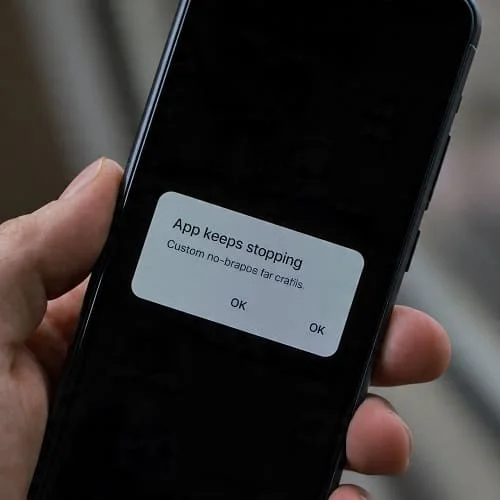
On Android, an app “crash” usually falls into one of these behaviors:
- Instant close on launch (tap → splash screen → closes)
- Force close during a specific action (uploading a photo, opening a chat, scanning QR)
- Random closes in the background (music stops, messaging app restarts)
- System-wide app crashes (many apps crash at once, sometimes after an update)
Each pattern points to different root causes—so your best “android apps crashing fix” is to identify the pattern first, then apply targeted steps.
2) Fast checks (fix many crashes in 5 minutes)
Start with these safe steps before changing deeper settings:
Step 1: Restart your phone
It sounds basic, but it clears stuck processes and memory issues. If an app started crashing “out of nowhere,” a restart often resolves it immediately.
Step 2: Check for an app update
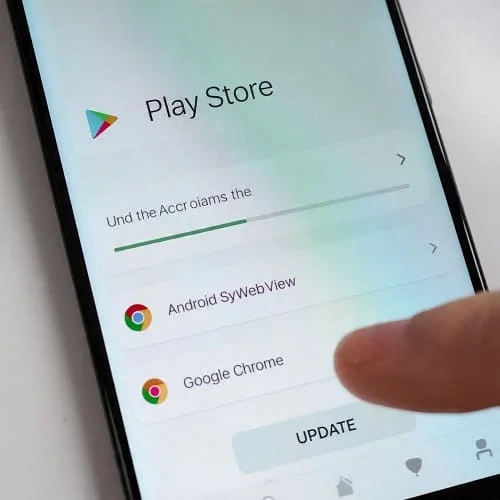
Open Google Play Store → Manage apps & device → Updates available. Update the crashing app first, then update everything else. Developers often release hotfixes for crash bugs.
Step 3: Check for an Android update
Go to Settings → System → Software update (path varies by brand). System updates can fix compatibility issues, security component bugs, and WebView-related problems.
Step 4: Confirm date & time are correct
Incorrect time can break login tokens and SSL connections, leading to crashes in apps that rely on secure sign-in.
- Settings → System → Date & time → enable Set time automatically
Step 5: Free a little space (quick test)
If your storage is almost full, apps can crash when they can’t write cache files. As a quick test, free at least 1–2 GB and retry the app.
3) Identify the crash pattern (single app vs. many apps)
Use this section as your diagnostic “fork in the road.”
A) Only one app is crashing
This usually means:
- Corrupted cache or data
- Buggy app update
- Broken login/session
- Permission conflict
- App incompatibility with your Android version
Go to Section 4.
B) Many apps are crashing (or apps that use web content)
This often points to:
- Android System WebView or Chrome issues
- Google Play services instability
- A bad system update / corrupted system cache
Go to Section 5 and Section 6.
C) Apps crash mainly when the phone is hot
Heat can trigger performance throttling and memory pressure, which can cause apps to freeze or close. Jump to Section 10.
4) Fix a single app that keeps crashing
If one specific app keeps closing, follow this order. It’s designed to protect your data and avoid unnecessary resets.
1) Force stop the app
- Settings → Apps → (App name) → Force stop
This kills the current broken session.
2) Clear cache (safe, no login loss in most apps)
- Settings → Apps → (App name) → Storage & cache → Clear cache
Cache corruption is a very common cause of repeated crashes, especially after app updates.
3) Update the app (or leave beta programs)
If you’re on a beta version, it may be unstable. In Play Store, check if you’re enrolled in beta; opt out and reinstall the stable release if needed.
4) Clear storage/data (effective, but may sign you out)
If clearing cache didn’t help:
- Settings → Apps → (App name) → Storage & cache → Clear storage (or “Clear data”)
Important: This resets the app. Make sure you know your login details, and verify that important items are synced (for example: WhatsApp backups, notes sync, cloud saves).
5) Reinstall the app
Uninstall then reinstall from Google Play. This replaces missing or corrupted files and often fixes “crash on launch” issues.
6) Check app permissions
Some apps crash when denied a required permission (camera, storage/media, location). Review:
- Settings → Apps → (App name) → Permissions
Enable only what’s necessary. If you’re unsure, set permissions to “Ask every time” and test.
7) Disable overlays and accessibility services (often overlooked)
Apps can crash or behave strangely if another app draws over them (chat heads, screen dimmers, password managers) or uses powerful accessibility controls.
- Temporarily disable screen overlay apps
- Settings → Accessibility → disable non-essential services and test
8) Check if the app is supported on your Android version
If your phone is running an older Android version, some apps stop supporting it and may crash after updates. In that case:
- Try an older stable version only from trusted sources (avoid random APK sites)
- Or use the web version / lite version
- Consider updating the phone OS or device if security updates are no longer available
5) Android System WebView & Chrome: the hidden crash trigger
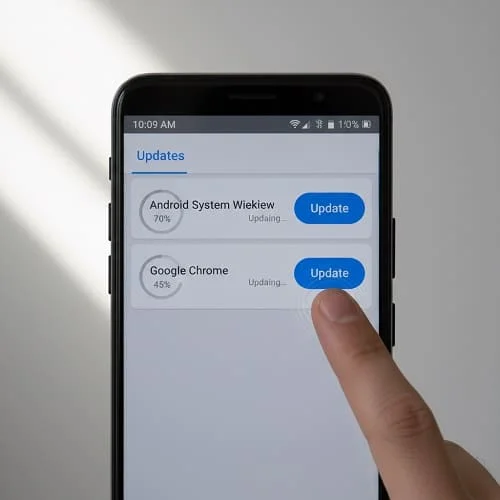
If multiple apps crash—especially apps that display web content (banking, email, news, shopping)—the cause is often Android System WebView or Chrome. Many apps rely on these components to render web pages inside the app.
What to do (safe order)
- Update Android System WebView in Google Play Store.
- Update Google Chrome (even if Chrome isn’t your default browser).
- If the issue started after an update, uninstall WebView updates (or Chrome updates) as a temporary rollback:
- Settings → Apps → Android System WebView → menu (⋮) → Uninstall updates
- Do the same for Chrome if needed
- Restart the phone and test your apps again.
Tip: Some phones don’t show “Android System WebView” clearly. Use Settings search and type “WebView”.
For official help on apps that don’t work, see Google’s guide: Fix problems with an app on Android.
6) Google Play services / Play Store issues
Google Play services is a core component that many apps depend on (sign-in, notifications, location, background sync). If it’s unstable, apps can crash or refuse to open.
A) Clear cache for Google Play services (safe)
- Settings → Apps → See all apps → Google Play services → Storage & cache → Clear cache
B) Clear cache for Google Play Store
- Settings → Apps → Google Play Store → Storage & cache → Clear cache
C) Update Play services and Play Store
Play services updates are usually automatic, but you can trigger updates by updating apps in the Play Store and keeping the system updated.
D) Remove and re-add your Google account (only if nothing else works)
If app crashes are linked to sign-in loops, removing and re-adding the Google account can help—but do it carefully.
- Confirm you know your Google password
- Confirm 2FA access (SMS/Authenticator)
- Back up important data
7) Storage, RAM, and background limits (why they matter)
Android apps can crash when the system is under pressure. The most common “pressure” problems are low storage, memory limits, and aggressive battery optimization by some brands.
A) Low storage (one of the top causes)
When storage is nearly full, the phone struggles to create temporary files, update databases, and write cache—leading to crashes during login, loading feeds, or processing media.
- Aim for 10–15% free space for stable performance.
- Clear large downloads, offline videos, and unused apps.
B) RAM pressure (especially on older phones)
If apps crash mainly when you multitask, it may be normal memory management—Android closes apps to free RAM. You can reduce it by:
- Closing heavy apps you don’t need (games, camera, editors)
- Reducing widgets/live wallpapers
- Restarting occasionally if the phone stays on for weeks
C) Brand-specific “battery savers” that kill apps
Some phones (especially with aggressive power management) may kill apps in the background, which feels like “crashing.” Check:
- Settings → Battery → Battery optimization
- Set the affected app to Optimized (or allow background activity if required)
D) Developer options (be careful)
If you enabled Developer options and changed background process limits, revert to default:
- Settings → Developer options → Background process limit → Standard limit
8) Permissions, corrupted data, and login/session problems
Some crashes happen only after you sign in, open a certain page, or try to upload media. Common reasons:
A) Corrupted app database
Messaging apps, social apps, and browsers store local databases that can corrupt. Fix path:
- Clear cache
- If needed, clear storage/data
- Reinstall
B) Broken login tokens
If the app crashes right after login, try:
- Update the app
- Turn off VPN temporarily
- Clear app storage/data
- Ensure date/time are automatic
C) Permission mismatch after Android updates
Android updates sometimes tighten permission rules. If a camera/scanner app crashes when opening the camera:
- Grant Camera permission
- Grant Photos/Media permission if it saves files
- Disable “Remove permissions if app isn’t used” if it causes issues
9) Network, VPN, Private DNS, and captive portals
Not all “crashes” are true crashes. Sometimes apps close because they cannot reach servers, fail a security check, or get stuck on a login handshake.
A) Test without VPN
VPNs can break certain apps (banks, streaming, messaging) and cause repeated failures that look like crashing. Temporarily disable the VPN and retry.
B) Check Private DNS
Private DNS (especially ad-blocking DNS) can block endpoints used by apps. To test:
- Settings → Network & Internet → Private DNS → set to Automatic
C) Handle Wi‑Fi captive portals
On public Wi‑Fi, you may need to sign in via a portal page. If apps crash or refuse to load:
- Open a browser and complete the Wi‑Fi login
- Or switch to mobile data temporarily
10) Crashes caused by overheating or throttling
Heat can destabilize performance. When a phone gets too hot, Android may throttle CPU/GPU, limit background work, or pause certain processes. Under heavy heat, apps can freeze and close—especially games, camera apps, and social video apps.
If your crashes happen during charging, gaming, video calls, navigation, or in hot weather, fix overheating first. Use this full guide: Android Phone Overheating Fix: Safe Steps That Work.
Quick heat-related stabilizers:
- Stop charging while using heavy apps
- Lower brightness
- Remove thick cases temporarily
- Close background apps and restart
11) Safe Mode: prove whether an installed app is the cause
Safe Mode temporarily disables third‑party apps. If crashes stop in Safe Mode, the cause is almost certainly an app you installed (including launchers, cleaners, VPNs, or keyboard apps).
How to enter Safe Mode (common method)
- Press and hold the Power button.
- Press and hold Power off until “Safe mode” appears.
- Tap OK.
(Steps vary by device. If you don’t see it, search your model + “Safe Mode.”)
What to do in Safe Mode
- Test the crashing app(s) for 10–15 minutes.
- If stable: uninstall recently installed apps first.
- Pay special attention to apps that:
- Run “on top” of other apps (overlays)
- Use Accessibility services
- Claim to optimize RAM/battery
- Change DNS/VPN/network routes
Exit Safe Mode by restarting the phone normally.
12) Advanced system fixes (reset preferences, updates, cache)
If crashes persist (especially across multiple apps), use these deeper fixes. They’re still safe when done carefully.
A) Reset app preferences (doesn’t delete app data)
This resets disabled apps, default apps, background restrictions, and permission prompts in some cases.
- Settings → Apps → (three dots menu) → Reset app preferences
B) Check “Disabled” system apps
If you disabled system apps to “debloat,” you may have disabled something required. Re-enable essentials like:
- Android System WebView (or Chrome as WebView provider)
- Download Manager
- Google Play services
- Package installer / system UI components
C) Update Google Play system components
On many phones:
- Settings → Security & privacy → Updates → Google Play system update
D) Wipe cache partition (only on devices that support it)
Some Android models (not all) allow wiping the cache partition from recovery mode. This can help after major updates. Because steps differ by manufacturer and can be confusing, only do this if you can follow official steps for your model. If unsure, skip it and use the safer options above.
E) Check for storage corruption symptoms
If apps crash when saving files, downloading, or attaching media, test:
- Try saving to internal storage (not SD card).
- If using an SD card, remove it and retest. A failing SD card can cause app crashes and freezes.
For general Android troubleshooting best practices and safe-mode guidance, you can also reference Android’s official help resources: Google Help: Troubleshoot Android device problems.
13) When to factory reset (and how to do it safely)
A factory reset is a strong solution when:
- Many apps crash, even after WebView/Chrome fixes
- Crashes persist in Safe Mode
- You suspect deep OS corruption or leftover conflicts from major updates
- Malware/adware symptoms appear (pop-ups, unknown apps, random installs)
Before you reset
- Back up: photos, contacts, messages (if needed), files, authenticator backup codes
- Make sure you know your Google account credentials
- Remove screen lock if you’re worried about recovery issues (optional)
Best practice after reset
Don’t install 50 apps immediately. Set up the phone, test stability for an hour, then install apps gradually. If crashes return after installing a particular app, you’ve found the trigger.
Video walkthrough
If you prefer a visual guide, this embedded player loads relevant walkthroughs from YouTube:
FAQ
Why do my apps keep crashing after an Android update?
After updates, crashes usually come from compatibility bugs, WebView/Chrome issues, corrupted cache, or background optimization changes. Start by updating WebView/Chrome, then clear cache for the affected apps, and check for Play services updates.
Is “Clear data” the same as uninstalling?
Not exactly. Clearing data resets the app to a fresh state but keeps the installed files. Uninstalling removes the app entirely and then reinstalling restores clean files. If clearing cache/data doesn’t work, reinstall.
Can low storage really cause apps to crash?
Yes. Apps need temporary space for cache, databases, downloads, and image processing. When storage is nearly full, apps may crash during heavy actions like uploading media or loading feeds.
Do RAM booster/cleaner apps fix crashing?
Usually no. Many “boosters” run constantly, show ads, and can destabilize apps by aggressively closing background processes. For stability, remove them and use Android’s built-in battery/app management.
What if only one app crashes but everything else is fine?
That’s typically corrupted cache/data, a buggy update, permissions, or account/session issues. Follow the single-app steps: force stop → clear cache → update → clear data → reinstall.
Final checklist
- Restart the phone
- Update the crashing app + update all apps
- Clear the app’s cache (then data if needed)
- Reinstall the app
- Update Android System WebView + Chrome (or roll back updates if the issue started immediately after updating)
- Clear cache for Google Play services + Play Store
- Free storage (aim for 10–15% free)
- Test without VPN/Private DNS
- Use Safe Mode to confirm whether a third‑party app is causing system instability
- If heat-related: fix overheating first using the linked guide
- Factory reset only if crashes persist across apps and Safe Mode
Follow this order and you’ll solve most “Android apps keep crashing” cases with minimal risk—and you’ll also understand why each fix works, so the problem doesn’t come back.

About the Author
Alex Carter — Founder & Editor‑in‑Chief, GicraMobile
Alex leads GicraMobile’s testing lab and reviews. His methodology focuses on day‑to‑day performance, battery health and thermals, camera consistency, and 5G/LTE reliability—so you can pick the right phone without hype.
Real‑world testing: 90–120 Hz smoothness, idle drain, thermals
Camera checks: HDR, skin tones, low‑light stabilization
Connectivity: band fit, eSIM, VoLTE/VoWiFi, Wi‑Fi performance
You may also like this