When a Samsung phone gets too hot, it may dim the screen, slow down, stop charging, or shut down without warning. This is usually normal protection behavior: Samsung devices include battery-protection circuits and thermal shutdown features designed to prevent damage to the battery, processor, and internal components. If you’re searching for Samsung phone overheating and switching off how to fix, this guide walks you through the most common causes and the safest, proven fixes you can do at home—step by step.
Overheating can be triggered by heavy apps, poor signal, fast charging, degraded batteries, software bugs, or even moisture exposure. The good news: most cases are fixable without replacing the phone.
Quick answer: To fix Samsung phone overheating and shutdowns, close heavy apps, restart, update software, remove the case, lower brightness, disable unused radios (5G/GPS/Bluetooth), clear app cache, avoid using the phone while charging, reset network settings, and check battery health. If it still powers off, back up and seek service.
Why Is My Samsung Phone Overheating and Turning Off?
A shutdown during overheating is typically a protective response. When internal temperatures cross a safe threshold, the phone reduces performance (throttling) and may power off to prevent battery stress or hardware failure. If you repeatedly experience Samsung phone overheating and switching off how to fix scenarios, one (or several) of the causes below is usually responsible.
- Heavy gaming or high CPU/GPU usage: 3D games, video rendering, livestreaming, navigation + music, or camera recording (especially 4K/8K) can push the processor hard.
- Fast charging heat: Super Fast Charging/fast wireless charging increases heat, especially in warm rooms or on soft surfaces like beds.
- Battery degradation: Older batteries generate more heat under load. This is a common reason for “why is my phone hot and losing battery” complaints.
- Software bugs and runaway processes: A stuck system service, a buggy app update, or corrupted cache can spike CPU usage invisibly.
- Poor ventilation: Thick cases, direct sunlight, car dashboards, pillows/blankets, or tight pockets trap heat.
- Weak mobile signal: In low coverage, the modem works harder to maintain connection—often causing heat and battery drain.
- Malware or suspicious apps: Adware, crypto-miners, or aggressive background trackers can overwork the phone.
Samsung phones are designed to reduce performance and may shut down if internal temperature becomes too high—this is a safety feature to protect the battery and device components.
Common Signs Your Samsung Phone Is Overheating
Overheating isn’t just “feels warm.” Look for these patterns:
- Device becomes extremely hot around the camera area, sides, or near the charging port.
- Phone shuts down automatically or reboots during gaming, camera use, or charging.
- Battery draining quickly even with light use (classic “why is my phone hot and losing battery”).
- Screen dimming or brightness refusing to stay high (thermal protection).
- Performance throttling: lag, stutter, apps closing, lower frame rates, delayed camera shutter.
10 Proven Ways to Fix Samsung Phone Overheating and Switching Off
The steps below are prioritized from easiest/most common to deeper fixes. Follow them in order. If your goal is Samsung phone overheating and switching off how to fix, these actions address both temperature and the sudden power-offs that often follow.
1) Close heavy apps and stop background activity
Apps can keep the CPU awake even when you’re not using them.
- Open Recent apps → close heavy apps (games, camera, navigation, video editors).
- Go to Settings → Battery and device care → Battery and check for apps with unusually high usage.
- Limit background activity for offenders: Settings → Apps → (app) → Battery → Restricted (wording may vary by One UI version).
2) Restart the phone (a real restart, not just screen off)
A restart clears stuck processes and memory leaks.
- Hold Power + Volume Down → tap Restart.
- If overheating happens daily, schedule restarts: Settings → Battery and device care → Automation (or Auto restart).
3) Update system software and Google Play system updates
Firmware updates frequently contain modem, battery, and thermal management fixes—especially if you’re seeing Samsung phone overheating after update behavior from a prior release.
- Settings → Software update → Download and install.
- Settings → Security and privacy → Updates → Google Play system update (path may vary).
- Update apps in Galaxy Store and Play Store.
4) Remove the phone case and improve airflow
Cases can trap heat and make temperature spikes worse.
- Remove thick cases during gaming or charging.
- Avoid placing the phone on blankets, couches, or car seats while charging.
5) Reduce screen brightness and refresh rate temporarily
The display is a major heat source—especially on bright, high refresh rate settings.
- Enable Adaptive brightness or manually lower brightness.
- Switch to Standard refresh rate if overheating is severe: Settings → Display → Motion smoothness.
- Use Dark mode on OLED models to reduce power draw.
6) Disable unused features (radios and location)
Unused connectivity features can create constant background scanning.
- Turn off Bluetooth, NFC, and GPS/Location when not needed.
- If you’re in poor coverage, toggle Airplane mode for 30 seconds, or set network to LTE/4G temporarily (5G can run hotter in fringe areas).
- This is a common Samsung mobile overheating problem solution when heat is modem-related.
7) Check battery health and charging behavior
A failing battery can overheat and trigger shutdowns under load. This is one of the most important steps for Samsung phone overheating and switching off how to fix.
- Open Samsung Members → Diagnostics → run Battery (and temperature-related checks if available).
- Watch for swelling, screen lift, or a wobbly back panel—stop using the phone and seek service immediately.
- If shutdowns happen around 20–40% battery, that strongly suggests battery aging or voltage sag.
8) Avoid using the phone while charging (especially fast charging)
Charging + heavy use stacks heat sources (battery + CPU), making Samsung overheating warning when charging much more likely.
- Don’t game or record video while charging.
- Use the original Samsung charger/cable (or a certified equivalent).
- Try lowering charging speed: Settings → Battery → Charging settings → Fast charging / Super fast charging (toggle off to test).
9) Clear app cache (and identify a misbehaving app)
Corrupted cache can cause high CPU usage. If you notice overheating after using a specific app (social media, camera filters, games), start there.
- Settings → Apps → (choose app) → Storage → Clear cache.
- Repeat for the top 3–5 apps consuming battery.
- If the issue persists, uninstall and reinstall the suspected app.
If your phone model is known for running hot under load (for example, certain Snapdragon/Exynos generations), you may also want model-specific guidance. See Samsung S22 Overheating? 10 Easy Fixes (2026 Guide) for additional device-tuned steps.
10) Reset network settings (fix heat caused by signal/modem loops)
When the modem struggles—poor signal, Wi‑Fi calling loops, VPN issues—your phone may heat up without obvious clues. Resetting network settings often resolves this.
- Go to Settings → General management → Reset → Reset network settings.
- Reconnect to Wi‑Fi and re-pair Bluetooth devices afterward.
- If overheating stops, the root cause was likely network scanning or an unstable connection.
Samsung Overheating Warning When Charging
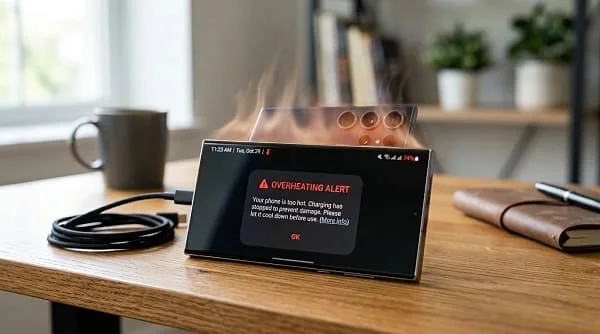
A Samsung overheating warning when charging typically appears when the battery temperature rises beyond safe charging limits. Common triggers include fast charging, wireless charging misalignment, using a non-certified charger, charging in direct sunlight, or charging on insulating surfaces.
- Move the phone to a cooler spot and place it on a hard surface.
- Switch to wired slow charging (or disable fast charging temporarily).
- Check the charging port for lint or debris (power off first).
- Replace damaged cables—high resistance cables create extra heat.
Samsung Phone Overheating After Update
Samsung phone overheating after update is common for 24–72 hours. After a major One UI update, the phone may re-index photos, optimize apps, rebuild caches, and re-train battery optimization—processes that increase CPU usage temporarily.
- Keep the phone on a charger in a cool place for an hour to let background tasks finish.
- Update all apps (Play Store + Galaxy Store) to ensure compatibility.
- If heat persists beyond 3 days, clear cache for heavy apps and check battery usage for “Android System” spikes.
Samsung Phone Overheating but Not Hot
If you’re seeing Samsung phone overheating but not hot, the phone may be detecting a localized hot spot near the battery, a thermal sensor may be misreading, or background CPU/modem activity is spiking briefly and repeatedly.
- Check battery usage for abnormal drain (this often explains “why is my phone hot and losing battery” even when the surface feels only warm).
- Test in Safe mode to rule out third-party apps: hold Power → long-press Power off → Safe mode. If the issue disappears, uninstall suspicious apps.
- Inspect charging accessories: an unstable cable can trigger temperature protection without the phone feeling extremely hot.
How to Cool Down Samsung Phone Fast (Safe Methods)
If your phone is already hot and lagging, use these safe emergency steps. This section directly answers “how to cool down Samsung phone” without risking damage.
- Stop charging immediately and unplug accessories.
- Turn on Airplane mode to cut modem heat, especially in weak signal areas.
- Close the camera/game and any navigation apps.
- Remove the case and place the phone on a cool, dry, hard surface.
- Power off for 5–10 minutes if it keeps heating up.
Avoid unsafe “cooling”: don’t put the phone in a freezer, don’t place it directly on ice packs, and don’t blow cold air into ports. Rapid temperature changes can cause condensation inside the device.
Samsung Phone Overheating After Getting Wet
Samsung phone overheating after getting wet can happen if moisture reaches the charging port, battery area, or internal connectors. Even water-resistant models can misbehave if exposed to salt water, soapy water, or high-pressure streams.
- Power off the phone (do not charge it).
- Remove SIM tray and gently dry the exterior with a lint-free cloth.
- Let it air-dry in a ventilated room; ideally use silica gel packs nearby.
- Avoid rice (dust can enter ports) and avoid heat guns/hair dryers (can push moisture deeper).
- If it still overheats or shuts down after drying for 24–48 hours, seek professional service—moisture-related shorts can worsen over time.
When Overheating Suggests Malware or a Security Issue
Not all heat is hardware. Sometimes overheating and battery drain are caused by aggressive background activity. If you need a Samsung mobile overheating problem solution and suspect malicious apps, look for these signals and take action.
Red flags of suspicious apps
- Sudden overheating while idle
- Pop-up ads outside your browser
- Unfamiliar apps with Device Admin access
- High battery use by unknown apps
- Data usage spikes
What to do
- Run Device care: Settings → Battery and device care → Protection (options vary).
- Review app installs: Settings → Apps → Sort by Recently installed.
- Remove unknown VPNs/profiles and uninstall suspicious apps.
Video: Samsung Overheating Fix (Step-by-Step)
FAQ: Samsung Phone Overheating and Switching Off
Why is my phone overheating and turning off?
Your Samsung may overheat and turn off to protect the battery and internal components. Common triggers include heavy gaming, fast charging, weak signal, software bugs, or a degraded battery. Check battery usage, reduce charging speed, remove the case, and update software to stabilize temperatures.
What are signs my Samsung phone has been hacked?
Signs include overheating while idle, rapid battery drain, unexpected pop-ups, unknown apps, unusual permissions (Accessibility/Device Admin), and data usage spikes. If this happens, boot into Safe mode, uninstall suspicious apps, run built-in protection scans, and change key passwords after securing the device.
How do I fix my overheated Samsung phone?
Unplug charging, close heavy apps, turn on Airplane mode, remove the case, and let the phone cool on a hard surface. Then update One UI and apps, clear cache for problem apps, disable unused radios, and reset network settings. If shutdowns persist, check battery health and consider service.
What are the signs that your phone battery is going bad?
Common signs are sudden shutdowns at higher percentages, swelling or screen lift, overheating during normal use, noticeably shorter runtime, and slow or inconsistent charging. Battery aging can also cause performance throttling and heat spikes under load. A Samsung Members battery diagnostic can help confirm the issue.
Conclusion
Overheating and random shutdowns are frustrating, but in most cases they’re solvable. The best path is to reduce load (close apps, lower brightness), reduce charging heat (avoid heavy use while charging, slow charging), improve cooling (remove case, airflow), and fix software causes (updates, cache clears, network reset). If you still face Samsung phone overheating and switching off how to fix issues after these steps—especially with battery swelling, repeated shutdowns, or water exposure—back up your data and seek professional inspection. Most users can restore normal temperatures without replacing their phone.
Reminder: If the phone becomes dangerously hot, smells odd, or shows battery swelling, stop using it and contact a qualified service center immediately.

About the Author
Alex Carter — Founder & Editor‑in‑Chief, GicraMobile
Alex leads GicraMobile’s testing lab and reviews. His methodology focuses on day‑to‑day performance, battery health and thermals, camera consistency, and 5G/LTE reliability—so you can pick the right phone without hype.
Real‑world testing: 90–120 Hz smoothness, idle drain, thermals
Camera checks: HDR, skin tones, low‑light stabilization
Connectivity: band fit, eSIM, VoLTE/VoWiFi, Wi‑Fi performance
You may also like this