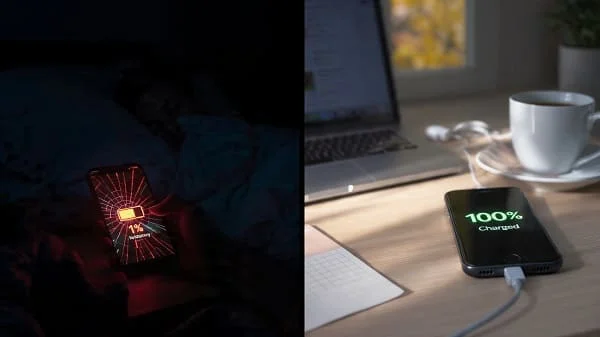
Seeing your battery drop from 60% to 20% in a couple of hours can feel like your phone is “dying”—but in most cases, it’s a fixable combination of settings, apps, network conditions, and battery health. This guide is a complete, practical answer to How to fix phone battery draining fast android, with a step-by-step plan to stop android battery draining fast problems without installing risky “booster” apps or guessing.
You’ll learn how to identify the real drain source (screen, signal, apps, background sync, location, 5G, overheating, or a worn battery), then apply the safest fixes first—so you keep performance and notifications working normally.
Table of Contents
Why does my Android battery drain so fast overnight?
Value of this article: Instead of giving you generic “turn on battery saver” tips, this guide shows you how to prove what’s draining power (apps, radios, screen, or battery wear) and fix it in the correct order—so you don’t lose notifications, break important apps, or waste time on placebo solutions.
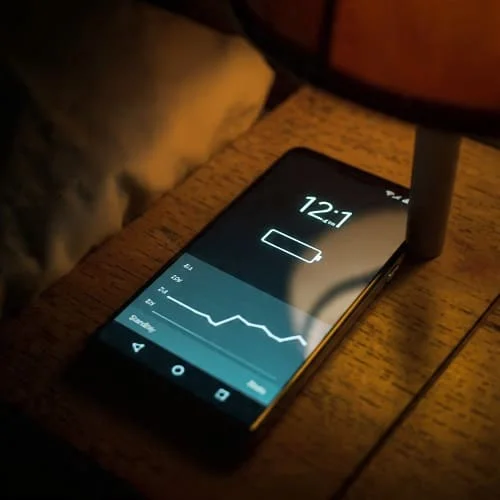
Overnight drain is one of the clearest signs something is running when your phone should be mostly asleep. A healthy Android phone on standby often loses roughly 1–5% overnight (it varies by model, signal strength, and background syncing). If you’re losing 10–30%+ while you sleep, it’s usually caused by one (or a combination) of these:
- Weak mobile signal (the phone works harder to stay connected)
- Wi‑Fi issues (constant reconnecting or captive portal loops)
- A “runaway” app keeping the CPU awake (social apps, VPNs, backup apps, some launchers)
- Location services (or scanning features) running in the background
- Notifications/sync loops (email/calendar syncing repeatedly)
- Battery aging (older batteries drop faster at idle and under light load)
If your main issue is specifically overnight drain, read this focused guide as well: Android phone battery drains overnight. Then return here for the broader fixes that cover daytime drain too.
Now let’s diagnose the problem the right way.
1) Quick triage: confirm what “fast drain” means on your phone
Before changing settings, do a quick reality check. Fast drain can mean different things:
A) Is the battery draining fast during use, or only on standby?
- Drains fast only while using the phone → common causes are screen brightness, refresh rate, gaming, camera, hotspot, and weak signal.
- Drains fast while idle/overnight → common causes are runaway apps, background location, bad Wi‑Fi/cellular conditions, and sync loops.
B) Did it start after installing an app or enabling a feature?
Think about what changed in the last 1–7 days:
- New VPN / ad blocker / Private DNS
- New fitness app or step counter
- New launcher, keyboard, “cleaner/booster,” or wallpaper app
- New smartwatch or Bluetooth device
- System update or security patch
C) Rule out “battery percentage panic”
Sometimes the percentage drops quickly at the top (100–90%) or bottom (15–0%) due to battery aging or calibration behavior. What matters is real-world screen time and standby time:
- Check your Screen time in Battery usage.
- Check whether the phone is warm when idle (heat can increase drain).
2) Find the culprit using Battery usage (the most important step)
If you want a reliable fix for android battery draining fast, don’t start by turning off random features. Start by reading what Android already reports.
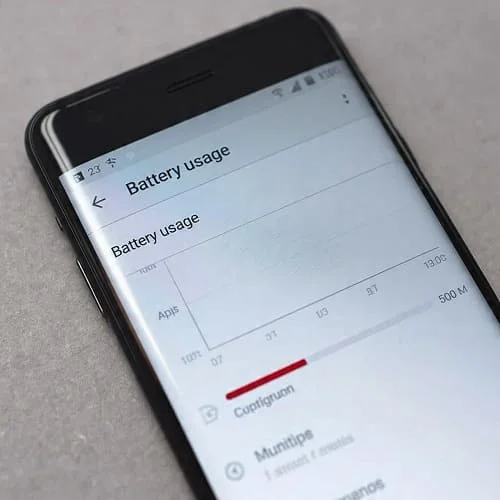
A) Open the Battery usage screen
Paths vary by brand, but commonly:
- Settings → Battery → Battery usage
- Or: Settings → Battery and device care → Battery (Samsung)
B) What to look for
- Top apps with unusually high percentages
- Apps with heavy background usage (not just foreground)
- System items that spike:
- Mobile network (signal issues)
- Wi‑Fi (reconnect loops)
- Location (GPS or scanning)
- Google Play services (often caused by another app triggering it)
C) Use a simple “compare test”
To avoid guessing:
- Charge to around 80–90%.
- Use the phone normally for 2–3 hours.
- Re-check Battery usage and note:
- Which app climbed fastest
- Which app consumed background time
- Whether “Mobile network” is unusually high
This test usually reveals the real culprit within one day.
3) App-related drains: fixes that work (without breaking notifications)
Apps are the #1 reason many users experience sudden battery drain. The goal is to stop the drain while keeping essential apps (messages, email) working properly.
A) Update the draining app (and update all apps)
Open Google Play Store → Manage apps & device → Update all. Developers often patch battery bugs quickly—especially after Android updates.
B) Force stop + clear cache (safe first line)
- Settings → Apps → (problem app)
- Tap Force stop
- Tap Storage & cache → Clear cache
This can fix background loops without deleting your data.
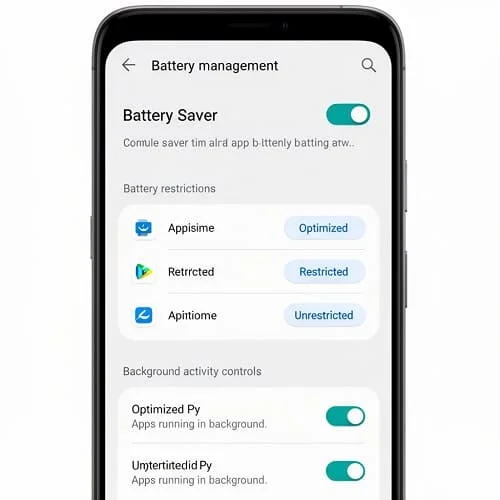
C) Restrict background battery (do this selectively)
On many phones:
- Settings → Apps → (app) → Battery → choose Optimized or Restricted
Practical rule:
- Use Restricted for apps that don’t need real-time notifications (shopping, games, some social apps).
- Avoid restricting apps you rely on for instant messages/alarms unless you test it first.
D) Check permissions that enable constant background work
Some apps drain power because they have permissions that allow continuous activity:
- Location set to “Allow all the time”
- Physical activity (fitness tracking)
- Nearby devices / Bluetooth permissions
- Unrestricted data (background data always allowed)
Go to: Settings → Apps → (app) → Permissions, and downgrade what you don’t need.
E) Remove “battery saver / cleaner / RAM booster” apps
Many of these apps:
- Run permanently in the background
- Show ads and keep the CPU awake
- Repeatedly close apps (which can increase reloading and drain)
If you installed one right before the drain began, uninstall it and retest for 24 hours.
F) A fast isolation method: Safe Mode
If you suspect a third-party app but can’t identify it, Safe Mode is the quickest proof (more details in Section 11). If drain disappears in Safe Mode, an installed app is the cause.
4) Screen and display settings that quietly eat battery
Your display is usually the biggest battery consumer during active use. These changes often improve battery life without making the phone feel “slow.”
A) Reduce brightness (or use adaptive brightness)
- Enable Adaptive brightness
- Lower brightness indoors (high brightness is a major drain)
B) Reduce refresh rate (120Hz → 60Hz) as a test
If your phone supports 90/120Hz, try switching to 60Hz for one day. The difference can be significant, especially on older batteries.
C) Always-On Display (AOD) and “raise to wake”
- If you use AOD, set it to tap to show or scheduled hours.
- Disable “Wake on pickup” or reduce tap-to-wake sensitivity if it wakes constantly in your pocket.
D) Dark theme (especially on OLED)
Dark theme helps most on OLED screens because black pixels consume less power. It won’t fix severe drain alone, but it’s a good supporting change.
E) Live wallpapers and heavy widgets
Animated wallpapers and constantly refreshing widgets can add background work. If you’re troubleshooting, switch to a static wallpaper temporarily.
5) Mobile signal, 5G, Wi‑Fi, and hotspot drains
Network radios are a huge hidden cause of fast drain—especially if you live or work in a weak signal area.
A) Weak signal = high drain
Clues:
- Battery usage shows high Mobile network
- Phone gets warmer in certain buildings
- Battery drops quickly while idle at work/home (but not elsewhere)
Fixes to test:
- Switch preferred network from 5G to LTE/4G for 24 hours
- Enable Wi‑Fi Calling if your carrier supports it
- Use Airplane mode + Wi‑Fi in very poor signal zones (when you don’t need cellular)
B) Wi‑Fi reconnect loops
If Wi‑Fi keeps disconnecting, Android may repeatedly scan/reconnect. Try:
- Forget the network and reconnect
- Restart the router (simple but effective)
- Disable “Auto connect” on problematic networks
C) Hotspot drains fast (this is normal—within limits)
Hotspot turns your phone into a router. To reduce drain:
- Lower screen brightness or turn screen off
- Reduce connected devices
- Use 4G instead of 5G if heat/drain is extreme
6) Location, Bluetooth/Wi‑Fi scanning, and background sensors
Even if you “turn off GPS,” your phone can still scan for networks and devices to improve location accuracy. Those scans can contribute to standby drain.
A) Control Location usage
- Settings → Location → review which apps have “Allow all the time”
- Change most apps to While using the app
- Disable location for apps that don’t need it (flashlight, simple tools)
B) Disable Wi‑Fi and Bluetooth scanning (optional but helpful)
On many Android versions:
- Settings → Location → Location services → turn off Wi‑Fi scanning and Bluetooth scanning
This can reduce background activity, especially overnight.
C) Smartwatch and Bluetooth accessories
Some watches constantly sync notifications and health data. If drain started after pairing a wearable:
- Update the wearable app
- Reduce notification mirroring (only essential apps)
- Test one night with Bluetooth off to compare overnight drain
7) Sync, email, messaging, and notification strategies (balanced)
Many battery tips tell you to disable everything—but that can break email, messaging, and important alerts. Here’s a balanced approach that keeps your phone useful.
A) Email: reduce aggressive syncing (especially on multiple accounts)
- Set less important accounts to fetch less frequently
- Disable auto-sync for accounts you don’t use
B) Social apps: limit background activity instead of disabling notifications completely
For apps like Facebook, Instagram, TikTok:
- Keep notifications you need
- Restrict background battery (Section 3C)
- Disable auto-play videos inside the app (saves both data and battery)
C) Turn off “always listening” features you don’t use
Voice wake features can be efficient, but if you’re troubleshooting, test temporarily disabling:
- Always-on voice assistant listening
- Nearby sharing scanning
8) After an update: what’s normal vs what’s not
Battery drain after a system update is common for the first day or two. Android may be:
- Optimizing apps
- Rebuilding indexes
- Syncing photos/files
What’s normal
- Slight warmth and higher drain for 24–48 hours
- Battery improves after a couple of charge cycles
What’s not normal
- Phone drains fast while idle for several days
- One app suddenly dominates Battery usage after the update
- Phone runs hot doing nothing
If it’s not normal, use this sequence:
- Update all apps
- Clear cache for the top draining app(s)
- Restart
- Test Safe Mode
Official reference for battery and device performance tips: Google support: Fix battery drain on Android
9) Battery health: how to tell if it’s time to replace it
Sometimes the problem isn’t software—it’s battery wear. Lithium batteries degrade over time (cycles + heat). A worn battery can drop quickly even if your settings are perfect.
Common signs of battery aging
- Big drops at 20–40% and unexpected shutdowns
- Battery percentage fluctuates or jumps
- Phone gets warm with light use
- Fast drain compared to when the phone was new
What you can do
- If your brand provides a battery health screen, check it (some do).
- If the phone is 2–4+ years old and drain is severe, consider a battery replacement at an authorized or reputable repair shop.
Battery replacements can restore “like new” daily performance on many devices for far less than a new phone.
10) Charging habits that reduce drain and slow battery aging
Charging habits affect both short-term drain (heat) and long-term battery health.
A) Avoid heavy use while fast charging
Gaming/video calls while charging creates heat. Heat increases resistance and drain, and can make the phone feel like it “won’t hold charge.” If possible:
- Charge first, then use heavy apps
- Or use a slower charger during heavy use
B) Use quality chargers and cables
Cheap chargers can run hotter, charge inefficiently, and stress the battery. Stick to reputable brands and correct power ratings.
C) Enable optimized charging / battery protection
Many phones offer features that reduce time spent at 100% and limit stress. If your phone supports it, enable:
- Optimized charging
- Protect battery / limit to 80–85%
D) Don’t charge under a pillow or in direct sun
Insulation traps heat and accelerates battery wear.
11) Advanced troubleshooting (Safe Mode, resets, and clean setup)
If you tried the main fixes and the drain continues, it’s time to isolate whether the issue is caused by third-party apps or deeper system problems.
A) Safe Mode test (best proof of an app problem)
Safe Mode disables third-party apps temporarily. If battery drain improves drastically in Safe Mode, a downloaded app is responsible.
- Common method: press and hold Power → press and hold “Power off” → Safe Mode (varies by device).
- Use the phone for a few hours (or overnight) and compare drain.
B) Reset network settings (if “Mobile network” is always high)
Settings → System → Reset options → Reset Wi‑Fi, mobile & Bluetooth. This can fix configuration issues that cause constant scanning.
C) Clean setup (last resort, but effective)
If the phone drains fast even in Safe Mode or with minimal apps, you may be dealing with system corruption or a hardware issue. A factory reset can help, but do it carefully with backups.
If you decide to reset, follow this guide: Samsung support: battery drains quickly
Pro tip: After a reset, don’t restore everything immediately. Set up the phone, test battery for half a day, then install apps gradually until the drain returns—this reveals the culprit.
FAQ
How do I know if an app is draining my battery in the background?
Go to Settings → Battery → Battery usage and check which apps have high “background” usage. That’s the most reliable evidence.
Does closing apps from Recent Apps save battery?
Not always. Android manages memory efficiently. Constantly closing apps can cause more reloading and sometimes more drain. Focus on the real culprit: high background battery usage, permissions, and network behavior.
Why is “Mobile network” using so much battery?
Usually weak signal, 5G switching, or poor coverage. Test LTE/4G only for a day, enable Wi‑Fi calling, and consider resetting network settings.
Is Battery Saver safe to keep on all the time?
Yes, but it may restrict background activity and reduce performance depending on the phone. Use it when you need it, and use targeted restrictions for problem apps for a better balance.
When should I replace the battery?
If the phone is a few years old, drains fast even after app fixes, gets warm at light use, or shuts down unexpectedly at moderate percentages, a battery replacement is often the best long-term fix.
Final checklist
- Check whether drain is mainly overnight or during use.
- Open Battery usage and identify the top background drain.
- Update apps, then force stop + clear cache for the worst offender.
- Restrict background battery for non-essential apps (selectively).
- Test network causes: switch 5G → LTE, use Wi‑Fi calling, reset network settings if needed.
- Reduce display drain: adaptive brightness, 60Hz test, limit AOD.
- Control Location permissions and disable Wi‑Fi/Bluetooth scanning if it helps.
- If still severe: Safe Mode test → clean setup/factory reset only if necessary.
- If the phone is old or symptoms match aging: consider battery replacement.
By using evidence (Battery usage) and controlled tests, you can fix most android battery draining fast cases without sacrificing the features you actually need.

About the Author
Alex Carter — Founder & Editor‑in‑Chief, GicraMobile
Alex leads GicraMobile’s testing lab and reviews. His methodology focuses on day‑to‑day performance, battery health and thermals, camera consistency, and 5G/LTE reliability—so you can pick the right phone without hype.
Real‑world testing: 90–120 Hz smoothness, idle drain, thermals
Camera checks: HDR, skin tones, low‑light stabilization
Connectivity: band fit, eSIM, VoLTE/VoWiFi, Wi‑Fi performance
You may also like this