If your phone stutters when you open apps, the keyboard lags, or scrolling feels “heavy,” you’re probably searching for a quick way to Speed up Android phone performance—ideally right now. This guide delivers exactly that: a real 10‑second speed boost you can apply immediately, plus a complete set of safe, technician-approved fixes that make the improvement last (without shady “booster” apps).
You’ll learn how to identify what’s slowing your device (storage pressure, background apps, overheating, buggy updates, battery saver settings, or aging hardware) and fix it in the correct order so you don’t waste time.
Table of Contents
Value of This Article
This article gives you two things most “speed up” posts don’t: (1) a legit 10-second action that improves perceived speed immediately, and (2) a step-by-step diagnosis that helps you fix the real cause (storage pressure, runaway apps, heat throttling, or update bugs) so the lag doesn’t come back. It avoids risky tools, avoids misleading “RAM booster” advice, and keeps your phone stable and AdSense-friendly.
1) How to speed up your Android phone in 10 seconds (realistic method)
Most “10 seconds” claims online are exaggerated. But there is one change that often makes an Android phone feel faster almost instantly:
10‑second method: Reduce animations (instant “snappier” feeling)
Animations don’t usually increase raw processing power, but they can make the phone feel dramatically quicker because screens transition faster and the UI looks more responsive.
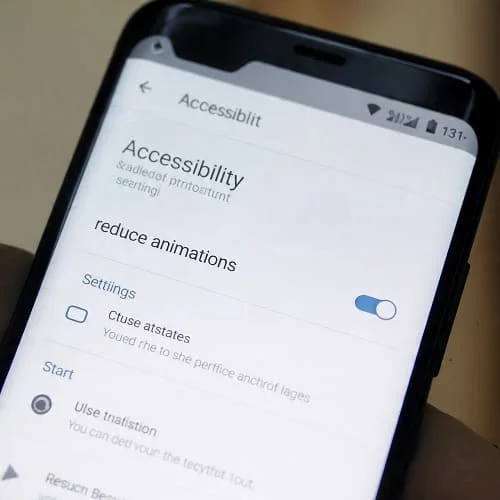
Option A (fastest, if your phone has it): Use the “Remove animations / Reduce animations” toggle.
- Go to Settings → Accessibility
- Search for Remove animations or Reduce animations
- Turn it ON
Option B (more powerful, if Developer options are already enabled): Set animation scales to 0.5x.
- Settings → Developer options
- Set these to 0.5x:
- Window animation scale
- Transition animation scale
- Animator duration scale
Why this works: The UI spends less time “animating” and more time showing the result. On older phones, this can reduce the feeling of delay.
Honest note: If your phone is truly slow due to low storage, overheating, or a broken app, reducing animations won’t fix the root cause. Use it as an instant boost, then continue with the next sections for a real, lasting improvement.
2) Quick wins (30 seconds to 3 minutes) that noticeably reduce lag
These steps are safe, fast, and often fix 70% of everyday “my phone is slow” complaints.
A) Restart (yes, it still matters)
Restarting clears stuck background processes, memory fragmentation, and temporary glitches—especially if the phone hasn’t been rebooted in weeks.
- Hold Power → Restart
B) Close one heavy app that’s currently “melting” the phone
Instead of swiping away everything, close the one app that’s likely causing load right now:
- Camera after long recording
- A heavy game
- Video call apps
- Social apps playing continuous video
C) Turn off Power saving mode (if it’s throttling performance)
Battery Saver is useful, but it can reduce CPU speed and background activity. If your phone feels slow and Battery Saver is on, turn it off and test.
D) Free 2–5 GB quickly (fast storage relief)
If storage is near full, Android slows down. In under 2 minutes you can usually delete:
- Large files in Downloads
- Old screen recordings
- Offline videos (YouTube/Netflix)
- Unused apps
Google’s official storage tips (useful and safe): Free up space on Android.
E) Update apps (buggy builds cause lag)
Play Store → Manage apps & device → Update all. A single buggy app can cause constant background CPU use.
3) Diagnose the slowdown: what exactly feels slow?
“Slow phone” can mean different problems. Identify your symptom first:
| Symptom | Likely cause | Best first move |
|---|---|---|
| Home screen and app switching feels laggy | Animations, RAM pressure, heavy launcher/widgets | Reduce animations, simplify launcher, restart |
| Keyboard typing delay | Low storage, background load, keyboard app bug | Free storage, update keyboard, restart |
| Apps take forever to open | Low storage, app cache corruption, background syncing | Free space, update apps, clear cache for worst apps |
| Phone is slow only when hot | Thermal throttling | Cool down, stop charging while using, reduce load |
| Only browsing/YouTube is slow | Network/DNS/Wi‑Fi issues | Test Wi‑Fi vs mobile data, router reboot, DNS check |
This diagnosis prevents “random settings changes” that don’t match your situation.
4) Storage: the #1 hidden reason Android gets slow
If your phone has less than about 10–15% free storage, you can get stutters, long app launches, camera delays, and even app crashes. Android needs free space for temporary files, app updates, databases, and system logs.
A) How to check storage
- Settings → Storage
- Or: Settings → Battery and device care → Storage (Samsung)
B) What to delete first (highest impact, lowest risk)
- Downloads folder (often full of forgotten files)
- Large videos in DCIM or screen recordings
- Offline content in streaming apps
- Apps you haven’t used in months
C) Clear app cache (selectively)
Clearing cache can help if an app’s temporary files are bloated or corrupted. Good candidates:
- Browsers
- Social apps
- Maps
- Streaming apps
Path: Settings → Apps → (app) → Storage & cache → Clear cache
D) Avoid “storage cleaner” apps
Android already has safe storage management tools. Third-party cleaners often run in the background, show ads, and sometimes delete useful cache that apps rebuild (which can actually make the phone feel slower).

5) Apps and background activity: stop the “silent” slowdown
Background activity can slow your phone in two ways: it consumes CPU (making the phone “busy”) and it consumes RAM (making the phone reload apps more often).
A) Find the heavy app
Check both battery and memory indicators:
- Settings → Battery → Battery usage (look for high background usage)
- Settings → Developer options → Running services (if available)
B) Uninstall or replace the worst offenders
Some app categories are frequent slowdown sources:
- “Phone cleaner / booster” apps
- Free VPNs with heavy background services
- Launchers with aggressive effects and widgets
- Ad-heavy flashlight or utility apps
C) Restrict background activity (without breaking your essentials)
Settings → Apps → (app) → Battery → choose:
- Restricted for non-essential apps
- Optimized for most apps
Don’t restrict apps you need for real-time alerts (messaging, banking OTP, alarms) unless you test carefully.
D) Reduce widgets and live wallpapers
Widgets that update constantly (news, weather every few minutes, crypto tickers) can keep background work running. Start by removing the least important ones and keep only what you use daily.
6) Updates and cache issues: what to do after an Android update
It’s common for Android to feel slower for a short time after a major update because it’s optimizing apps and rebuilding indexes. But if it stays slow for days, troubleshoot.
A) Give it 24–48 hours (sometimes that’s all it needs)
After updates, your phone may:
- Optimize apps
- Re-index photos
- Sync data
B) Update your apps after updating Android
Older app versions can be less compatible with the new system build and cause lag or crashes.
C) Clear cache for the app that feels slow (not everything)
If one app became sluggish, clear its cache first. If the whole phone feels slow, focus on storage, heat, and background apps before considering drastic steps.
D) Install security and Google Play system updates
These can fix performance and compatibility issues:
- Settings → Security & privacy → Updates → Security update
- Settings → Security & privacy → Updates → Google Play system update
7) Heat and throttling: when overheating makes your phone crawl
Heat is a performance killer. When the phone gets hot, Android reduces CPU/GPU speed (thermal throttling) to protect the battery and chipset. That feels like sudden lag.
Clues heat is the problem
- The phone is warm/hot near the camera or middle back
- Lag happens during charging, gaming, video calls, navigation, or direct sunlight
- Brightness drops automatically or camera features disable
Fixes
- Remove the case temporarily
- Don’t use heavy apps while fast charging
- Lower brightness
- Close the heavy app, let the phone cool for 5–10 minutes
If heat happens often even with light use, it may indicate a runaway app or battery wear.
8) Animations: make the phone feel faster (without breaking it)
We already covered the 10-second animation tweak, but here’s the “safe expanded version” for better results.
A) If Developer options are NOT enabled
Enabling them takes longer than 10 seconds, but it’s still safe:
- Settings → About phone → Software information
- Tap Build number 7 times
- Enter your PIN if asked
- Go back → Developer options → set animation scales to 0.5x
B) Recommended values
- 0.5x feels fast while keeping UI smooth.
- Off can feel “too abrupt” and may cause minor UI oddities on some devices.
C) What not to change
Don’t change random developer settings like background process limit, forcing GPU rendering, or “disable HW overlays” as a speed hack. Those are common “YouTube tricks” that can cause instability, battery drain, and worse performance.
9) Battery saver, RAM, and performance modes (what actually helps)
This is where many articles mislead people.
A) RAM “boosting” myths
Android is designed to use RAM. More free RAM doesn’t automatically mean a faster phone. Aggressively closing apps or using RAM boosters can cause apps to reload more often (which feels slower).
B) Battery Saver vs performance
- Battery Saver ON: can throttle CPU, reduce background tasks, and make the phone feel slower (but saves battery).
- Battery Saver OFF: better performance, but potentially more drain.
If your goal is speed, test with Battery Saver off.
C) Samsung Performance profile (if available)
On some Samsung phones:
- Settings → Battery and device care → Battery → More battery settings → Performance profile
Choose the profile that matches your goal. If set to “Light,” you may notice slower peak performance (it’s designed to save power and reduce heat).
10) Network-related lag: when “slow internet” feels like a slow phone
Sometimes the phone is fine, but apps appear slow because the connection is slow or unstable. Common signs:
- Scrolling the UI is smooth, but content takes forever to load
- Only online apps are slow (browser, social, streaming)
- Switching Wi‑Fi to mobile data changes everything
A) Quick tests
- Try Wi‑Fi, then try mobile data
- Restart the router
- Disable VPN/Private DNS temporarily
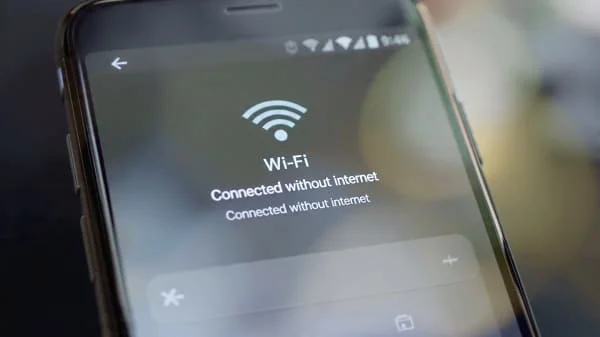
B) If your Wi‑Fi is connected but internet is broken
This is a common Samsung/Android issue. Fixing it can instantly “speed up” the phone experience because apps stop hanging while waiting for network timeouts.
11) Advanced fixes: Safe Mode, app resets, and factory reset (last resort)
If you’ve tried storage cleanup, app updates, and the phone is still slow, do these controlled tests.
A) Safe Mode test (best way to confirm an app is the cause)
Safe Mode disables third‑party apps temporarily. If your phone becomes noticeably faster in Safe Mode, the slowdown is caused by an installed app (often a launcher, VPN, cleaner, or ad-heavy app).
- Common method: hold Power → press and hold Power off → Safe Mode (varies by brand)
Then uninstall suspicious apps starting with the most recent installs.
B) Reset app preferences (safe-ish)
This can fix issues caused by disabled system apps or broken defaults.
- Settings → Apps → (three dots) → Reset app preferences
C) Factory reset (only if you’ve proven it’s necessary)
A factory reset can restore performance if the system is heavily corrupted or overloaded with years of leftovers. But it wipes data, so back up first.
For official manufacturer troubleshooting guidance, Samsung support is a reliable reference: Samsung Support: Device is slow / freezing.
12) Long-term maintenance checklist (keep it fast)
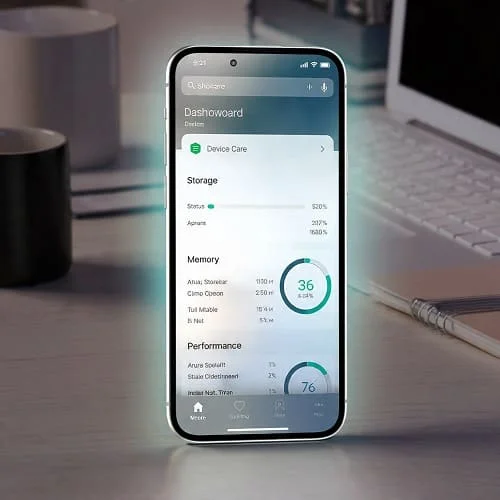
- Restart weekly (especially if you rarely power off).
- Keep 10–15% storage free to avoid slowdowns.
- Update apps regularly (bug fixes often include performance improvements).
- Remove apps you don’t use (less background activity).
- Use a lightweight home screen (fewer widgets, simpler wallpaper).
- Avoid heat (heat throttling makes phones feel old fast).
- Replace the battery if it’s old and the phone throttles/overheats easily.
Related guide
If you want an additional checklist and extra methods, see: How to make your Android phone run faster?
Video walkthrough
FAQ
Do “RAM booster” apps speed up Android?
Usually no. Many boosters run in the background and can make performance worse by forcing apps to reload. Focus on storage, background app behavior, heat, and updates.
Will clearing cache make my phone faster?
Clearing cache can help for specific apps that became bloated or buggy. It’s not a universal speed button, and clearing all cache constantly is unnecessary.
What is the fastest safe setting change to make Android feel quicker?
Reducing animations (Accessibility “Reduce animations” or Developer options animation scales set to 0.5x) is one of the fastest changes that improves perceived speed immediately.
Why is my phone fast after restart but slow again later?
This often points to a runaway app, heavy background syncing, low storage, or heat throttling. Use Battery usage and Safe Mode to isolate the app, and keep storage free.
When is it time to factory reset?
If your phone is slow even after freeing storage, uninstalling problem apps, updating everything, and testing Safe Mode—or if the system is unstable—then a reset (with backup) can help.

About the Author
Alex Carter — Founder & Editor‑in‑Chief, GicraMobile
Alex leads GicraMobile’s testing lab and reviews. His methodology focuses on day‑to‑day performance, battery health and thermals, camera consistency, and 5G/LTE reliability—so you can pick the right phone without hype.
Real‑world testing: 90–120 Hz smoothness, idle drain, thermals
Camera checks: HDR, skin tones, low‑light stabilization
Connectivity: band fit, eSIM, VoLTE/VoWiFi, Wi‑Fi performance
You may also like this